
If you’ve ever settled in to watch your favorite match or show only to see the spinning wheel of doom freeze your screen, you already know how frustrating IPTV buffering can be. As more households cut the cord and switch to internet-delivered television, buffering has become the number one complaint among streamers — and the number one thing people search for a fix for.
The good news? Most buffering problems are fixable, and you don’t need to be a network engineer to solve them. This guide breaks down exactly why IPTV buffering happens in 2026 and walks you through every practical way to fix IPTV buffering for good, from simple router tweaks to smarter app settings.
Prefer a fast, checklist-style read? See our 17-point IPTV buffering fix guide for quick troubleshooting steps.
Table of Contents
What Is IPTV Buffering, Exactly?
Buffering is what happens when your device can’t download video data fast enough to keep up with playback. Instead of a smooth stream, you get pauses, freezes, or a loading icon while your player waits for more data to arrive.
There are two flavors worth knowing:
- Pre-buffering — the short pause before a stream starts, while your app loads enough data to begin playback safely.
- Re-buffering — the annoying mid-show freeze that happens when your connection can’t sustain the bitrate the video needs in real time.
Occasional pre-buffering is normal and even healthy — it’s a sign your app is being cautious. Constant re-buffering, on the other hand, is the real problem this guide will help you fix.
Why Does IPTV Buffer? The Real Root Causes
Before jumping into fixes, it helps to understand what’s actually causing the interruptions. In most cases, it comes down to one (or a combination) of these five issues.
1. Not Enough Bandwidth
Every stream needs a minimum, steady amount of bandwidth to play without interruption. Standard-definition content typically needs 4–5 Mbps, HD needs closer to 10 Mbps, and 4K can demand 25 Mbps or more, in line with the FCC’s broadband speed guide for video streaming. If your connection can’t consistently deliver that — because of a low-tier plan, too many connected devices, or background downloads eating your bandwidth — buffering is almost guaranteed.
2. Network Congestion
Think of your local network and your ISP’s network like highways. During peak hours — typically evenings and weekends — everyone in your building or neighborhood is streaming, gaming, or video calling at once. That shared congestion slows everyone down, even if your own home setup is perfectly fine.
3. ISP Throttling
Some internet providers intentionally slow down certain types of traffic, especially video streaming, once you hit a data cap or during high-traffic periods. This kind of throttling is often invisible to the user — your speed test might look fine, but streaming traffic specifically gets deprioritized.
4. Poor Home Network Setup
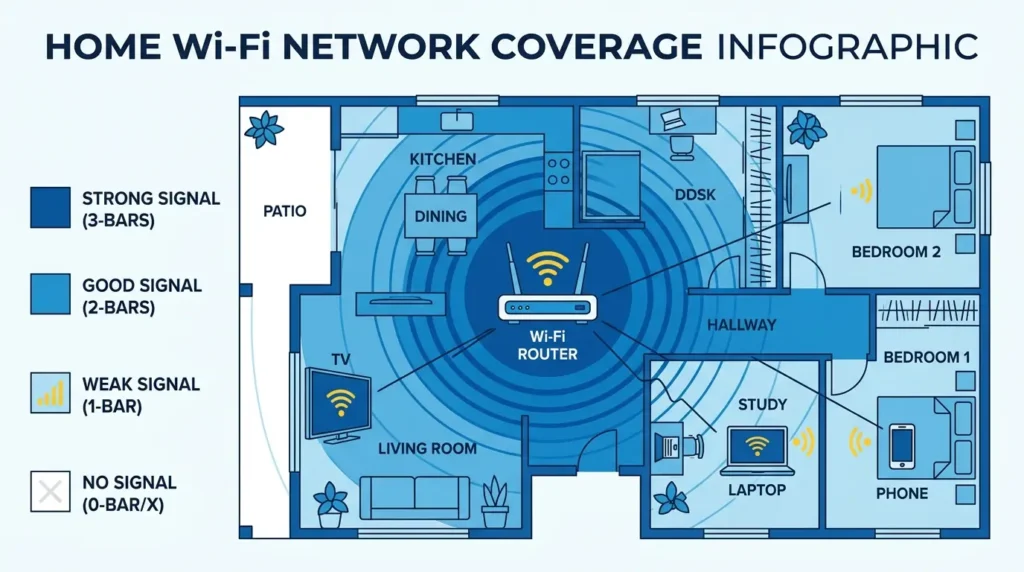
A surprising number of buffering complaints come down to something as simple as router placement. Weak Wi-Fi signals, outdated hardware, or interference from other electronics can quietly wreck an otherwise-good internet connection before it even reaches your streaming device.
5. Server-Side Problems
Sometimes the issue isn’t on your end at all. If an IPTV provider’s servers are overloaded, poorly maintained, or physically far from your location, you’ll experience buffering no matter how good your home setup is.
How to Fix IPTV Buffering: Step-by-Step Solutions
Now for the part you’re really here for. Here’s how to fix IPTV buffering issues, organized from the quickest wins to the more advanced fixes. If you’re specifically hunting for a provider that rarely buffers in the first place, our Best No Buffering IPTV Services in the USA (2026) roundup is worth a look alongside these fixes.
1. Test and Upgrade Your Internet Plan
Start with a simple speed test — Ookla’s Speedtest is a reliable free option — at the time of day you usually stream. If your results are close to or below the minimum requirement for your video quality, that’s your answer.
- For HD streaming, aim for at least 15–20 Mbps of consistently available bandwidth (not just the number advertised by your ISP).
- For 4K, budget for 30+ Mbps, since real-world speeds rarely match advertised maximums.
- Keep an eye on data caps — hitting one mid-month can trigger throttling that silently ruins your streaming quality.
2. Switch to a Wired Connection When Possible
Wi-Fi is convenient, but Ethernet is far more reliable for streaming. A wired connection eliminates signal interference and packet loss almost entirely. If running a cable to your TV or streaming box isn’t practical, a powerline adapter is a solid middle-ground option.
3. Optimize Your Router Setup
If Wi-Fi is your only option, a few adjustments can make a big difference:
- Place your router centrally and away from walls, appliances, and other electronics that cause interference.
- Switch to the 5GHz band for streaming devices when they’re close to the router — it’s faster and less congested than 2.4GHz.
- Upgrade outdated routers. Anything more than five or six years old likely lacks the processing power to handle modern streaming loads efficiently.
- Consider a mesh Wi-Fi system if your home has dead zones.
4. Use Quality of Service (QoS) Settings
Most modern routers let you prioritize specific devices or types of traffic. Setting your streaming device or IPTV app as a QoS priority ensures it gets first access to available bandwidth, even when other devices on the network are active.
5. Reboot Your Equipment Regularly
It sounds almost too simple, but restarting your router, modem, and streaming device on a regular basis clears out temporary glitches, memory buildup, and connection errors that accumulate over time. A monthly reboot schedule (or even weekly, for heavy users) can meaningfully reduce buffering frequency.
6. Check for ISP Throttling — and Consider a VPN
If your speeds seem fine on a general test but streaming still lags, throttling could be the culprit. A reputable VPN can sometimes bypass throttling by encrypting your traffic so your ISP can’t identify and deprioritize it. Choose a VPN service known for low latency and strong, geographically diverse server coverage, since a poorly chosen VPN can introduce as much lag as it solves.
7. Choose a Reliable IPTV Provider
Not every IPTV service is built the same. Before committing, look for:
- Providers with multiple server locations near your region, which reduces latency.
- Positive, recent user reviews specifically mentioning stream stability.
- Responsive customer support that can troubleshoot server-side issues quickly.
Not sure where to start? Our comparisons of the 19 Best USA IPTV Service Providers in 2026 and the broader 23 Best IPTV Service Providers in 2026 break down stability, server locations, and pricing side by side.
8. Adjust Buffer and Bitrate Settings in Your App
Many IPTV apps let you manually increase the buffer size. A larger buffer means a slightly longer wait before playback starts, but far fewer interruptions once it does. If your app supports adaptive bitrate streaming, make sure it’s enabled — this lets the stream automatically drop quality temporarily rather than freezing completely when bandwidth dips.
If you’re using IPTV Smarters Pro specifically, our guides on how to install IPTV Smarters Pro and fixing IPTV Smarters Pro when it’s not working both cover buffer and cache settings in more detail. Samsung Smart TV users can also check our best IPTV player for Samsung Smart TV guide for app-specific playback settings.
9. Close Background Apps and Devices
Before you start streaming, pause cloud backups, software updates, and any other device on your network that might be quietly consuming bandwidth. On shared networks, this single step often resolves buffering that seemed unexplainable.
10. Contact Support When All Else Fails
If you’ve worked through every fix above and buffering persists, it’s worth reaching out to your ISP or IPTV provider directly. Persistent, unresolved buffering can point to an issue with your specific line, account, or a server outage that only support staff can confirm and resolve.
What’s Changing in 2026: Technology That’s Reducing Buffering

Streaming infrastructure has come a long way, and several developments are making buffering less common than it used to be.
5G and improved fixed-wireless options, including deployments detailed by the GSMA’s 5G resources, now give many households an alternative to traditional broadband, offering higher bandwidth and lower latency than older mobile networks — a real benefit for viewers in areas with unreliable cable or fiber.
Edge computing, explained in more depth in Cloudflare’s overview of edge computing, is allowing more streaming providers to process and deliver content from servers physically closer to users, cutting down the latency that used to cause frustrating delays, especially for viewers far from a provider’s main data centers.
AI-driven network management is increasingly built into both routers and streaming apps. These systems can predict congestion before it happens and adjust bitrate or buffer size proactively, rather than reacting after a freeze has already occurred.
None of these technologies eliminate buffering entirely, but together they’re steadily shrinking how often — and how badly — it happens.
Quick Buffering Checklist
If you just want the short version, run through this checklist next time your stream freezes:
- Run a speed test during your usual streaming hours.
- Switch to a wired connection if you’re on Wi-Fi.
- Restart your router, modem, and streaming device.
- Move closer to the router or upgrade to mesh Wi-Fi.
- Enable QoS and prioritize your streaming device.
- Close background apps and other bandwidth-heavy devices.
- Try a VPN if you suspect ISP throttling.
- Increase the buffer size in your app’s settings.
- Confirm your IPTV provider’s servers aren’t experiencing an outage.
Final Thoughts
Buffering is one of the most common complaints in streaming, but it’s rarely unsolvable. Most of the time, the fix is a combination of a few small adjustments — a wired connection, a better-placed router, a QoS setting, or simply picking a more reliable provider. When you understand what’s actually happening behind that spinning loading icon, you can troubleshoot it methodically instead of guessing.
As 5G, edge computing, and smarter AI-based network tools continue to mature through 2026 and beyond, buffering should keep becoming rarer — but until then, the steps above are the most effective way to fix IPTV buffering and get back to smooth, uninterrupted viewing.
Still stuck? Contact our support team with your device model and internet speed for a faster diagnosis, or check our IPTV installation guide if the issue started right after setup.
Related Reads
- IPTV Buffering Fix: 17 Ways to Stop Freezing and Lag in 2026
- Best No Buffering IPTV Services in the USA (2026 Complete Guide)
- 19 Best USA IPTV Service Providers in 2026: Compared and Ranked
- IPTV Smarters Pro Not Working? 15 Safe Fixes for 2026
- How to Install IPTV Smarters Pro: The Ultimate 2026 Guide
Frequently Asked Questions (FAQ)
What is the difference between pre-buffering and re-buffering? Pre-buffering is a short, normal pause that occurs before a stream starts, allowing your app to load enough data to begin playback safely. Re-buffering, on the other hand, is an annoying mid-show freeze that happens when your connection is unable to sustain the required real-time bitrate of the video.
What internet speed do I need to stop IPTV from buffering? For standard-definition content, you typically need 4–5 Mbps. HD streams generally need closer to 10 Mbps, but it is recommended to aim for 15–20 Mbps of consistently available bandwidth. If you are streaming in 4K, it can demand 25 Mbps or more, so you should budget for 30+ Mbps since real-world internet speeds rarely match the advertised maximums.
Can my internet provider cause my IPTV to buffer? Yes, some Internet Service Providers (ISPs) intentionally slow down video streaming traffic during high-traffic periods or when you hit a data cap. This throttling is often invisible, meaning your general speed tests might look fine even while your stream is being deprioritized. Using a reputable VPN can sometimes bypass this throttling by encrypting your traffic so your ISP cannot identify it.
Will using an Ethernet cable fix my streaming issues? Switching to a wired Ethernet connection is highly recommended because it is far more reliable than Wi-Fi. A wired connection almost entirely eliminates packet loss and signal interference. If running a cable directly to your device is not practical, using a powerline adapter is a solid alternative.
How can I optimize my Wi-Fi router to reduce lag? To improve your Wi-Fi, place your router in a central location away from walls, appliances, and other electronics that can cause interference. For devices located close to the router, switch to the 5GHz band, which is faster and less congested than the 2.4GHz band. Additionally, consider upgrading routers that are more than five or six years old, or use a mesh Wi-Fi system if you have dead zones in your home.
What are Quality of Service (QoS) settings? Quality of Service (QoS) settings allow you to prioritize specific types of traffic or devices on most modern routers. By setting your streaming device or IPTV app as a QoS priority, you ensure it gets first access to available bandwidth, even if other devices are active on the same network.