IPTV Buffering Fix: 17 Ways to Stop Freezing and Lag in 2026
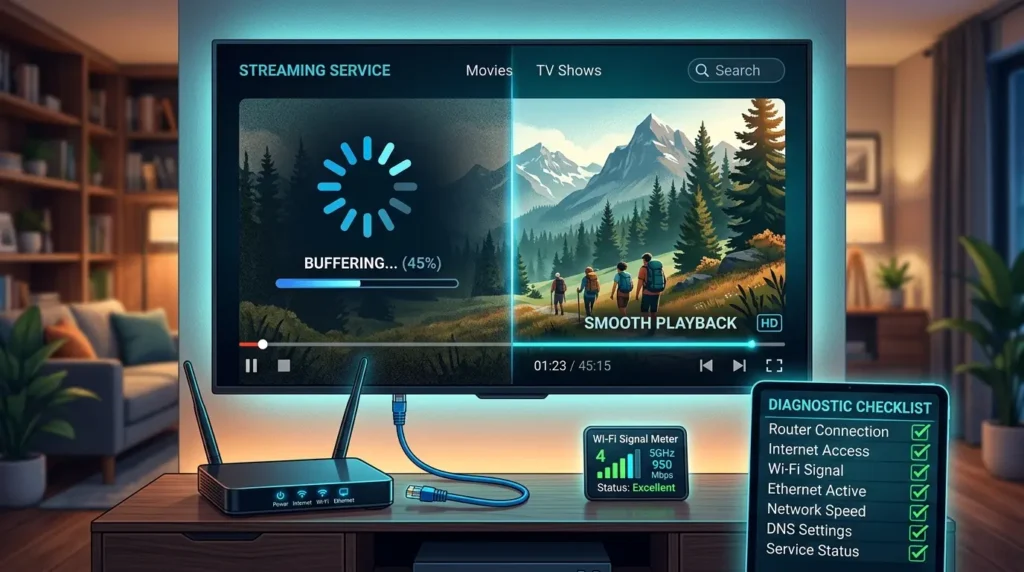
An effective IPTV buffering fix starts by finding the exact bottleneck instead of changing random settings on your device. Every reliable IPTV buffering fix requires checking the entire network. Freezing and lag can stem from a weak internet connection, home Wi-Fi interference, low device storage, an outdated media player, a damaged playlist entry, or severe congestion at the content source.
This guide gives you a safe, step-by-step diagnostic order that protects your existing settings and helps you identify exactly which part of the playback chain is failing.
Editorial disclosure: This guide is based on official troubleshooting documentation and responsible streaming practices. It does not provide unauthorized playlists, copyrighted channel lists, or instructions for bypassing payment or geographic distribution rights.
Quick Diagnosis Before You Change Anything
Before applying any technical IPTV buffering fix, test one affected stream, one known-good legal streaming app (like YouTube or Netflix), and one other device on the exact same network.
If every service buffers, you need to investigate your internet connection or router. If only one device fails, focus your attention on that specific hardware. If one playlist or channel fails while all others work flawlessly, the issue is almost certainly the source server rather than your home network.
- Log the details: Write down the exact time the problem started and whether it affects live TV, video-on-demand (VOD), or both.
- Test accurately: Run a speed test near the actual streaming device, as this is crucial for an accurate IPTV buffering fix.
- Check local traffic: Confirm whether other people in your home are downloading massive game files, backing up photos to the cloud, or using multiple 4K streams simultaneously.
- Verify versions: Confirm that the app and device are fully updated before you attempt to clear data or reinstall any software.
The Ultimate IPTV Buffering Fix: 17 Steps in Order
Follow these steps in this specific order to find your ideal IPTV buffering fix without accidentally deleting your setup data:
- Restart the player: The quickest IPTV buffering fix is to close the app completely and reopen the same stream.
- Power-cycle the device: Unplug your streaming device from the wall for at least 30 seconds to clear its temporary memory.
- Restart the modem and router: Unplug your network gear, wait 60 seconds, and allow for a complete internet reconnection.
- Improve line of sight: Move the streaming device closer to the router or remove physical obstructions (like thick cabinets or metal frames).
- Use a wired connection: Switching to an Ethernet cable is the most effective hardware IPTV buffering fix available whenever the device supports it.
- Optimize Wi-Fi: Switch from the crowded 2.4 GHz Wi-Fi band to the faster 5 GHz band for devices located near the router.
- Eliminate network drain: Pause large downloads, cloud backups, and video game updates on other household devices.
- Lower the resolution: Test a lower video resolution (e.g., 720p instead of 4K) to determine whether bandwidth is the limiting factor.
- Free up resources: Close background apps and free up internal storage on the streaming device.
- Clear app cache: Clear the player’s cache, but do not erase the login data or app data unless absolutely necessary.
- Update software: Update the IPTV player directly from its official application store.
- Update firmware: Check for and install any pending operating system or firmware updates for your device.
- Revert settings: Disable experimental player options (like custom buffer sizes) and return to the default hardware/software decoding settings.
- Refresh data: Refresh the M3U playlist and the EPG (Electronic Program Guide) separately.
- Sync time: Check that the device’s date, time, and time zone are perfectly synced, as server mismatches cause connection drops.
- Cross-test: Test the same authorized account on another supported player to rule out app-specific bugs.
- Contact support: Reach out to the provider only when specific streams consistently fail across several different devices and networks.
How Much Internet Speed Is Enough?
If you are searching for a permanent IPTV buffering fix, raw speed is only one part of the answer. Connection stability, packet loss, Wi-Fi interference, and the number of simultaneous users on your network are just as important.
For reference, official documentation regarding [YouTube supported speeds] suggests approximately 5 Mbps for 1080p and 20 Mbps for 4K. Similarly, [Netflix recommended speeds] list 5 Mbps for Full HD and 15 Mbps for 4K. The [FCC Broadband Speed Guide] also echoes these baselines.
However, for live viewing, you must keep additional network headroom rather than designing your network around the bare minimum requirements.
| Viewing Situation | Practical Household Target | Why This Speed is Recommended |
| One HD stream | 15-25 Mbps | Leaves room for network overhead and normal web browsing. |
| One 4K stream | 30-50 Mbps | Adds a safe margin above minimum video codec requirements. |
| Two HD streams | 30-50 Mbps | Protects the streams against simultaneous household use. |
| Two 4K streams (plus devices) | 100 Mbps or more | Provides massive capacity for data peaks and background traffic. |
App and Device Fixes for Smooth Streaming
Implementing a reliable IPTV buffering fix on your hardware means sticking to official protocols. For example, [Amazon Fire TV app troubleshooting] documentation recommends restarting the device, clearing the app cache and data, or reinstalling an app that crashes or will not load.
Use this same conservative order on all other platforms (Android TV, Apple TV, Roku): restart first, update second, clear cache third, and reinstall only after saving your login details. For help setting up a fresh install, refer to our comprehensive IPTV Installation Guide.
- Avoid “cleaner” apps: Do not install random third-party cleaner or speed-booster applications; they frequently kill background processes aggressively and create more playback problems than they solve.
- Track your changes: A good IPTV buffering fix strategy avoids changing buffer sizes repeatedly in your player settings without writing down the original default value.
- Manage storage: Keep at least 15% to 20% of your device’s free storage available for app cache data and system updates.
- Stay official: Use an official app store whenever possible so updates and software signatures can be securely verified.
When the Provider or Source Is the Problem
If the exact same channel fails on multiple devices and completely different internet networks while other channels work perfectly, local troubleshooting will not work, as no home IPTV buffering fix can repair an upstream source server.
In this scenario, record the specific channel name, the exact time of the freeze, the error message displayed, and the device you are using, then send a concise report to your provider. Avoid providers making claims such as “guaranteed zero buffering,” because live performance depends on several global transit networks entirely outside one company’s control. To understand more about authorized distribution and reliable providers, review our guide: Is IPTV Legal in USA?.
Prevention Checklist
Stop the freeze before you even need an IPTV buffering fix by maintaining a healthy streaming environment:
- Wire up: Use wired Ethernet networking for your primary television whenever possible.
- Timing is everything: Schedule router reboots and device firmware updates outside of major live sports events.
- Keep a backup: Keep one backup authorized player installed (from our Best IPTV Players 2026 list) for quick comparison testing.
- Test first: Test a monthly or short-term trial option before locking into a long-term subscription commitment.
- Check connection limits: Do not overload a one-connection account with simultaneous devices in different rooms.
Frequently Asked Questions
Why does IPTV buffer even with fast internet?
Fast download speed does not rule out packet loss, unstable Wi-Fi routing, overloaded ISP equipment, hardware limits on your streaming stick, or a congested source server. Test another device and another legal streaming service to isolate the root cause and apply the correct IPTV buffering fix.
Does a VPN stop buffering?
A VPN is not a universal IPTV buffering fix. In fact, encryption can add latency and reduce your top speed. Use it only for legitimate privacy needs or to bypass aggressive ISP throttling, and always follow your provider’s terms of service.
Should I clear cache or data?
Always clear the cache first. Clearing app data will completely wipe your saved playlists, custom settings, and login details. Only clear data if you have your M3U link or Xtream Codes login safely written down.
Is Ethernet always better than Wi-Fi?
Yes. Ethernet usually provides far more stable latency and zero wireless interference, making it a top IPTV buffering fix. However, a strong 5 GHz Wi-Fi connection can still work flawlessly when the streaming device is placed close to a modern router. For more general troubleshooting, consult our IPTV FAQ.
When should I contact support?
Contact customer support only when every local IPTV buffering fix fails across multiple devices, or when your login, playlist URL, or EPG source absolutely cannot be validated by the server.
Conclusion
Use this IPTV buffering fix guide as a practical starting point to restore your home entertainment system. Always verify your current app availability, device support, account connection rules, and legal distribution limits before publishing server complaints or purchasing new hardware. Implementing the right IPTV buffering fix relies on an official application, an authorized media source, sufficient local network capacity, and transparent provider terms.
Legal notice: This article is provided for general informational purposes. Ultimate IPTV Hub does not host, distribute or provide access to unauthorized television streams. Availability and broadcasting rights vary by provider, event and location. Verify that a provider is authorized to distribute content in your country before subscribing.