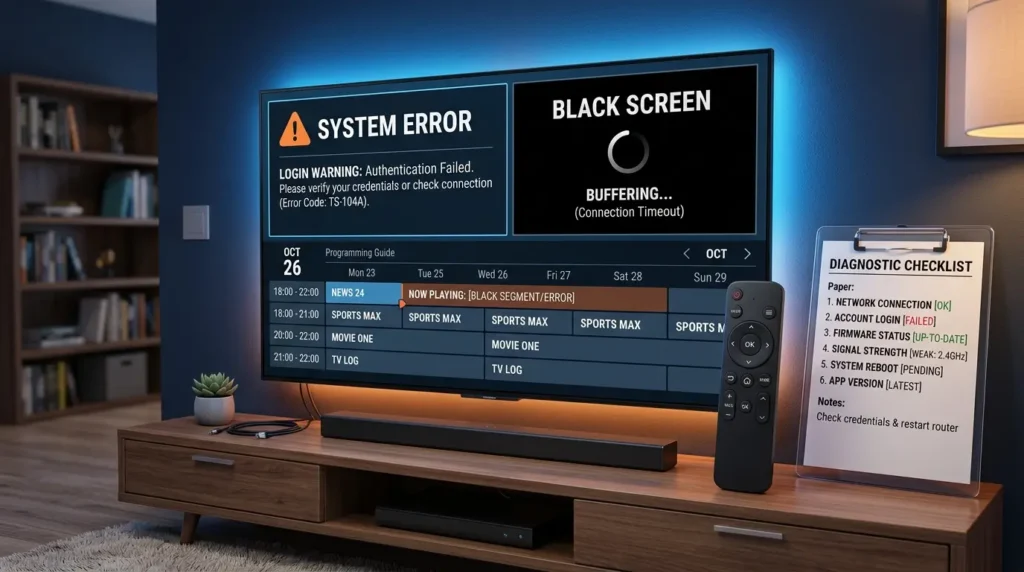
When you sit down to watch your favorite broadcast and find IPTV Smarters Pro not working, the fastest solution is to identify whether the failure comes from the application itself, your login credentials, your streaming device, your home network, or the upstream media source.
Because several applications use similar “Smarters” naming conventions, the very first step is to confirm which publisher and version you actually installed from the official store. This comprehensive troubleshooting guide provides a safe diagnostic order that protects your existing settings while helping you fix the exact reason why you find your IPTV Smarters Pro not working.
Editorial disclosure: This guide is based on official technical documentation and responsible streaming practices. It does not provide unauthorized playlists, copyrighted channel lists, or instructions for bypassing payment or geographic rights.
Table of Contents
Identify the Exact Error
Before you start changing settings, use this diagnostic table to isolate why you are seeing the IPTV Smarters Pro not working error.
| Symptom | Most Likely Problem Area | First Test to Perform |
| Invalid details or authorization failed | Credentials, server URL, or expired account | Re-enter details carefully, checking for spaces. |
| App closes or crashes immediately | App data corruption, low storage, or compatibility | Restart the device and update the application. |
| Black screen but audio is playing | Media decoder or video output setting | Return the player settings to default. |
| Channels do not load | Playlist link or upstream source response | Test another permitted channel or device. |
| No EPG information (Blank Guide) | Guide source URL, mapping, or device time zone | Refresh EPG manually and verify device time. |
| Constant buffering and freezing | Local network, Wi-Fi, or upstream congestion | Run a network comparison test. |
The Ultimate 15 Fixes for IPTV Smarters Pro Not Working
When dealing with the IPTV Smarters Pro not working issue, applying fixes in the correct order is crucial so you don’t accidentally delete your saved playlist data. Follow these 15 steps sequentially:
1. Confirm Your Internet Connection
Before blaming the app, confirm that the internet connection actually works. Open another verified streaming app (like YouTube) on the exact same device. If YouTube fails, your internet is down; if YouTube works, proceed to step 2.
2. Check Device Date, Time, and Time Zone
A major hidden reason for IPTV Smarters Pro not working is an incorrect device clock. Secure servers use SSL certificates to connect. If your device’s date or time is wrong, the server will reject the connection, causing a login failure or a blank EPG.
3. Close and Reopen the Player
Do not just press the “Home” button. Force close the application entirely from your device’s settings menu, then reopen it to establish a fresh connection to the server.
4. Restart the Streaming Device
Power-cycle your streaming hardware. Unplug your Firestick, Android TV, or Apple TV from the wall for at least 30 seconds to clear its temporary RAM memory.
5. Confirm Your Account Has Not Expired
If your login details suddenly stop working, check your subscription status. Contact your provider to ensure your account has not naturally expired or been suspended.
6. Re-enter the Server Address Without Spaces
The most common human error leading to the IPTV Smarters Pro not working message is a typo in the server URL. Make sure you use http:// or https:// correctly, and ensure your device’s auto-correct did not add a blank space at the end of the URL.
7. Check Capitalization in the Username and Password
Xtream Codes API logins are highly case-sensitive. “Password123” is entirely different from “password123”. Enter your credentials exactly as provided by your media source.
8. Switch Between Wi-Fi and Ethernet
Wireless interference can stop channels from loading. Switch from Wi-Fi to a direct Ethernet connection for comparison. If you are struggling with stuttering video, review our dedicated IPTV Buffering Fix guide.
9. Update the App From the Official Store
Outdated software will eventually fail. Visit the official Google Play Store or Apple App Store and ensure you are running the latest version of Smarters Pro.
10. Update the Device Operating System
Check for pending firmware updates on your streaming device. According to Google Android TV app management documentation, outdated OS versions can cause third-party media players to crash upon opening.
11. Clear App Cache
Navigate to your device’s app settings and select “Clear Cache”. Warning: Do not click “Clear Data” unless you are prepared to re-enter all your login information, as clearing data wipes the app clean.
12. Free Up Device Storage
If your device has less than 10% free storage remaining, the application cannot download the EPG or buffer live video, resulting in the IPTV Smarters Pro not working error. Delete unused applications to free up space.
13. Return Decoder Settings to Default
If you are getting a black screen, go into the Smarters Pro settings and switch the Media Player Decoder from “Hardware” to “Software” (or vice versa), or simply restore the player to its default settings.
14. Remove and Re-add the Authorized Profile
Only perform this step after you have your login URL, username, and password safely written down. Delete your user profile inside the app and add it back as a fresh user.
15. Reinstall the Verified App
If all earlier steps fail, completely uninstall the app, restart your device, and reinstall a fresh copy from a verified source. If you need help with clean installations, refer to our IPTV Installation Guide.
Deep Dive: Troubleshooting Specific Errors
Fixing Login Errors
A login error does not automatically mean the application is broken. It is a communication failure. Confirm the server address, protocol, username, password, and account status. Typing a URL with an extra space or using HTTP instead of HTTPS can cause an instant failure.
If the exact same credentials fail on two supported devices, ask your account provider to verify the server status rather than repeatedly reinstalling the app.
Channels Load but Do Not Play (Black Screen)
If you click a channel, see the loading circle, but are left with a black screen:
- Test several permitted channels, not only one. The issue might be a single dead link.
- Change nothing until you know whether audio, video, or both are missing.
- Return hardware/software decoding to the app’s default state.
- Test the account on a second official player (check our Best IPTV Players 2026 list) to isolate app-specific behavior.
- Reduce the streaming resolution temporarily to evaluate network stability.
Missing EPG or Wrong Program Times
If your channels play but the TV guide is empty, refresh the playlist and EPG as separate tasks within the app settings. Verify that your device time zone matches your physical location. If only some channels have no program information, the upstream source may not actively map those channel identifiers to the guide data. Reinstalling the entire app rarely fixes incomplete upstream EPG information.
Avoid Copycat Applications
Because several apps use Smarters-related names, you must verify the publisher, the app-store page, and the privacy information before downloading. Never enter your account credentials into an unknown APK found on a random forum.
The Federal Trade Commission (FTC software security advice) highly recommends keeping software updated natively through official channels. Furthermore, an FTC illegal streaming app warning highlights that downloading unverified, altered streaming applications can expose users’ home networks to severe malware threats. Stick to official application stores.
Frequently Asked Questions
Why does Smarters say invalid details?
The server URL, username, or password may be incorrectly typed, the account may be expired, or the provider’s server may be temporarily offline. Verify your subscription details directly with your provider.
Will clearing cache delete my account?
No. Clearing the app cache normally preserves your login data and playlists. However, clearing app data (or storage) will completely remove your accounts and settings.
Why is the EPG blank?
A blank EPG usually means the guide has not refreshed, the device time zone is wrong, or the media source does not include mapped EPG data for those specific channels.
What causes a black screen?
When researching an IPTV Smarters Pro not working black screen, common causes include incorrect decoder settings, unsupported video formats, app bugs, or a missing video feed from the upstream media source.
Should I download a different APK to fix the issue?
Use only an official app store or a developer-verified source. Random APK sites create massive security risks. For more general troubleshooting tips, consult our comprehensive IPTV FAQ.
Conclusion
Use this IPTV Smarters Pro not working guide as a practical starting point to restore your home entertainment. Always verify current app availability, device support, account connection rules, and legal distribution limits before publishing server complaints or purchasing new hardware. A strong, stable setup perfectly combines an official application, an authorized media source, sufficient network capacity, and transparent provider terms.
Legal notice: This article is provided for general informational purposes. Ultimate IPTV Hub does not host, distribute or provide access to unauthorized television streams. Availability and broadcasting rights vary by provider, event and location. Verify that a provider is authorized to distribute content in your country before subscribing.