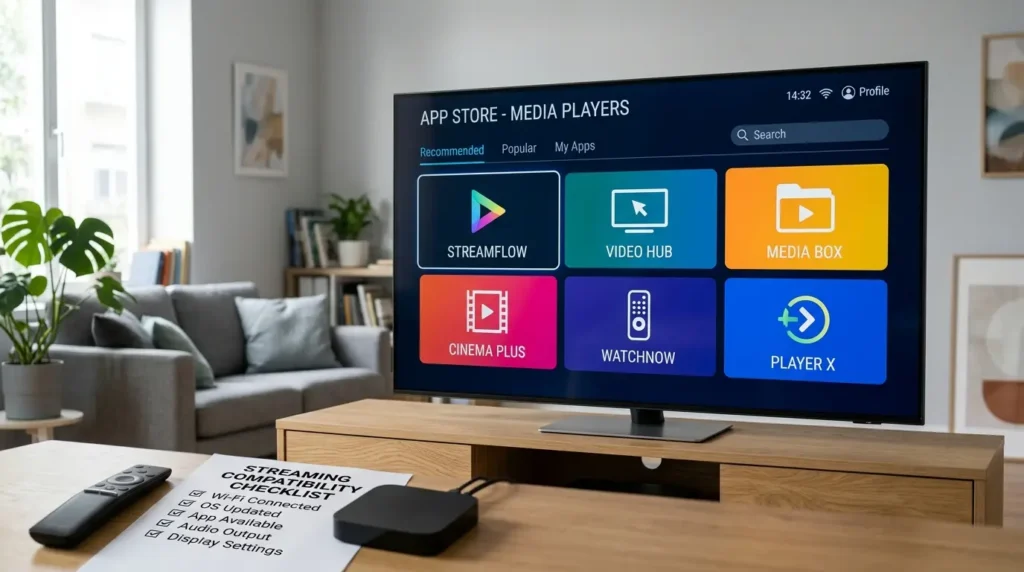
Choosing an IPTV player for Samsung Smart TV begins with understanding your specific television model, your geographic country, and your Tizen software version. App availability varies wildly by market, meaning an application that appears prominently on one Samsung television may completely vanish on another. Always search the built-in Samsung Apps store thoroughly before considering the purchase of an external streaming device.
Editorial disclosure: This guide is based on official technical documentation and responsible streaming practices. It does not provide unauthorized playlists, copyrighted channel lists, or instructions for bypassing payment gateways or geographic broadcasting rights.
Table of Contents
Why Do You Need a Dedicated IPTV Player for Samsung Smart TV?
Unlike Sony or Philips televisions that run on the highly open Android TV operating system, Samsung televisions use a proprietary operating system called Tizen. Because Tizen is an exclusive, locked-down software ecosystem, you cannot simply download standard Android .apk files from the internet and install them on your TV.
To stream your live content, you must find a dedicated IPTV player for Samsung Smart TV that has been officially verified, coded for Tizen, and published in the official Samsung App Store. Because Samsung frequently updates its developer policies to remove non-compliant media apps, finding a stable, long-lasting IPTV player for Samsung Smart TV requires knowing exactly what features to prioritize and which developers to trust.
Features That Matter on a Samsung TV
When evaluating any IPTV player for Samsung Smart TV, do not just look at the design interface. You must verify the technical features that ensure smooth, buffer-free playback on Tizen hardware.
| Feature | Why it matters | What to verify |
| Remote Navigation | Smart TV use depends entirely on D-pad control. | Ensure menus, categories, and search functions are easily clickable without requiring a digital mouse toggle. |
| Playlist Support | Your provider’s login format must precisely match the player. | Check for M3U URL support, Xtream Codes API login, or MAC address portal support. |
| Electronic Program Guide (EPG) | Makes live television content easier to browse and schedule. | Verify background guide refresh capabilities, customizable time zones, and proper XMLTV channel mapping. |
| Audio and Subtitles | Crucial for watching international VOD content and movies. | Check for multi-track audio selection and customizable subtitle rendering (size/color). |
| Automatic Updates | Reduces playback bugs and patches security vulnerabilities. | Ensure the app receives ongoing App Store update support from its developer. |
| Privacy Information | The player actively handles your private account details and IP address. | Confirm the publisher is transparent and does not request unnecessary local network permissions. |
Top Official Tizen Apps in 2026
While app availability shifts based on your region, a few reliable options have remained consistently available on the official store. When searching for an IPTV player for Samsung Smart TV, you will likely encounter these popular media shells:
- Smart IPTV (SIPTV): One of the oldest and most reliable options. It requires a one-time activation fee and uses a web-based portal to upload your M3U playlist to your TV’s MAC address.
- IPTV Smarters Pro: Frequently added and removed from the Tizen store depending on the region, this remains a fan-favorite due to its clean interface and seamless Xtream Codes API integration.
- SS IPTV: A completely free IPTV player for Samsung Smart TV that allows users to upload playlists via a sync code. It is excellent for older Tizen models.
- Nanomid Player: A premium, highly optimized player with a built-in VPN configuration option and excellent 4K decoding capabilities.
- DuplexPlay / SET IPTV: Modern alternatives that offer sleek grid interfaces and fast channel zapping speeds, though they usually require annual licensing fees.
Direct App or External IPTV Box?
Should you rely on a built-in IPTV player for Samsung Smart TV, or should you buy an external streaming stick?
A direct Samsung app keeps your home theater setup incredibly clean. It requires no extra HDMI device, frees up a wall outlet, and allows you to control your entire viewing experience using your factory Samsung remote.
However, an external device—like an Amazon Fire TV Stick, Apple TV 4K, or Google Chromecast—can provide a significantly wider app selection. External devices use Android or tvOS, meaning they receive app updates much faster than Tizen apps. Choose the external hardware route when the specific official player you need is completely unavailable on your television model, but do not use external boxes as a method to deliberately bypass app-store security protocols.
Safe Setup Steps for Samsung TV
Setting up an IPTV player for Samsung Smart TV safely requires following the official ecosystem rules.
- Check the Model: Open your TV’s Settings and record the full model number. Confirm the television’s region and your Samsung account country.
- Update Firmware: Install any pending television software updates to ensure the App Store functions correctly.
- Search the Store: Press the
Homebutton on your remote, navigate left toApps, and use the Search icon (magnifying glass) using the exact player name. - Verify and Install: Confirm the developer name matches the official website and click Install.
- Enter Credentials: Open the app and add only your authorized account information (M3U link or Xtream Codes). Never upload details to unofficial third-party “activation” websites.
- Refresh Data: Trigger a manual refresh of the playlist and the EPG guide.
- Test the Streams: Test the audio tracks, subtitles, and several permitted live streams to ensure the hardware decoding works.
- Enable Auto-Updates: Enable automatic app updates within the Samsung Apps menu to keep the player secure.
For a broader look at organizing your streams after installation, review our guide on IPTV Channel Categories.
Common Samsung TV Problems and Solutions
Even the absolute best IPTV player for Samsung Smart TV can run into technical snags. Here is how to fix them quickly.
| Problem | Possible Reason | Immediate Action |
| App not found in store | Region lock, older TV model, or incompatible Tizen version. | Verify Tizen compatibility or use an external official device like a Firestick. |
| Install button unavailable | TV storage is full, account error, or network timeout. | Restart the TV, verify your Samsung account login, and delete unused apps to free up storage. |
| Wrong EPG time / Blank Guide | TV hardware time zone mismatch with the streaming server. | Set the TV clock to Automatic (Network Time), adjust the offset in the app, and refresh the guide. |
| App feels incredibly slow | Older television processor or a massive, unedited playlist. | Reduce your channel categories online before uploading, or switch to an external player. |
| App suddenly disappeared | Publisher pulled the app, or Samsung store availability changed. | Check official Samsung support forums and the app developer’s official website for status updates. |
Legal and Privacy Check
Finding an IPTV player for Samsung Smart TV in the official Tizen store does not instantly prove that every playlist added to that player is authorized. The empty media application and the upstream content source are two entirely separate legal entities.
The media player simply reads digital data. Review your streaming service’s specific terms, actively avoid providers making unrealistic premium-channel claims (e.g., “all global sports for $5”), and do not hand over your payment details to anonymous Telegram vendors. Always ensure you are sourcing your streams legally.
Recommended Internal Links
Expand your cord-cutting knowledge by exploring these related resources:
Official External Resources
For further technical reading and official documentation, refer to these sources:
Frequently Asked Questions
Can I install any Android IPTV app on a Samsung TV?
No. Samsung televisions use the proprietary Tizen operating system, not Android TV. You cannot install standard .apk files. You must install apps explicitly made available through Samsung’s official built-in store for your specific model and region.
Why is an app available on another Samsung TV but not mine?
App availability across the Tizen ecosystem can differ dramatically based on your registered country, your television’s model year, the specific Tizen software version installed, and the publisher’s ongoing support.
Is an external box better than an IPTV player for Samsung Smart TV?
An external Android or Apple box can provide a much larger application selection, stronger hardware processing, and faster software updates. However, using a direct, built-in TV app is simpler and more convenient when it is officially supported and runs smoothly.
What login types should I check before downloading an app?
Confirm whether your authorized streaming service utilizes an M3U playlist URL, an Xtream Codes API account login (Username/Password/URL), or a MAC address portal method, and ensure the player explicitly supports that format.
Do Samsung IPTV players provide the actual TV channels?
No. A media player is simply an empty software shell. It generally does not provide any channels or media content natively. It only plays the legal video sources and playlists added manually by the user.
Conclusion
Use this IPTV player for Samsung Smart TV guide as a practical starting point to build your home entertainment system. Always verify the current app availability in your regional store, confirm your device’s software support, review your account connection rules, and ensure legal media distribution before publishing complaints or purchasing premium app licenses. A truly strong setup combines an official, verified application, an authorized upstream media source, sufficient local network capacity, and totally transparent provider terms.