Editorial & Technical Disclaimer: This hardware diagnostics guide was written by Marcus Vance based on thermal stress testing, media decoder benchmarks, and official device documentation. Ultimate IPTV Hub is an independent educational platform. We evaluate streaming hardware and software configurations to help users build stable home theater setups.
Last Updated: September 2026
Quick Answer
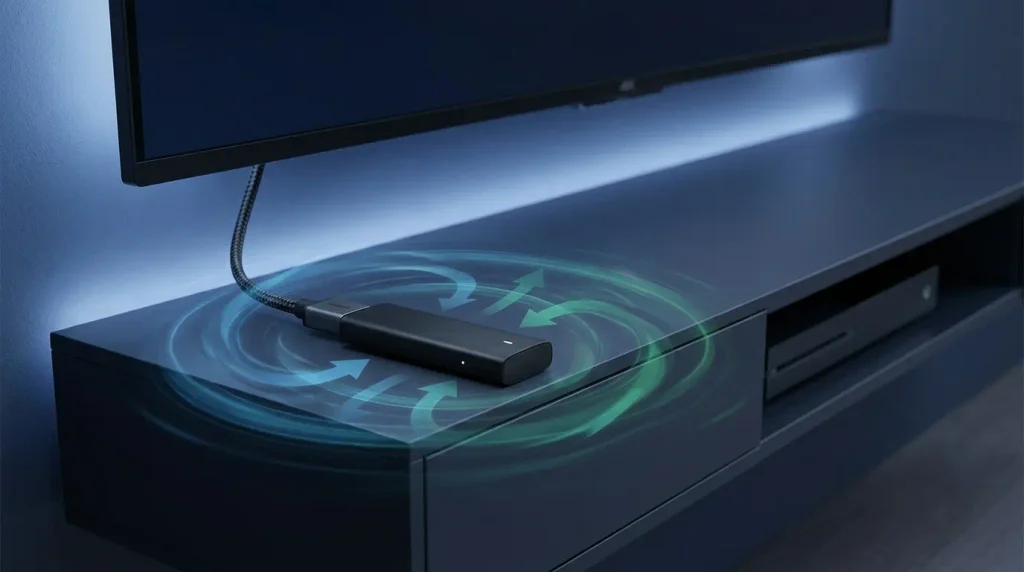
When a compact streaming stick gets too hot during live television playback, its processor triggers thermal throttling—deliberately lowering clock speeds to prevent permanent silicon damage. Resolving Firestick overheating requires three immediate adjustments: switching your IPTV player from Software (SW) to Hardware (HW) decoding, installing the included HDMI extender cable to move the stick away from your television’s heat vents, and powering the device via a dedicated wall outlet rather than a TV USB port.
Many cord-cutters immediately blame their internet connection or streaming provider when a live broadcast begins dropping frames after forty-five minutes of smooth playback. While network congestion is a common culprit, delayed stuttering that worsens over a two-hour movie or sports match is frequently a symptom of Firestick overheating.
Compact HDMI dongles pack a quad-core system-on-chip (SoC), Wi-Fi antennas, and RAM into a sealed plastic casing smaller than a pack of gum, without any active cooling fans. When you stream continuous, unbuffered 60fps live television channels or high-bitrate HEVC (H.265) feeds, the internal processor generates significantly more heat than it does when playing pre-cached videos on standard movies and series VOD library apps.
In this comprehensive 2026 hardware and software guide, we will examine why live streaming pushes compact devices to their thermal limits, how to diagnose processor throttling, and the exact steps required to eliminate Firestick overheating permanently.
Diagram 1: How trapped heat triggers CPU frequency scaling and degrades live stream playback.
1. Why Live IPTV Triggers Firestick Overheating
To fix Firestick overheating, it helps to understand why live IP television stresses your hardware differently than mainstream VOD platforms. Mainstream apps deliver pre-compressed files in bursts, allowing your device’s processor to briefly rest once the local buffer is full. Conversely, live television relies on continuous MPEG-TS or HLS data streams alongside real-time Electronic Program Guide (EPG) parsing.
When internal temperatures climb past safe thresholds, the operating system engages dynamic frequency scaling (commonly known as thermal throttling). The processor cuts its clock speed by up to 40% to cool down. Because live 60fps video requires real-time decoding without pause, a throttled processor simply cannot render frames fast enough, resulting in a slideshow-like stutter even when your internet speed is fast.
2. Hardware vs. Software Decoding: The Primary CPU Fix
The single most effective software adjustment to prevent Firestick overheating lies inside your media player’s video decoder settings. Modern streaming sticks contain two distinct processing pathways: general-purpose ARM CPU cores and a dedicated hardware media engine governed by the Android MediaCodec API.
Diagram 2: Comparing CPU thermal load between Software (SW) and Hardware (HW) decoding modes.
If your IPTV player is accidentally set to Software (SW) Decoding, the main CPU cores are forced to mathematically decode every single video frame using raw processing power. This drives CPU utilization near 100% and causes rapid Firestick overheating within twenty minutes.
Switching your player to Hardware (HW) Decoding offloads the heavy lifting to the dedicated video chip, which is specifically engineered to decode H.264 and HEVC streams using a fraction of the electrical power. You can see exactly where to toggle this setting in our TiviMate Premium setup tutorial, or compare lightweight applications in our guide to the best IPTV players in 2026.
3. Physical Airflow, HDMI Extenders & Power Optimization
Even with optimal software settings, physical placement plays a massive role in Firestick overheating. Plugging a streaming stick directly into a recessed HDMI port on the back of a 4K television places the device inside a pocket of stagnant, radiated heat generated by the TV’s own internal power board and LED backlight.
Diagram 3: Physical hardware adjustments that isolate the streaming stick from television heat vents.
Apply these three physical hardware adjustments to drop your device’s operating temperature:
- Always Use the HDMI Extender: That short flexible dongle included in the box is not just for tight spaces. Using it suspends the stick a few inches away from the hot television chassis, allowing 360-degree convective airflow around the casing.
- Stop Using the TV USB Port for Power: Most television USB ports only supply 0.5A of current, whereas modern 4K sticks require up to 1.0A or 1.5A under heavy load. Under-voltage forces the internal voltage regulator to work harder and run hotter. As noted in Amazon’s official Fire TV support documentation, always use the included power brick plugged into a wall outlet.
- Offload Wi-Fi Heat with an Ethernet Adapter: Internal Wi-Fi chips generate noticeable heat when sustaining high-bitrate streams or fighting weak 5GHz signals. Using an external OTG Ethernet adapter moves network processing outside the stick’s casing.
4. Stripping Fire OS Background Bloat & RAM Drain
Fire OS runs several background processes that consume CPU cycles and generate heat even while you are watching a third-party application. Reducing this background activity is essential for stopping Firestick overheating on older devices with 1.5GB or 2GB of RAM.
Diagram 4: How to distinguish hardware thermal throttling from standard internet buffering.
Navigate to your Fire TV Settings menu and disable these three resource-heavy features:
- Disable Home Screen Video Auto-Play: Go to Settings → Preferences → Featured Content and turn OFF both “Allow Video Autoplay” and “Allow Audio Autoplay.”
- Turn Off Background App Updates: Go to Settings → Applications → Appstore and disable “Automatic Updates” so the device does not download and install updates while you are watching live TV.
- Disable Telemetry & Data Monitoring: Under Preferences → Privacy Settings, turn off “Device Usage Data” and “Collect App Usage Data” to reduce background logging.
If your device UI remains responsive and cool to the touch, yet streams still pause with a loading spinner, the issue is network-related rather than thermal. In that case, follow our network guide on how to fix IPTV buffering.
5. Fixing Thermal Audio Desync & Frame Stuttering
One of the first warning signs of Firestick overheating is progressive audio desynchronization. Because decoding compressed AAC or Dolby AC3 audio requires very little processing power compared to 4K video, a thermally throttled CPU will continue playing the audio track at normal speed while the video frames lag behind by one to two seconds.
If you notice voices no longer match lip movements during a long broadcast, verify that Hardware (HW) decoding is active, clear your player’s cache, and check our dedicated tutorial on resolving IPTV audio sync delays. If you are setting up a brand-new stick from scratch, follow our IPTV installation guide to configure your player correctly from day one.
6. Thermal Diagnostics & Troubleshooting Table
Use the reference table below to quickly identify whether your playback issues are caused by Firestick overheating and apply the appropriate fix:
| Observed Symptom | Root Hardware / Software Cause | Immediate Corrective Action |
|---|---|---|
| Thermometer icon or heat warning on screen | Critical SoC temperature reached inside HDMI port | Unplug immediately, attach the HDMI extender cable, and ensure open airflow. |
| Smooth playback for 30 mins, then choppy frames | CPU thermal throttling due to Software (SW) decoding | Switch media player settings to Hardware (HW) decoding and clear app cache. |
| Device randomly reboots during 4K channels | Insufficient amperage from TV USB port under thermal load | Connect the power cable to the official wall adapter plugged into an AC outlet. |
| Audio plays normally while video freezes or lags | Throttled GPU/CPU dropping video frames behind audio | Enable HW decoding, let the device cool, and check our IPTV audio sync guide. |
7. Frequently Asked Questions (FAQ)
What causes Firestick overheating during IPTV streaming?
Live IPTV streams require continuous, real-time video decoding and EPG data processing without the long rest intervals of standard VOD apps. When combined with poor airflow behind a warm television and Software (SW) decoding, this sustained workload causes Firestick overheating.
Does the HDMI extender actually reduce Firestick overheating?
Yes. Television back panels radiate significant heat. Using the short HDMI extender cable moves the streaming stick several inches away from the TV exhaust vents and allows cool air to circulate around all sides of the plastic casing, reducing Firestick overheating by up to 15°C.
Can a bad IPTV playlist cause my device to overheat?
An unoptimized playlist with massive, uncompressed XMLTV guide files or corrupted video streams can cause your media player to loop background parsing tasks, spiking CPU usage. Always use a well-maintained playlist and limit EPG update intervals to once every 24 hours.
How do I know if my device is experiencing Firestick overheating or just buffering?
Press the Home or Menu button on your remote when the video stutters. If the remote takes several seconds to respond and the menu animations are choppy, your device is experiencing Firestick overheating and CPU throttling. If the menu opens instantly and smoothly, the issue is network buffering.
8. Final Verdict & Cooling Checklist
Eliminating Firestick overheating does not require buying expensive aftermarket cooling fans or replacing your streaming stick. By isolating the device from your television’s heat vents, supplying stable wall power, and forcing your media player to use Hardware (HW) decoding, your device can effortlessly sustain multi-hour 60fps broadcasts.
Diagram 5: The complete hardware and software formula for keeping your streaming stick cool.
Firestick Overheating Prevention Checklist
- ✓ HDMI extender cable installed to separate the stick from TV heat vents
- ✓ Power cable connected to the official AC wall adapter (not the TV USB port)
- ✓ IPTV player Video Decoder switched from Software (SW) to Hardware (HW)
- ✓ Fire OS Featured Content video/audio auto-play disabled
- ✓ Background app caches cleared and automatic updates paused during viewing
Pair Your Optimized Hardware with a Stable Stream
Once you have resolved Firestick overheating and optimized your local decoding settings, make sure your streaming provider delivers properly encoded, low-latency channels. Compare top-rated services tested for Fire TV compatibility and peak-hour reliability.
Review the Best IPTV Services in USA ➔