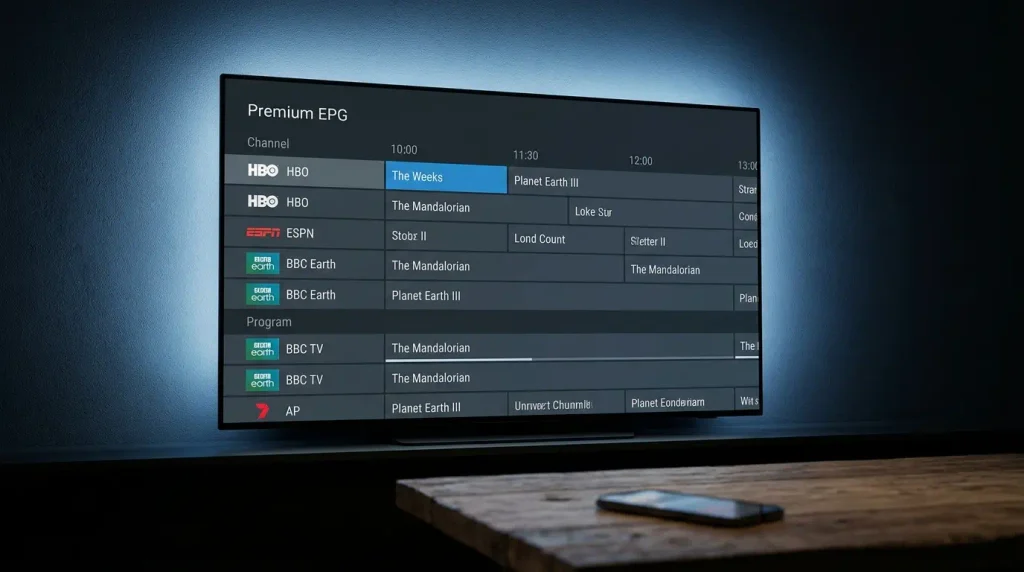
Editorial & Affiliate Disclaimer: This guide reviews software features only. It was written by Marcus Vance using official software documentation and extensive playback testing. Ultimate IPTV Hub is an independent informational site and is not affiliated with the developers of the application. We do not sell or host media content.
Last Updated: September 2026
Quick Answer
Upgrading to TiviMate Premium unlocks essential features like Catch-Up TV, multiple playlist management, and advanced hardware decoding. To unlock it on devices without native Google Play (like Amazon Fire TV), you must download the Companion App on a separate Android device to process the payment, then log into the TV application.
Navigating the world of digital broadcasting requires software capable of efficiently decoding massive amounts of live video data. While there are dozens of free applications available on smart device app stores, few have garnered the dedicated user base of this specific media player. For users seeking a flexible viewing dashboard on modern hardware, upgrading to a TiviMate Premium setup is a highly recommended configuration.
      IPTV Provider
            |
   M3U Playlist / API
            |
            ↓
      TiviMate App
            |
 -----------------------
 |          |          |
EPG       Player    Settings
 |          |          |
Guide    Decoder   Favorites
Diagram 1: The core architecture routing playlist data through the application.
Many cord-cutters begin with the free tier, only to realize that crucial features—such as adding a backup provider, utilizing Catch-Up TV, or organizing movies and series on-demand categories—are restricted. Furthermore, completing your TiviMate Premium activation on devices lacking native Google Play integration can be confusing. In this comprehensive guide, we will explore how to unlock the application, compare optimal configurations, and review the best settings to ensure a stable viewing experience.
1. Free vs. TiviMate Premium: Exploring the Features
The free version of the software serves as a functional trial. It allows users to input a single playlist to verify hardware compatibility. However, if you are looking for a robust TiviMate Premium alternative, you will find that most free apps simply lack deep customization capabilities.
               TiviMate
                  |
      -------------------------
      |                       |
     FREE                  PREMIUM
      |                       |
Single Playlist       Multiple Playlists
      |                       |
   Basic EPG             Advanced EPG
      |                       |
Limited Settings          Catch-Up TV
      |                       |
  Trial Usage         Full Customization
Diagram 2: Feature distribution between the Free and TiviMate Premium software tiers.
Upgrading provides a highly customizable interface. The most significant functional additions include the ability to manage multiple playlists concurrently, which is beneficial if you utilize backup providers. Additionally, the premium tier grants access to Catch-Up TV, allowing you to rewind supported live broadcasts stored on your provider’s servers. Premium users can also hide unwanted channel groups, reorder categories, and create customized favorites lists.
2. How to Purchase and Unlock on Firestick
Purchasing the application on an Android TV device is straightforward, as you can process the payment directly through the official Google Play Store. However, Amazon Fire OS devices do not natively support Google Play billing. To unlock your TiviMate Premium account on a Firestick, you must utilize a secondary device.
     Android Phone
           |
           ↓
 TiviMate Companion App
           |
           ↓
    Create Account
           |
           ↓
  Choose Premium Plan
           |
           ↓
  Login on Firestick
           |
           ↓
   Premium Activated
Diagram 3: The required billing and activation workflow for Amazon Fire OS devices.
Follow these exact steps: First, open the Play Store on an Android smartphone and search for the “TiviMate Companion” application. Register with a valid email address and select between the annual subscription or the lifetime fee. Return to your television, open the media player, navigate to “Settings,” and select “Unlock Premium.” Enter the credentials you created in the companion app to authenticate your TiviMate Premium access. If you do not own an Android smartphone, an Android emulator like BlueStacks on a computer can access the Play Store. For foundational Fire TV configuration, review our complete IPTV setup tutorial.
3. Recommended Settings by Streaming Device
Once unlocked, adjusting the default playback parameters is critical for hardware efficiency. Utilizing the optimal TiviMate Premium settings for Firestick will differ slightly from an NVIDIA Shield setup.
Below is a recommended configuration table based on real-world testing across popular hardware platforms to minimize dropped frames and prevent issues like Fire TV overheating:
| Streaming Device | Video Decoder | Auto Frame Rate (AFR) | Recommended Buffer Size |
|---|---|---|---|
| Amazon Firestick 4K Max | Hardware (HW) | Off (Let Fire OS handle rendering) | Normal to Large |
| NVIDIA Shield TV Pro | Hardware (HW) | On (Matches native broadcast FPS) | Normal |
| Generic Android TV Box | Hardware (HW) | Off (Often causes screen flickering) | Large to Extra Large |
| Older Firestick (Gen 2) | Software (SW) if HW lags | Off | Extra Large |
To apply these changes, navigate to Settings → Playback within the app. Proper decoder selection reduces CPU strain, which is vital for maintaining stability on compact HDMI sticks.
4. Configuring Catch-Up TV and EPG Data
A proper TiviMate Premium playlist setup includes configuring your Electronic Program Guide (EPG) and Catch-Up settings. If your provider supports server-side recording, navigate to Settings → Playlists, select your source, and scroll down to “Catch-up.” Ensure the feature is toggled on, and set the “Catch-up type” to match your provider’s architecture.
           Playlist
              |
   -----------------------
   |                     |
Channels              Metadata
   |                     |
Live TV               EPG Guide
Movies              Program Info
Sports                Schedule
Diagram 4: How the application merges raw video feeds with external XMLTV metadata.
For EPG data, the software allows you to assign multiple XMLTV sources to a single playlist. If your provider’s native TV guide is sparse, navigate to Settings → EPG → EPG Sources to add supplementary links, ensuring your dashboard remains populated with accurate metadata.
5. Managing Multiple Subscriptions
Relying on a single streaming source can result in downtime during high-traffic broadcast events. Many users mitigate this by configuring a primary provider alongside a backup service. A core feature of TiviMate Premium is the ability to merge these effortlessly.
When you add a second Xtream Codes API login, you can merge the channel groups from both providers into a unified “All Playlists” view. Utilizing the channel management tools allows you to compile a single “Favorites” list containing the most stable streams from each respective host.
6. Buffering Fix & Troubleshooting Flow
Even highly optimized software can encounter playback interruptions. A proper TiviMate Premium buffering fix usually involves adjusting internal network parameters or isolating your hardware from ISP throttling.
            Video Buffering
                  |
      -------------------------
      |                       |
      ↓                       ↓
Check Internet           Check Device
      |                       |
Is Network Stable?            ↓
      |                 Change Settings
 YES     NO                   |
  |       |                   ↓
  ↓       ↓             Adjust Buffer Size
Check   Improve               |
 App   Connection             ↓
  |                     Enable HW Decoder
  ↓                           |
Adjust                        ↓
Settings                 Smooth Playback
Diagram 5: Standard diagnostic flow for resolving persistent buffering issues.
- Increase the Network Buffer: Navigate to Settings → Playback → Buffer Size. Changing this from “Small” to “Large” forces the app to download more of the video file in advance, bridging minor network latency drops. For more deep-dive network solutions, read our IPTV buffering guide.
- Audio Desynchronization: If voices do not match lips, access the playback menu while the video is running and adjust the “Audio Offset” slider. For deeper audio diagnostics across your hardware, see our IPTV audio sync guide.
- HTTP Error 401/403: A 401 error indicates an incorrect username, password, or expired subscription. A 403 Forbidden error typically points to active ISP blocking, which may require network routing adjustments.
7. Frequently Asked Questions (FAQ)
Is TiviMate Premium a streaming service provider?
No. TiviMate Premium is strictly a media player application. It provides the user interface and decoding software, but it does not supply media content or live channels. Users must supply their own authorized playlist data.
How many devices can I activate with one TiviMate Premium account?
A single paid account currently allows you to activate up to five separate devices. You can manage, rename, or remove old devices directly through the companion app on an Android device.
Why is the companion app not available on the Apple App Store?
The developer designed the application exclusively for the Android ecosystem. Consequently, the companion app used for billing is only available via the Google Play Store. For the latest developer updates, users often consult the official TiviMate Reddit community. iOS users must use an Android emulator on a computer to process the payment.
Can I backup and restore my TiviMate Premium custom settings?
Yes. Navigate to Settings → General → Backup Data. This creates a local file containing all your hidden groups, favorites, and custom EPG assignments, which can be restored if you factory reset your device.
8. Final Verdict on Your Streaming Software
Building a reliable home entertainment setup requires stable software to organize and decode your media. For Android TV and Amazon device users, TiviMate Premium is widely regarded as an exceptional application for managing complex channel configurations without unnecessary bloatware.
By correctly configuring your hardware decoding options based on your specific device, and utilizing the multi-playlist management tools, you can create an organized and highly stable viewing experience. Take the time to explore the application’s extensive settings to fine-tune your EPG sources and buffer sizes.
Explore Compatible Streaming Solutions
A premium media player requires reliable server data to function effectively. If you are experiencing persistent buffering or missing EPG data across multiple apps, compare providers based on stream stability, device compatibility, and channel quality.
Review the Best IPTV Services in USA ➔