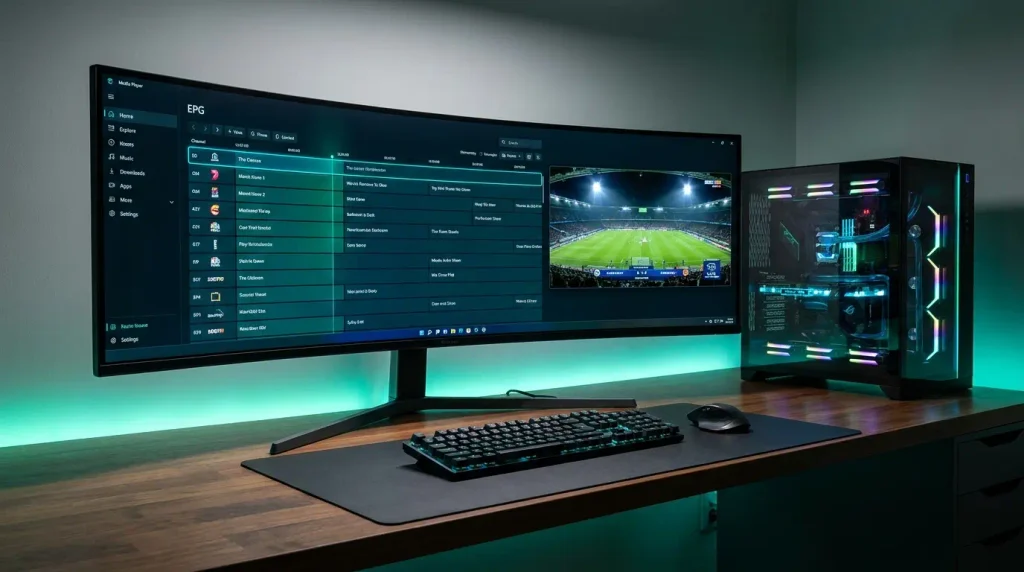
Editorial & Technical Disclaimer: This Windows software guide was evaluated by Marcus Vance through hands-on testing across Windows 11 and Windows 10 desktop setups. Ultimate IPTV Hub is an independent educational website. Media players do not include television channels, playlists, or media content; users must supply their own authorized streams.
Last Updated: October 2026
Quick Answer
The best player for IPTV Windows in 2026 depends on whether you prioritize rapid channel zapping or a polished user interface. For power users and sports fans, SFVIP Player leads the desktop market thanks to its lightweight mpv video engine and Stalker portal support. For users seeking a modern Windows 11 dashboard with official Microsoft Store delivery, MaxPlayer is the top turnkey choice. If you run a living-room Home Theater PC (HTPC), Kodi v21 (Omega) with PVR IPTV Simple Client remains unmatched.
Streaming live television on a desktop or laptop PC unlocks hardware advantages that budget HDMI sticks cannot match: dedicated GPU video decoders, multi-monitor workspaces, and direct gigabit Ethernet connectivity. However, choosing the best player for IPTV Windows comes with unique pitfalls. Because Android-exclusive apps like TiviMate do not offer a native Windows executable, many users install heavy Android emulators that cause frame drops and high CPU usage.
Native Windows IPTV software bypasses virtualization entirely, communicating directly with Microsoft DirectX (Direct3D 11) and hardware video acceleration (DXVA2/NVDEC). In this 2026 guide, we compare the top seven native Windows media players, explain how to eliminate horizontal scan lines on 1080i sports, and share the exact settings needed for smooth 4K60 playback.
🔬 How We Evaluated Windows IPTV Software
We tested each application on a Windows 11 Pro desktop (Intel Core i7, NVIDIA RTX GPU, Gigabit LAN) and a Windows 10 laptop with integrated Intel Iris Xe graphics. Every candidate for the best player for IPTV Windows was evaluated across five technical criteria: Hardware Decoding Efficiency (D3D11va/DXVA2 on 4K HEVC streams), Large Playlist Parsing (20,000+ live channels and VOD titles via Xtream Codes and M3U), EPG & Catch-Up Responsiveness, 1080i Deinterlacing Quality, and System Memory Footprint.
Diagram 1: Why native Windows IPTV software consistently outperforms virtualized Android emulators.
1. Native Windows Players vs. Android Emulators (The TiviMate Question)
One of the most common questions from PC cord-cutters is: “Can I install TiviMate on Windows 11?” Because TiviMate is developed exclusively for Android TV and Fire OS, running it on a computer requires an Android emulator like BlueStacks or LDPlayer.
While emulation is possible, it introduces three major bottlenecks for live television:
- Excessive RAM & CPU Overhead: Android emulators allocate 2GB to 4GB of system memory just to run the virtual Android OS, whereas native Windows players typically use a fraction of that footprint.
- Frame Pacing & Micro-Stutter: Rendering 50fps European sports or 60fps US broadcasts inside an emulated window often causes frame timing mismatches with your desktop monitor.
- Restricted GPU Pass-Through: Virtual machines frequently fall back to software decoding on high-bitrate 4K HEVC streams, causing laptop fans to spin loudly.
If you also stream on living-room televisions or mobile devices, you can compare cross-platform apps in our broader guide to the Best IPTV Players in 2026.
2. Comparing the 7 Best Player for IPTV Windows Options in 2026
To help you select the best player for IPTV Windows 10 and 11, the matrix below compares the top seven native desktop applications across login protocols, EPG features, hardware acceleration, and pricing:
| Windows Player | Price / Delivery | Supported Protocols | EPG & Catch-Up | Hardware Decoding | Multi-Screen | Best For |
|---|---|---|---|---|---|---|
| 1. SFVIP Player | Free / Open Source (GitHub) | Xtream, Stalker MAC, M3U | Yes (Both) | mpv / D3D11va | Yes (Multi-Instance) | Fastest Zapping & Power Users |
| 2. MaxPlayer | Freemium / Microsoft Store | Xtream Codes, M3U, M3U8 | Yes (Both) | Native Windows Media Engine | Yes (Multi-Window) | Modern Windows 11 Interface |
| 3. Kodi v21 (Omega) | 100% Free / Open Source | M3U, XMLTV, PVR Addons | Yes (Full TV Guide) | DirectX / DXVA2 | No | Home Theater PCs (HTPC) |
| 4. VLC Media Player | 100% Free / Open Source | Raw M3U, RTSP, HTTP | Basic / None | DXVA2 / Direct3D11 | Yes (Multiple Windows) | Diagnostics & Codec Fallback |
| 5. MyIPTV Player | Free / Microsoft Store | M3U URL, EPG XMLTV | Yes (EPG) | Windows Media Foundation | No | Lightweight Microsoft Store Setup |
| 6. IPTV Smarters Pro (PC) | Free / Direct Executable | Xtream Codes API, M3U | Yes (Both) | Built-in Player / VLC Core | Yes (4-Screen) | Familiar 4-Tile Dashboard |
| 7. PotPlayer | Free / Direct Executable | M3U, Direct Streams | Limited | CUDA, QuickSync, DXVA | Yes (Multi-Instance) | Advanced Audio/Video Filters |
Diagram 2: Matching your Windows IPTV player to your primary viewing setup.
3. In-Depth Reviews: Top Desktop IPTV Software for PC
1. SFVIP Player — Best Player for IPTV Windows Power Users
Originally created by developer SalezHard and maintained via open community releases, SFVIP Player is widely considered the best player for IPTV Windows enthusiasts who want maximum speed. Built around the lightweight mpv media engine (`libmpv`), SFVIP handles Xtream Codes API, standard M3U playlists, and Stalker MAC portal logins with ease. It supports Picture-in-Picture, multiple concurrent windows, Catch-Up replay, and direct GPU hardware decoding.
Security Recommendation: Because SFVIP does not operate a commercial storefront, always download release builds from verified GitHub community repositories rather than third-party download aggregators.
2. MaxPlayer — Best Modern Windows 11 App (Microsoft Store)
If you want a polished, modern interface delivered safely through the official Microsoft Store, MaxPlayer is the standout choice in 2026. Engineered natively for Windows 10 and 11, it organizes large Xtream Codes libraries into clean Live TV, Movies, and Series catalogs complete with TMDB metadata, multi-monitor support, Catch-Up TV, and cross-device account management.
3. Kodi v21 (Omega) — Best for Living Room HTPC Setups
When your Windows PC is connected to a large living-room television, Kodi offers the best 10-foot user interface. By installing the official PVR IPTV Simple Client add-on from the Kodi repository, you gain a full horizontal cable-style EPG grid, channel logo management, timeshift support, and full controller or remote navigation.
4. VLC Media Player & MyIPTV Player — Best Free Utilities
The 64-bit Windows build of VLC Media Player remains an indispensable tool for testing raw M3U playlists and inspecting stream bitrates via Tools → Codec Information (Ctrl+J). Meanwhile, MyIPTV Player (available free on the Microsoft Store) provides a no-frills native Windows UWP interface for users who simply want to load an M3U link with an XMLTV guide.
4. Windows Optimization: GPU Acceleration & 1080i Deinterlacing
Even when running a top-tier desktop player, default video rendering settings on Windows can cause choppy motion or horizontal lines during fast-moving sports broadcasts.
Diagram 3: How GPU hardware decoding and motion-adaptive deinterlacing eliminate comb artifacts on PC monitors.
1. Enable Direct3D 11 (D3D11va) Hardware Decoding
Modern NVIDIA GeForce, AMD Radeon, and Intel Arc/Iris GPUs feature dedicated media engines capable of decoding high-bitrate 4K60 HEVC (H.265) streams in hardware. Inside your player’s preferences (such as SFVIP’s mpv.conf or VLC’s Input/Codecs tab), set Hardware-Accelerated Decoding to Direct3D11 Video Acceleration (D3D11va) or DXVA2. If you experience lip-sync delay after switching decoders, follow our IPTV audio sync calibration guide.
2. Fix Horizontal “Comb Lines” on 1080i Sports Channels
Many satellite and cable sports feeds (including 50Hz European football and 1080i US networks) broadcast in interlaced format. On a progressive PC monitor, this creates jagged horizontal lines during fast camera pans. Always set your player’s Deinterlacing mode to Automatic / On using the Yadif (2x) or Bob filter to double the field rate for smooth 50fps/60fps motion.
5. Quick Setup: Connecting Xtream Codes API on Windows
Whenever possible, log in using the Xtream Codes API rather than pasting a massive raw M3U file. Xtream Codes organizes Live TV, VOD Movies, Series, and EPG guide data more efficiently on desktop players:
- Launch your chosen Windows IPTV application and click Add User / New Account.
- Select Xtream Codes API (or Stalker Portal if using a MAC address in SFVIP).
- Copy and paste your Server URL (e.g.,
http://example-server.com:8080), checking carefully that no trailing spaces were copied from your email. - Enter your case-sensitive Username and Password.
- Click Connect and allow 10–30 seconds for the player to index channel categories and XMLTV program schedules.
For a complete walkthrough covering M3U playlists, XMLTV URLs, and multi-device setups, visit our IPTV Installation Guide.
6. Windows IPTV Troubleshooting Matrix
If your streams stutter, fail to authorize, or crash on Windows 10 or 11, use this diagnostic table to pinpoint and resolve the issue:
| Windows Symptom | Likely Cause(s) | Recommended Fix |
|---|---|---|
| Stream buffers during peak evening live sports | Provider server congestion, ISP traffic shaping, or Wi-Fi packet loss | Connect via Ethernet, raise player network caching (e.g., 2500ms–3000ms), and follow our guide to fix IPTV buffering. |
| Jagged horizontal lines appear on moving players | Interlaced 1080i broadcast rendered without deinterlacing | Enable Deinterlacing in the player’s video menu and select Yadif (2x) or Bob mode. |
| App freezes when loading or refreshing playlist | Oversized raw M3U file (25,000+ items) or corrupted local EPG cache | Switch from M3U URL to Xtream Codes API login and ask your provider to trim unused international channel groups. |
| “Network Error” or “Authorization Failed” on startup | Windows Defender Firewall blocking the app, typo in URL, or active stream on another device | Whitelist the player in Windows Firewall, verify credentials, and check our IPTV Not Working diagnostic guide. |
7. Frequently Asked Questions (FAQ)
What is the best player for IPTV Windows 10 and 11 in 2026?
For speed, low CPU usage, and Stalker/Xtream support, SFVIP Player is the best player for IPTV Windows power users. If you prefer an official Microsoft Store application with a modern streaming interface and multi-monitor support, MaxPlayer is the top choice.
Can I use TiviMate on a Windows PC?
TiviMate does not have a native Windows version. While you can install the TiviMate APK inside an Android emulator like BlueStacks, native Windows players like SFVIP Player, MaxPlayer, or Kodi v21 provide much lower RAM usage and smoother frame pacing.
Should I use Xtream Codes API or an M3U URL on Windows?
Choose Xtream Codes API whenever your player supports it. Xtream Codes loads channel categories, VOD posters, and EPG schedules through structured API calls rather than forcing your PC to parse a single massive M3U text file on every startup.
Do I need to buy HEVC codecs on Windows 11 for 4K IPTV?
No, if you use standalone players like SFVIP Player, Kodi, or VLC, as they include built-in open-source HEVC (H.265) decoders. You only need the Microsoft Store “HEVC Video Extensions” if your chosen app relies strictly on the default Windows Media Foundation framework.
8. Final Verdict & PC Optimization Checklist
Choosing the best player for IPTV Windows allows you to turn any desktop or laptop into a responsive, multi-screen television hub. By ditching heavy Android emulators in favor of native software like SFVIP Player, MaxPlayer, or Kodi v21—and enabling Direct3D 11 hardware decoding—you get crisp 4K and 60fps playback with minimal system load.
Diagram 4: The core hardware and software configuration for reliable IPTV playback on Windows.
Windows 10 & 11 IPTV Setup Checklist
- ✓ Native Windows IPTV player installed (SFVIP Player, MaxPlayer, or Kodi v21)
- ✓ Playlist connected via Xtream Codes API for faster category and EPG indexing
- ✓ Hardware video decoding set to Direct3D 11 (D3D11va) or DXVA2
- ✓ Deinterlacing enabled (Yadif 2x or Bob) for 1080i live sports channels
- ✓ App allowed through Windows Defender Firewall on private networks
Pair Your Windows PC with a High-Stability Stream
Even a well-configured desktop player cannot compensate for an overloaded upstream server. To get the most out of your PC’s 4K decoding and multi-window capabilities, review our independent comparison of top-rated streaming providers evaluated for uptime, low latency, and accurate EPG data.
Compare Top-Rated IPTV Services in the USA ➔