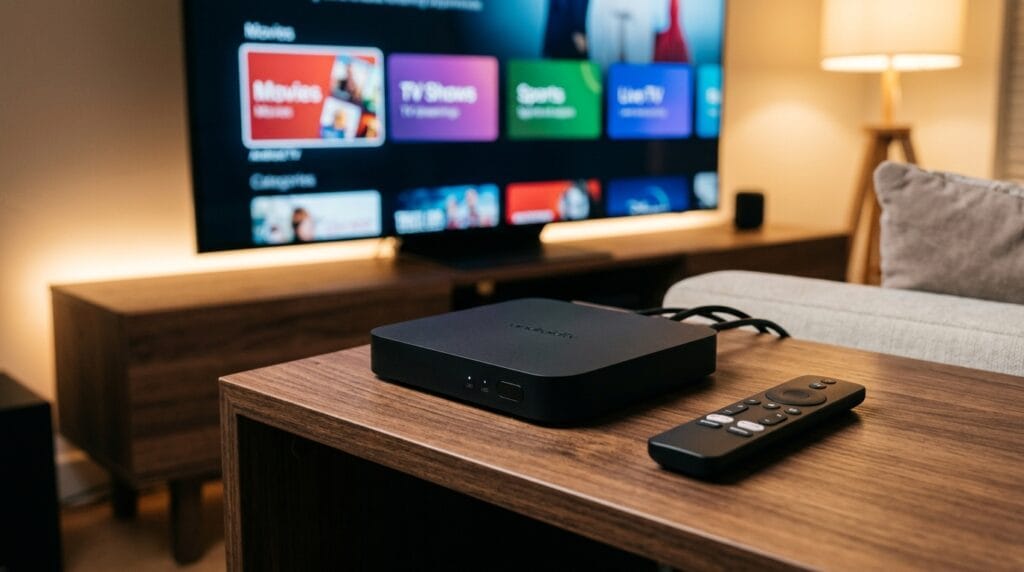
As the digital television landscape shifts across Canada and North America, an increasing number of cord-cutters are turning to flexible streaming solutions for their living room. Setting up a comprehensive streaming experience provides an ideal hardware and software environment for running media players, offering unparalleled advantages for serious viewers. When you master Setting Up IPTV on Android Box, you gain access to a customized world of live sports, local Canadian broadcasts, on-demand movies, and international content right from your couch.
Unlike underpowered smart TV operating systems or locked-down devices, a powerful Android set-top box utilizes dedicated graphics processing units (GPUs) to decode high-definition streams smoothly. However, transforming a standard viewing area into a flawless home theater with your specialized media center demands a structured, step-by-step approach. You can discover more foundational setups on our Ultimate IPTV Hub homepage.
In this comprehensive 2026 mega-guide, we will walk you through the entire process. From preparing your hardware environment and optimizing your home internet network to installing the best media applications and fixing common Electronic Program Guide (EPG) errors, this article is designed to be your definitive resource for stable and high-quality streaming.
Table of Contents
- Quick Answer: Configured Streaming Environment
- Section 1: Hardware & Network Foundation
- Section 2: Choosing & Installing Media Players
- Section 3: Software & Performance Tuning
- Section 4: Advanced Playlist & EPG Setup
- Section 5: Maintaining and Troubleshooting Your Hub
- Integrating Ultimate IPTV Hub for Premium Access
- FAQ: Frequently Asked Questions
- Final Verdict and Maintaining Peak Performance
Quick Answer: Configured Streaming Environment
To successfully launch and complete Setting Up IPTV on Android Box, connect your device to the internet, ideally via an Ethernet cable. Next, download a trusted media player application—such as TiviMate or IPTV Smarters Pro—directly from the Google Play Store. Configure the application with your service provider’s credentials (M3U link or Xtream Codes API). Once your channel list populates, add your XMLTV EPG URL to sync schedules and adjust the local time offset to match your specific Canadian timezone. Finally, optimize performance by increasing the playback buffer and verifying hardware decoding is active.
Section 1: Hardware & Network Foundation
Before installing media software, you must optimize your physical environment to ensure the best performance.
Ethernet over Wi-Fi: The 2026 Essential Wired Connection
Live television streams, especially in high-definition, require significant and stable bandwidth. Canadian internet service providers (ISPs) offer fast speeds, but stability is far more important for Setting Up IPTV on Android Box. A fluctuating Wi-Fi signal will cause packet loss, resulting in the dreaded buffering wheel. Whenever physically possible, connect your streaming box directly to your home router using a high-quality Cat6 or Cat7 Ethernet cable.
This hardwired connection guarantees zero wireless interference and provides a constant data flow, which is the single best defense against buffering. To verify that your home network is optimized for data flow, explore our speed testing and optimization guide. You can also benchmark your connection using Speedtest by Ookla.
DNS Optimization for Stable Streaming
Sometimes, your ISP’s default Domain Name System (DNS) servers are slow to resolve streaming URLs, affecting the speed at which your channels load. Changing the DNS settings on your Android box to a faster, privacy-focused server can drastically improve channel zapping speed. We recommend using reliable, open alternatives like Google Public DNS (8.8.8.8 and 8.8.4.4) or Cloudflare (1.1.1.1 and 1.0.0.1).
Section 2: Choosing & Installing Media Players
Your choice of media player dictates the quality of your user interface and the speed of navigation. Generic Android boxes rely on third-party applications to process playlists. When Setting Up IPTV on Android Box, choose a player optimized for television screens.
Popular applications in 2026 include:
- TiviMate: Highly regarded for its premium interface, profound EPG customization, and multi-playlist support.
- IPTV Smarters Pro: Offers cross-platform support with an intuitive layout for live television and video-on-demand.
Installation Steps (Google Play Store Method):
- Turn on your box and open the Google Play Store.
- Search for your preferred media player.
- Select Install and follow the prompts.
- Open the application to begin configuring your playlist source.
If you are also setting up global feeds, make sure to read our International IPTV Guide for specific region configurations.
Section 3: Software & Performance Tuning
Running your specialized media center relies on the right third-party software configuration.
Configuring Hardware Decoding for 4K Playback
How your streaming box processes video data is critical. To utilize the robust decoding capabilities of an advanced device, you must activate the correct software settings.
- Hardware Decoding: This method uses the device’s dedicated graphics processing unit (GPU). It is extremely efficient and required for 4K streaming at 60 fps.
- Software Decoding: This uses the main system CPU. It is less efficient and can lead to overheating, audio desync, and video stutter on weaker devices.
In players like TiviMate or Smarters Pro, navigate to the Playback settings and ensure that the video decoder is set to “Hardware” for all stream types. Clear app caches periodically to free up storage space.
Section 4: Advanced Playlist & EPG Setup
Once your media player is installed, you must link your stream source to start watching.
Step-by-Step Playlist Configuration
- Open your media player and select Add Playlist or Add Account.
- Choose either Xtream Codes API (recommended) or M3U Playlist URL provided by your service.
- Enter your credentials accurately and click Save.
Configuring the Electronic Program Guide (EPG)
An EPG displays scheduled programming across your channels. When Setting Up IPTV on Android Box with Canadian broadcasters, accurate time mapping is essential.
- Navigate to app settings and locate the EPG Sources or TV Guide section.
- Type in the XMLTV URL provided by your service, usually ending in
.xml. To learn more about how this standard data structure works, read the official XMLTV Project documentation. - Save and select Update EPG Data to download the schedule.
Section 5: Maintaining and Troubleshooting Your Hub
Even with a flawless setup, technology occasionally hiccups. When maintaining your optimized living room setup, knowing how to troubleshoot is essential.
Buffer Management for Stable Streaming
If you face buffering even on a stable wired connection, you should increase the playback buffer within your application settings (e.g., in TiviMate, OTT Navigator). Increase the buffer size from “Normal” to “Large” or “Max” to smooth out momentary network fluctuations.
EPG Fixes (Blank or Mismatched Guide)
- Blank Guide (“No Information”): If your EPG displays blank fields, your guide data may be corrupted. Go to settings, select Clear EPG Cache, and trigger a manual update.
- Time Shift Fix for Canadian Viewers: If a live hockey game starts at 7:00 PM EST, but your guide displays 2:00 PM PST, the data is misinterpreting the timezone base. Go to settings for “Time Shift” or “UTC Offset” and adjust it until the schedule matches reality.
Integrating Ultimate IPTV Hub for Premium Access
For viewers seeking the absolute pinnacle of performance and content library, integrating specialized services from Ultimate IPTV Hub is the final step toward mastering your home entertainment system. This destination offers premium configurations tailored for serious viewers who demand reliable 4K sports, local Canadian broadcasting, and huge on-demand libraries with zero compromises.
By choosing an optimized playlist or server API through Ultimate IPTV Hub, you bypass the quality control issues common with standard, unlicensed streams. Their infrastructure is designed to complement the powerful hardware and optimized software configuration discussed in this guide, providing a curated experience that is always stable. For complete technical walkthroughs, check out our full IPTV Installation Guide.
FAQ: Frequently Asked Questions
Why Optimize Your Ultimate IPTV Hub Living Room Setup?
A clean and stable optimized streaming environment is critical for ensuring a flawless experience during high-bitrate video streams, such as 4K sports or movie nights. Operating your specialized media center relies on the right third-party software configuration.
Why is a wired connection prioritized over Wi-Fi?
Live video streams, especially HD/4K, require a constant, stable data flow. Wi-Fi fluctuating signal will cause packet loss, resulting in the dreaded buffering wheel. Ethernet over Wi-Fi provides a constant connection for peak performance.
Do I need a separate subscription for an EPG?
In most cases, no. Your streaming playlist source typically includes an integrated EPG link or API Xtream data flow that populates your channel guide automatically.
What is the benefit of using an Android box over a smart TV operating system?
Android set-top boxes provide robust performance and hardware decoding capabilities that standard smart TVs often lack. They offer better processor performance, open operating system flexibility, expandable storage, and reliable hardware decoding, making them ideal for managing massive channel lists and advanced media players.
Final Verdict and Maintaining Peak Performance
Maintaining your optimized streaming environment requires periodic maintenance to ensure your system remains responsive. You must regularly update your applications and your device’s operating system to patch vulnerabilities and improve performance. Furthermore, because generic boxes can run out of space, periodically navigate to Android Settings > Apps > [Your Media Player] and select Clear Cache to free up system memory and clear corrupted guide data.
By following these steps, you successfully complete Setting Up IPTV on Android Box and unlock a professional home theater experience. For any persistent technical issues, you can reach out directly via our IPTV Support Page. Enjoy your new entertainment system!
Editorial note: This guide is provided for technical, educational, and troubleshooting purposes only. Ultimate IPTV Hub does not host, distribute, or sell unlicensed video streams or copyrighted media content. We strongly advise all users to utilize authorized platforms and comply with all applicable digital streaming laws.