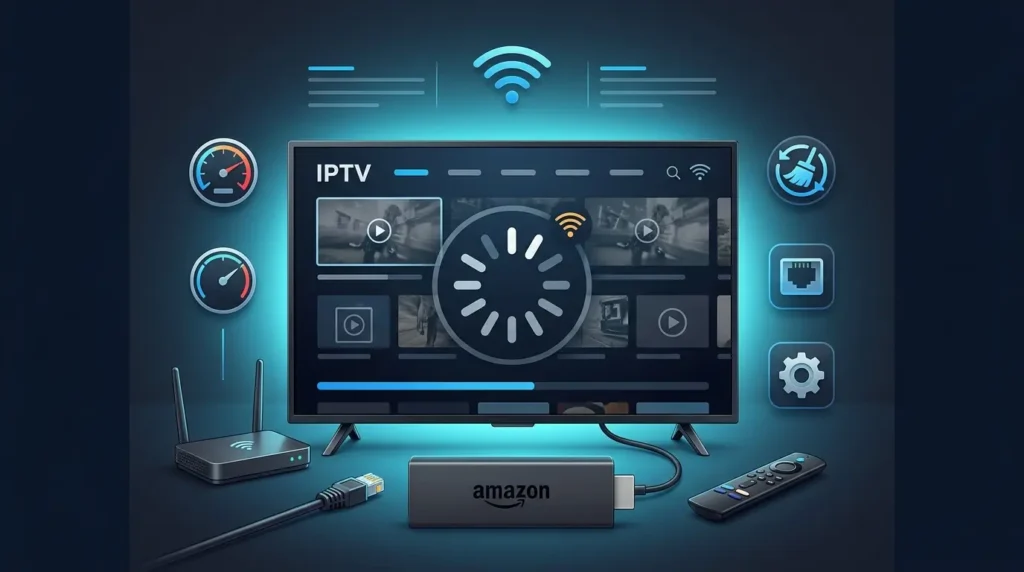
IPTV Buffering on Firestick: 12 Proven Fixes for Better Streaming
IPTV buffering on Firestick can turn live TV, sports, movies, and entertainment into a frustrating cycle of freezing, loading circles, delayed playback, and repeated interruptions.
The cause is not always the IPTV app or service itself. Weak Wi-Fi, network congestion, limited Firestick resources, cached application files, background activity, outdated software, or high-bitrate streams can all create similar playback problems.
In most cases, IPTV buffering on Firestick can be diagnosed by checking the network, device performance, application settings, and individual stream one by one.
Instead of changing random settings, use the troubleshooting order below to identify whether the issue comes from your Firestick, Wi-Fi connection, IPTV player, or streaming source.
Start with these fixes:
If you are setting up your device for the first time, follow our IPTV installation guide before changing advanced Firestick settings.
Why Does IPTV Keep Buffering on Firestick?
Buffering happens when the Firestick cannot receive, process, or decode video data quickly enough to maintain continuous playback.
The issue can occur at several different points between the video source, internet connection, router, Firestick, and IPTV player.
| Symptom | Likely Cause | Recommended Fix |
|---|---|---|
| All channels buffer | Wi-Fi or internet issue | Restart router and test connection |
| One channel buffers | Stream-specific issue | Test another channel |
| Buffering during peak hours | Network or source congestion | Reduce network activity |
| App becomes slow | Cache or device resources | Clear cache and restart |
| 4K buffers but HD works | Bandwidth or device limitation | Lower video quality |
| Firestick feels slow everywhere | Low storage or system load | Free storage and restart |
| Buffering only on Wi-Fi | Wireless instability | Improve Wi-Fi or test Ethernet |
| Every device has the same issue | Internet or service-side issue | Test network and provider |
How to Fix IPTV Buffering on Firestick Step by Step
1. Restart Your Firestick First
A restart should be your first troubleshooting step because it clears temporary system processes and refreshes device resources.
Settings → My Fire TV → Restart
Allow the device to restart completely, then reopen your IPTV player.
Amazon includes restarting Fire TV devices as part of its connectivity troubleshooting guidance. You can review the official Amazon Fire TV documentation.
Why Restarting Can Help
Streaming applications continuously use:
- Memory
- Network resources
- Video decoding
- Cached files
- Background processes
A restart can clear temporary slowdowns without removing your login details or app configuration.
2. Restart Your Router
Your Firestick depends on a stable home network. Even a fast internet package can experience temporary Wi-Fi instability, congestion, or router issues.
- Turn the router off.
- Disconnect its power briefly.
- Reconnect the router.
- Wait until internet access is fully restored.
- Reconnect the Firestick.
- Test the same stream again.
Do not assume that a high advertised internet speed automatically means the connection reaching your Firestick is stable.
3. Test the Firestick’s Actual Internet Connection
If IPTV buffering on Firestick continues after restarting the device and router, determine whether your internet connection is the real problem.
Test your connection close to the television rather than relying on a test from a phone in another room.
Pay attention to:
- Download speed
- Connection stability
- Sudden speed drops
- Wi-Fi disconnects
- Whether other streaming apps also buffer
4. Check Whether the Problem Affects Every Channel
One of the fastest ways to diagnose IPTV buffering on Firestick is to test several authorized channels or streams.
If Only One Channel Buffers
The problem may be associated with that specific stream rather than your Firestick.
If Every Channel Buffers
Investigate:
- Wi-Fi quality
- Internet connection
- Firestick performance
- IPTV application
- Router
- Account or service status
If Every Streaming App Buffers
Try YouTube, Prime Video, Netflix, or another legitimate streaming application.
If those apps also buffer, the problem is more likely related to your network or Firestick than your IPTV player alone.
5. Improve the Firestick Wi-Fi Signal
Weak or unstable Wi-Fi is one of the most common factors behind IPTV buffering on Firestick, especially when the device is positioned behind a television or far from the router.
Try the following:
- Move the router closer to the TV if possible.
- Avoid placing the router inside a cabinet.
- Reduce physical obstacles between the router and Firestick.
- Compare supported Wi-Fi bands.
- Disconnect and reconnect the Firestick to Wi-Fi.
- Temporarily test another network.
A mobile hotspot can be useful as a temporary diagnostic test, but it should not be treated as a permanent solution.
6. Stop Other Devices From Consuming Bandwidth
Multiple devices using the same internet connection can reduce the bandwidth available to your Firestick.
Check whether another device is performing:
- Large game downloads
- Cloud backups
- 4K streaming
- Large uploads
- Software updates
- Multiple simultaneous video streams
Pause heavy network activity temporarily and test playback again.
If streaming becomes smooth after other downloads stop, household network congestion was likely contributing to the problem.
7. Clear the IPTV App Cache
If IPTV buffering on Firestick started after your player became slower than usual, clearing the application cache is a useful troubleshooting step.
Go to:
Amazon provides official guidance on managing applications in its Fire TV app management documentation.
Clear Cache vs. Clear Data
Clearing data may remove saved settings, playlists, account details, or app configuration.
Start with Clear Cache, reopen the app, and test playback again.
8. Free Up Firestick Storage
When IPTV buffering on Firestick happens together with slow menus, crashes, or delayed app loading, limited device resources may be contributing to the problem.
Go to:
Review applications you rarely use and remove unnecessary ones.
Signs that the Firestick itself may be struggling include:
- Slow menus
- Apps opening slowly
- Frequent crashes
- Delayed remote response
- Apps restarting unexpectedly
- General interface lag
After freeing storage, restart the Firestick and test your IPTV player again.
9. Update Fire TV and Your IPTV Player
Software updates can contain stability and compatibility improvements.
Check that:
- Fire TV is up to date.
- Your IPTV player is updated.
- You are using a version compatible with your Firestick.
If you are considering another app, compare available options in our best IPTV players guide.
Avoid downloading random modified APK files from unknown websites simply because your current player is buffering.
10. Lower the Streaming Quality Temporarily
If 4K or high-bitrate streams buffer while HD versions work correctly, the heavier stream may be placing more demand on your network or device.
4K → Full HD
Full HD → HD
If lower-quality playback becomes stable, your network capacity, stream bitrate, device resources, or a combination of these may be limiting higher-quality playback.
Amazon explains that multimedia playback can place sustained demands on networking, memory, CPU, and video decoding resources in its Fire TV multimedia documentation.
11. Test Ethernet Instead of Wi-Fi
If IPTV buffering on Firestick disappears when you switch from Wi-Fi to Ethernet, your wireless connection is likely the main area to investigate.
A compatible Ethernet adapter can remove several wireless variables, including:
- Distance from the router
- Wireless interference
- Signal fluctuations
- Crowded Wi-Fi environments
Ethernet does not automatically solve every streaming issue, but it is a useful diagnostic test for separating Wi-Fi problems from device or source problems.
12. Restart or Reinstall the IPTV Player
If your connection is stable but one IPTV app continues to freeze or buffer, focus on that specific player.
Try this order:
- Close the application.
- Clear its cache.
- Restart the Firestick.
- Open the app again.
- Test several authorized streams.
- Check for an app update.
- Reinstall the application only if necessary.
Before reinstalling, make sure you have any legitimate account details or playlist credentials required to configure the application again.
How to Identify the Real Cause of IPTV Buffering
The fastest way to solve IPTV buffering on Firestick is to test one possible cause at a time instead of changing several settings simultaneously.
Test 1: Same Firestick, Different Stream
If one stream fails but others work normally, the issue may be source-specific.
Test 2: Same Service, Different Device
If the same authorized account works normally on another compatible device using the same network, investigate your Firestick or player app.
Test 3: Same Firestick, Different Network
Temporarily testing another network can help identify whether your home Wi-Fi or internet connection is involved.
Test 4: Other Streaming Apps
If YouTube, Prime Video, Netflix, or other legitimate streaming apps also buffer, focus on the Firestick or network first.
| Test Result | More Likely Cause |
|---|---|
| One channel affected | Channel or source |
| Every IPTV channel affected | Network, app, device, or service |
| Every streaming app affected | Network or Firestick |
| Only one Firestick affected | Device or app |
| Several devices affected | Network or service |
| Ethernet works better | Wi-Fi |
| HD works but 4K buffers | Bandwidth or device capability |
What Not to Do When IPTV Buffers on Firestick
Do Not Factory Reset Immediately
A factory reset removes device configuration and should normally be one of the last troubleshooting options.
Do Not Clear App Data Without Checking Your Login Details
Clearing application data may remove saved settings, accounts, or playlists.
Clear cache first.
Do Not Install Random “Anti-Buffering” Apps
Unknown applications can create privacy, security, or performance risks without solving the actual cause of the problem.
Do Not Assume a VPN Automatically Fixes Buffering
A VPN changes the route your internet traffic takes and can sometimes reduce performance because the connection passes through an additional server.
VPNs may be used for legitimate privacy reasons, but they should not be treated as a universal buffering solution or as a method of bypassing copyright, licensing, or legal restrictions.
Do Not Change Multiple Settings at Once
Change one setting, test playback, and then continue if necessary.
This makes it much easier to identify which adjustment actually fixed the problem.
Best Troubleshooting Order for Firestick IPTV Buffering
- Test several channels.
- Restart the IPTV app.
- Restart the Firestick.
- Restart the router.
- Test another streaming application.
- Check your internet connection.
- Stop heavy network activity.
- Clear the IPTV app cache.
- Free Firestick storage.
- Update Fire TV and your IPTV player.
- Reduce video quality temporarily.
- Compare Wi-Fi with Ethernet or another network.
- Test another compatible device.
- Contact support if the problem continues.
If you need help configuring your player rather than troubleshooting buffering, read our complete IPTV installation guide.
When Should You Contact IPTV Support?
Contact support when you have already confirmed that:
- Your internet connection is working.
- Other apps stream normally.
- Your Firestick has been restarted.
- Your router has been restarted.
- The app cache has been cleared.
- The app is updated.
- Several streams are affected.
- The same problem appears on another compatible device.
When contacting support, provide:
- Firestick model
- IPTV player name
- Internet connection type
- Wi-Fi or Ethernet
- Whether all channels are affected
- Approximate time the issue occurs
- Any exact error message
Frequently Asked Questions
Why does IPTV buffering on Firestick keep happening?
IPTV buffering on Firestick can be caused by unstable Wi-Fi, network congestion, limited device resources, application issues, high-bitrate video, or temporary stream-side problems.
What is the fastest way to fix IPTV buffering on Firestick?
The fastest way to fix IPTV buffering on Firestick is to restart the Firestick and router, test several streams, check Wi-Fi stability, clear the app cache, and then test Ethernet or another network if the problem continues.
Does clearing cache stop IPTV buffering?
It can help when temporary app files are contributing to poor application performance. Clear cache before considering clearing all app data.
Should I restart my Firestick if IPTV freezes?
Yes. Restarting is a simple, low-risk troubleshooting step that can refresh temporary processes and device resources.
Is Ethernet better than Wi-Fi for IPTV on Firestick?
Ethernet can provide a more consistent network connection and remove common Wi-Fi variables such as interference and weak signal strength.
Why does 4K IPTV buffer but HD works?
Higher-resolution video generally requires more network throughput and device processing. If HD works normally while 4K buffers, bandwidth, bitrate, or device capability may be limiting performance.
Can low Firestick storage cause streaming problems?
Low storage can contribute to poor overall device performance, especially if menus and other applications are also slow.
Should I factory reset my Firestick?
Not initially. Restart the device, clear cache, check your network, free storage, and update software before considering a factory reset.
Final Thoughts
Most cases of IPTV buffering on Firestick can be narrowed down by testing the network, application, Firestick, and individual stream separately.
Start with the simplest fixes: restart the Firestick and router, test several streams, check other video apps, improve Wi-Fi, clear the app cache, free storage, and update your software.
If buffering happens only on your Firestick, focus on the device, player app, or local Wi-Fi connection. If several devices experience the same issue, investigate your home internet connection or streaming source instead.
A systematic troubleshooting process is more effective than repeatedly reinstalling apps or changing advanced settings without knowing what caused the problem.
For more help, read our best IPTV players guide, our complete IPTV guide, or our IPTV installation guide.
Always use IPTV applications and streaming sources that you are authorized to access.
Still Having IPTV Buffering Problems?
After completing the troubleshooting steps above, contact support with your Firestick model, IPTV player, connection type, and details about when the buffering occurs.
Contact IPTV Support