As home entertainment technology advances, high-definition streaming has become the golden standard for cord-cutters across the United States. However, nothing ruins a thrilling live sports game or a movie night quite like a frozen screen. If you are trying to fix 4k iptv usa buffering, you are not alone. Streaming ultra-high-definition content demands a flawless connection, powerful hardware, and a properly optimized software environment.
In the American digital landscape, issues like ISP throttling and network congestion are incredibly common. Fortunately, resolving these playback issues does not require a degree in computer science. In this comprehensive mega-guide, we will walk you through the definitive, step-by-step troubleshooting process to eliminate lag, stop the freezing, and restore your premium home theater experience.
Table of Contents
- Understanding the Root Causes to Fix Buffering
- Step 1: The Essential Wired Connection (Ethernet)
- Step 2: Bypass ISP Throttling with a VPN
- Step 3: Adjust Media Player Buffer Settings
- Step 4: Optimize Hardware Decoding
- Step 5: DNS Server Optimization
- Integrating Ultimate IPTV Hub for Stability
- FAQ: Frequently Asked Questions
- Final Verdict on Buffer-Free Streaming
Understanding the Root Causes to Fix 4K IPTV USA Buffering
Before you can effectively jump into solutions, you must understand why the stream freezes. Unlike Netflix or YouTube, which allow your device to download (cache) minutes of video in advance, live television relies on real-time data packets. If a single data packet drops due to a weak Wi-Fi signal, an underpowered Android box, or an internet service provider deliberately slowing down your connection, the video player has to pause and wait. This pause is the buffering wheel you see on your screen.
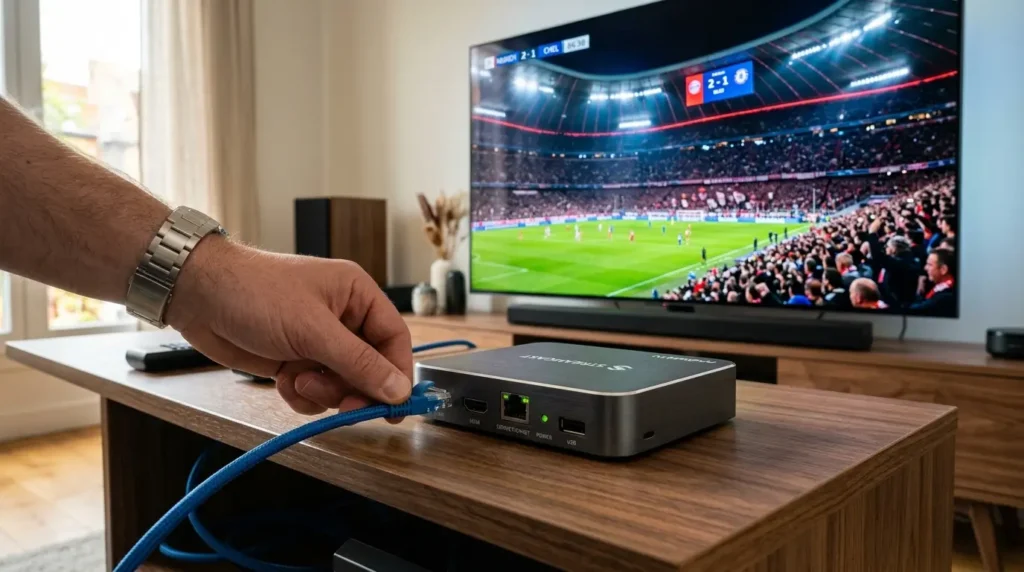
Step 1: The Essential Wired Connection (Ethernet)
The most common culprit behind freezing live streams is a fluctuating Wi-Fi signal. While American ISPs provide massive internet speeds, the wireless delivery of that speed to your living room is often disrupted by walls, microwaves, and congested neighborhood networks.
To instantly stabilize your connection, you must hardwire your streaming device (like your Android Box, Nvidia Shield, or Fire TV) directly to your home router using a Cat6 or Cat7 Ethernet cable. A wired connection guarantees a continuous, uninterrupted data flow. Before making software changes, test your baseline connection speed using Speedtest by Ookla. You need a stable minimum of 25-50 Mbps specifically dedicated to your device for smooth 4K viewing.
Step 2: Bypass ISP Throttling with a VPN
If you are using an Ethernet cable and a fast internet connection but still experience freezing specifically during major live events (like Sunday football or pay-per-view fights), you are likely a victim of ISP throttling.
Major broadband providers in the United States actively monitor network traffic. When they detect heavy, continuous video streaming, they automatically throttle (slow down) the connection to save bandwidth. To successfully fix 4k iptv usa buffering in this scenario, you must encrypt your traffic. By activating a high-quality Virtual Private Network (VPN), your ISP can no longer see what you are doing. Ensure your VPN uses the modern WireGuard protocol for the fastest possible encryption speeds.
Step 3: Adjust Media Player Buffer Settings
Sometimes, minor network jitters are unavoidable. To combat this, you can adjust how your media player software handles incoming data. Applications like TiviMate or IPTV Smarters Pro allow users to change the internal buffer size.
- Open your media player’s Settings.
- Navigate to Playback or Advanced Settings.
- Locate the Buffer Size option.
- Change the setting from “Small” or “Normal” to “Large” or “Max”.
By increasing the buffer size, you force the application to download slightly more of the live video in advance. While this might delay the live feed by two or three seconds, it drastically smooths out minor network drops. You can learn more about optimizing specific apps in our dedicated Android Box optimization guide.
Step 4: Optimize Hardware Decoding
A 4K stream requires massive computational power. If your device is trying to process the video using its main processor (Software Decoding) instead of its dedicated graphics chip (Hardware Decoding), the device will overheat and the video will stutter and buffer.
Navigate to your application’s playback settings and ensure that Video Decoder is strictly set to Hardware (HW). If your current device is over three years old, it may simply lack the RAM and GPU power required for modern high-definition streams, and a hardware upgrade might be necessary.
Step 5: DNS Server Optimization
Domain Name System (DNS) servers act as the phonebook of the internet, translating URLs into IP addresses. The default DNS servers provided by American ISPs are notoriously slow and occasionally block streaming domains, which severely delays how fast your channels load and can cause micro-stutters.
Changing the DNS settings directly on your streaming box or router to a faster, privacy-focused server is a proven technique. We highly recommend updating your network to use Google Public DNS (8.8.8.8 and 8.8.4.4) or Cloudflare (1.1.1.1).
Integrating Ultimate IPTV Hub for Stability
While optimizing your local hardware and home network is crucial, the ultimate foundation of a buffer-free experience is the quality of the streaming source itself. If the server providing your channels is overcrowded or poorly maintained, no amount of local troubleshooting will resolve the freezing.
This is where integrating a premium solution from Ultimate IPTV Hub changes the game. By choosing a high-quality API setup or a heavily optimized M3U playlist through our curated recommendations, you ensure that the server-side infrastructure can handle heavy US traffic loads. A robust server paired with the local optimizations discussed in this guide guarantees an unparalleled home theater experience. For assistance in setting up a premium connection, explore our full IPTV Installation Guide.
FAQ: Frequently Asked Questions
Why does my stream buffer only during live sports?
This is a classic symptom of ISP throttling or an overcrowded server. During major American sporting events, millions of users log in simultaneously. Using a VPN prevents your ISP from slowing you down, while a premium service provider ensures their servers have enough bandwidth to handle the peak traffic.
Can clearing my app cache fix 4k iptv usa buffering?
Yes. Over time, your media player accumulates massive amounts of EPG (TV Guide) data and channel logos. When the storage fills up, the device’s RAM struggles to process live video. Periodically go to your device settings and clear the cache of your media player.
Is Wi-Fi 6 fast enough for 4K streaming?
While Wi-Fi 6 is significantly faster and handles multiple devices better than older standards, it is still susceptible to wireless interference from neighboring networks and physical obstacles. A hardwired Ethernet connection will always be superior for live TV.
Final Verdict on Buffer-Free Streaming
You do not have to accept freezing and lag as a normal part of cord-cutting. By taking a proactive approach to your home network, you can completely fix 4k iptv usa buffering and enjoy a flawless viewing experience. Remember the golden rules: always use a hardwired Ethernet connection, encrypt your traffic with a VPN to avoid ISP throttling, adjust your media player’s buffer size, and ensure you are connected to a premium server.
For persistent issues or advanced technical configurations, do not hesitate to reach out to our team through the IPTV Support Page. Enjoy your uninterrupted 4K home theater!
Editorial note: This guide is provided for technical, educational, and troubleshooting purposes only. Ultimate IPTV Hub does not host, distribute, or sell unlicensed video streams or copyrighted media content. We strongly advise all users to utilize authorized platforms and comply with all applicable digital streaming laws.