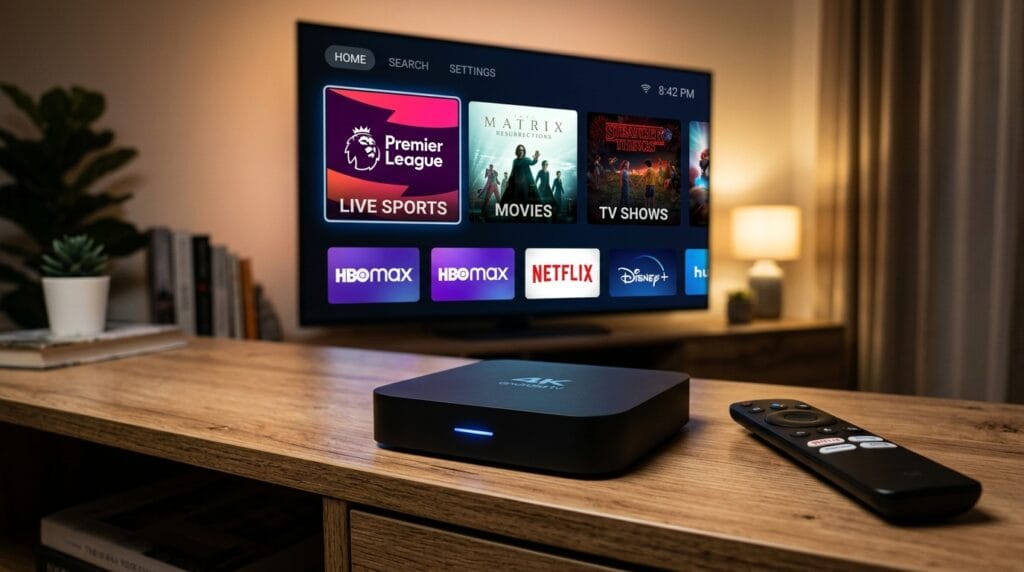
5 Best Tips for Ultimate IPTV Hub on Android Box Setup
As the digital television landscape shifts across Canada, an increasing number of cord-cutters are searching for flexible, high-quality streaming solutions. If you are looking to take control of your home entertainment, configuring the Ultimate IPTV Hub on Android Box is one of the most effective ways to access live sports, local Canadian broadcasts, on-demand movies, and international content. Utilizing this specific setup provides an ideal hardware and software environment for running powerful media players, but getting everything properly configured from scratch requires a structured, step-by-step approach.
In this comprehensive mega-guide, we will walk you through everything you need to know. From selecting the right hardware and optimizing your home internet network to installing the best media applications and fixing common Electronic Program Guide (EPG) errors, this article is designed to be your ultimate resource.
Quick Answer: Setting Up the Ultimate IPTV Hub on Android Box
To successfully launch and configure the Ultimate IPTV Hub on Android Box, start by connecting your device to a stable internet connection (preferably via Ethernet). Next, download a trusted media player application—such as TiviMate, IPTV Smarters Pro, or OTT Navigator—directly from the Google Play Store. Log in using your service provider’s credentials (usually an M3U link or Xtream Codes API). Finally, add your XMLTV EPG URL to sync your channel schedules and adjust the local time offset to match your specific Canadian timezone.
1. Why Choose the Ultimate IPTV Hub on Android Box?
When it comes to streaming live television, the hardware you choose dictates the quality of your experience. Many users attempt to stream using underpowered smart TV operating systems or locked-down devices. However, configuring the Ultimate IPTV Hub on Android Box provides unparalleled advantages for serious viewers.
The Power of the Android OS Ecosystem
Unlike closed ecosystems, the Android TV operating system is open and highly customizable. It grants users full access to the Google Play Store, allowing for the installation of specialized media players, network optimization tools, and maintenance applications. Whether you are using an Nvidia Shield Pro, a Chromecast with Google TV, or a generic Android set-top box, the underlying architecture is built to handle heavy data processing.
Hardware Decoding and 4K Capabilities
Live television streaming, particularly 4K sports broadcasts, requires robust hardware decoding. A quality Android box utilizes dedicated graphic processing units (GPUs) to decode high-definition video streams without overwhelming the main processor. This means less buffering, no audio desync, and a perfectly smooth 60 frames-per-second (fps) viewing experience during fast-paced action.
Superior Storage Management
Streaming applications and large EPG databases (XMLTV files) can consume hundreds of megabytes of local storage. Many smart TVs have incredibly limited internal memory (often less than 4GB available). An Android box typically offers 8GB, 16GB, or even expandable USB storage options, ensuring your guide data never fails to download due to a lack of space.
2. Preparing Your Network for Canadian Streaming
Before installing any software, you must ensure your home network is optimized. Canadian internet service providers (ISPs) offer fast speeds, but how that internet reaches your device is what truly matters.
Ethernet vs. Wi-Fi: The Ultimate Debate
For live streaming, stability is far more important than raw speed. A fluctuating Wi-Fi signal will cause packet loss, resulting in the dreaded buffering wheel.
- The Ethernet Advantage: Whenever physically possible, connect your Android box directly to your home router using a Cat6 or Cat7 Ethernet cable. This guarantees zero wireless interference and provides a constant, uninterrupted data flow.
- Optimizing Wi-Fi (If You Must): If you cannot run a cable, you must connect your device to the 5 GHz Wi-Fi band, not the 2.4 GHz band. While 2.4 GHz reaches further, it is easily congested by microwaves, Bluetooth devices, and your neighbors’ routers. The 5 GHz band offers the massive bandwidth required for high-definition streaming.
- Connection Testing: You can verify your internet stability using tools like Speedtest by Ookla to ensure your bandwidth can handle live streaming without sudden drops in resolution.
DNS Optimization and Latency
Sometimes, your ISP’s default Domain Name System (DNS) servers are slow to resolve streaming URLs. Changing the DNS settings on your Android box to a faster, privacy-focused server can drastically improve channel loading times. Popular, reliable DNS alternatives include Google Public DNS (8.8.8.8 and 8.8.4.4) and Cloudflare (1.1.1.1 and 1.0.0.1).
3. Choosing the Best Media Player for Your Setup
Operating the Ultimate IPTV Hub on Android Box requires third-party software. The box itself is just the engine; the media player is the dashboard. Here are detailed breakdowns of the top applications available to Canadian viewers.
A. TiviMate Premium
TiviMate is widely considered the gold standard for Android TV devices. It is designed specifically for television screens and remote controls.
- Pros: Incredible multi-EPG support, extremely fast channel zapping, picture-in-picture mode, and a highly customizable user interface.
- Cons: The premium features require a paid, one-time lifetime unlock or a yearly subscription, but it is entirely worth the investment.
- Best For: Power users who want their digital interface to look and feel exactly like a high-end traditional cable box.
B. IPTV Smarters Pro
IPTV Smarters Pro is one of the most widely used media players globally due to its cross-platform nature and straightforward, tile-based interface.
- Pros: Very easy for beginners to navigate, excellent video-on-demand (VOD) layout, and automatic API login support.
- Cons: The interface is slightly less customizable than TiviMate, and navigating massive live TV lists can be slightly slower.
- Best For: Users who watch a mix of live television and large libraries of on-demand movies and series.
C. XCIPTV Player
XCIPTV is a highly stylized, robust media player that many providers use as a base for custom applications.
- Pros: Beautiful user interface, built-in VPN integration, and excellent handling of backup and restore features.
- Cons: The layout can feel a bit heavy on older, low-RAM Android boxes.
- Best For: Users who want a visually stunning interface with built-in security features.
D. OTT Navigator
A highly technical, feature-rich player that rivals TiviMate in terms of pure functionality.
- Pros: Unmatched filtering options, excellent catch-up TV support, and deeply technical playback settings.
- Cons: The learning curve is steep, and the menus can feel overwhelming to a casual viewer.
- Best For: Tech-savvy users who want total granular control over every aspect of their stream buffer, decoders, and codecs.
4. Step-by-Step: Installing and Configuring Software
Now that you understand the hardware and the software options, let’s walk through the actual setup phase.
Step 1: Downloading the App
- Turn on your Android TV device and navigate to the home screen.
- Open the Google Play Store.
- Use the search function (or voice search on your remote) to look for your chosen application (e.g., TiviMate or Smarters).
- Click Install. Once the download is complete, click Open.
(Note: If your preferred app is not in the Play Store, you can use the “Downloader” app by AFTVnews to sideload the official APK file directly from the developer’s website).
Step 2: Entering Your Playlist Credentials
Depending on your provider, you will receive either an M3U URL or Xtream Codes API details. The API method is highly recommended as it separates the live TV, movies, and series into organized categories.
- Select Add Playlist in your app.
- Choose Xtream Codes Login (if applicable).
- You will see fields for a Name (e.g., “My Hub”), Username, Password, and Server URL.
- Carefully type in the credentials exactly as provided. Pay attention to capital letters and avoid adding accidental spaces at the end of the URL.
- Click Next or Save to process the playlist.
Step 3: Setting Up the Electronic Program Guide (EPG)
An EPG is the digital TV guide that shows what is currently playing and what is coming up next.
- Navigate to the app’s Settings.
- Find the section labeled EPG Sources or TV Guide.
- If using an API login, the EPG usually populates automatically. If using an M3U, you must click Add EPG Source.
- Type in the XMLTV URL provided by your service. You can learn more about how this open-source format works via the official XMLTV Project.
- Save the settings and click Update EPG Data. The app will download a compressed file containing the TV schedules and extract it to your channel list.
5. Troubleshooting Ultimate IPTV Hub on Android Box
Even with a flawless setup, technology occasionally hiccups. When maintaining your Ultimate IPTV Hub on Android Box, knowing how to troubleshoot is essential. Here are the most common issues Canadian viewers face and exactly how to fix them.
Issue 1: Constant Buffering and Freezing
Buffering is the most frustrating issue in streaming. It means your media player is not receiving data fast enough to maintain playback.
- The Fix: First, restart your router and your Android box to clear temporary network congestion. If the issue persists, open your media player settings and look for the Buffer Size option. Increase the buffer size from “Small” or “Normal” to “Large” or “Max.” This forces the app to download more of the video in advance, smoothing out network spikes.
Issue 2: EPG Shows “No Information”
If you open your TV guide and every channel says “No Information,” your app has failed to map the XML data to your streams.
- The Fix: This is almost always a cache issue. Navigate to your app’s settings, find the EPG menu, and select Clear EPG Cache. After clearing the corrupted data, click Update EPG to force a fresh download from the server. For deeper device maintenance, read our guide on device optimization.
Issue 3: TV Guide Showtimes Are Incorrect
If a live hockey game starts at 7:00 PM EST, but your guide says it starts at 2:00 PM, your device is misinterpreting the timezone data.
- The Fix: Go to your media player’s EPG settings. Look for an option called Time Shift, EPG Offset, or UTC Offset. Adjust this slider (e.g., +5 hours or -3 hours) until the schedule aligns perfectly with your local Canadian time zone.
Issue 4: Audio and Video Are Out of Sync
Sometimes the lips of the people on screen do not match the words you are hearing.
- The Fix: This is a decoding error. Go to your media player settings and switch the Video Decoder from “Hardware” to “Software” (or vice versa). You can also look for an “Audio Offset” setting to manually delay or speed up the sound track by a few milliseconds.
6. VPNs and Security: Protecting Your Stream in Canada
Operating the Ultimate IPTV Hub on Android Box safely in Canada means understanding your digital footprint. As streaming becomes more popular, Internet Service Providers (ISPs) sometimes monitor high-bandwidth traffic or actively block access to specific streaming servers during major live events (a practice known as ISP throttling).
Do You Need a VPN?
A Virtual Private Network (VPN) encrypts your internet traffic and routes it through a secure server. This prevents your ISP from seeing what data you are downloading and where it is coming from.
- Bypassing Throttling: If you notice your streams buffer only during major sporting events, your ISP might be throttling your connection. Activating a VPN masks the traffic, forcing the ISP to treat it as standard encrypted data, completely eliminating the buffering.
- Privacy and Security: A VPN protects your IP address from malicious actors online and ensures your viewing habits remain strictly private.
Choosing a VPN for Android Boxes
When selecting a VPN, avoid free services. Free VPNs are heavily congested and will slow down your internet speed, causing the exact buffering you are trying to avoid. Look for premium VPN providers that offer dedicated Android TV applications directly in the Google Play Store (such as Surfshark, NordVPN, or ExpressVPN). Ensure the VPN uses the WireGuard protocol, which offers the fastest encryption speeds for 4K streaming.
7. Advanced Tips for the Ultimate Experience
To truly master your setup, consider these advanced configurations to take your media center from good to professional.
Customizing the Channel Groups
Most playlists come with hundreds of channel categories from dozens of countries. Scrolling through categories you never watch is tedious. Dive into your app’s settings and use the Group Management or Hide Groups feature. Hide all international categories you do not need, leaving only your preferred Canadian, US, and Sports categories.
Remote Control Button Mapping
Applications like TiviMate allow you to map the buttons on your physical Android box remote. For example, you can set the “Long Press Right” button to instantly switch to your last watched channel, or set the “Up” button to open the TV guide seamlessly without stopping the current video.
Automating Guide Updates
Do not rely on manual updates. Go into your EPG settings and set the Auto-Update Interval to update every 12 or 24 hours. Additionally, enable the setting to “Update EPG on App Start.” This ensures that every time you turn on your TV, your channel schedule is perfectly accurate.
8. Frequently Asked Questions (FAQ)
What is the benefit of using the Ultimate IPTV Hub on Android Box for streaming? This specific setup utilizes an open Android operating system that supports high-performance, customizable media players, expandable local storage, and reliable Ethernet connections. This makes it infinitely better at managing massive channel lists and heavy EPG grids compared to standard smart TVs.
Why is my EPG schedule showing incorrect times for local Canadian channels? This usually occurs when the internal timezone setting inside your streaming application does not match your local hardware clock, or the XMLTV file relies on a different UTC base. Adjust the ‘Time Shift’ or ‘UTC Offset’ setting inside your app options to perfectly resolve the time difference.
Can I run my device over a Wi-Fi connection? Yes, you can run it over Wi-Fi, but you must connect to a 5 GHz network. 2.4 GHz networks are too congested and lack the raw bandwidth required to sustain high-definition or 4K live streams without buffering. However, a hardwired Ethernet connection is always the top recommendation.
Do I need a separate subscription to get an Electronic Program Guide? In the vast majority of cases, no. Your streaming playlist source typically includes an integrated EPG link (via Xtream API) or an external XMLTV link that populates your channel guide automatically at no extra cost.
How much storage space does an Android box need for a smooth experience? While you can survive on 4GB of usable space, we highly recommend an Android box with at least 8GB to 16GB of internal storage. High-quality media apps cache lots of images (channel logos, movie posters) and EPG data. Running out of space will cause the app to crash.
9. Final Verdict and Next Steps
Configuring the Ultimate IPTV Hub on Android Box is an empowering process that completely revolutionizes how you consume media. By selecting powerful hardware, utilizing a hardwired internet connection, installing a premium media player like TiviMate or Smarters, and properly syncing your XMLTV EPG data, you create a seamless, cable-like experience without the heavy monthly hardware rental fees.
Remember that maintenance is key. Keep your device’s storage clean, regularly update your applications, and utilize a VPN if you experience ISP throttling during major Canadian broadcasting events.
If you are ready to explore further, or if you encounter advanced setup issues regarding playlists and configurations, explore our full IPTV installation guide. For personalized assistance, you can always contact our dedicated support team. Enjoy your new, optimized home entertainment system!
Editorial note: This guide is provided for technical, educational, and troubleshooting purposes only. Ultimate IPTV Hub provides software configuration tutorials and does not host, distribute, or sell unlicensed video streams or copyrighted media content. We strongly advise all users to utilize authorized platforms and adhere to local Canadian digital streaming laws.