HDMI to IPTV Encoder: Setup, H.264 vs H.265 & Buying Guide (2026)
Broadcasting a local sports tournament directly to multiple television screens across a large venue sounds simple on paper, but running hundreds of feet of fragile video cables through a crowded building is usually an absolute headache. Signals drop, extenders fail, and installation friction piles up fast. A much cleaner way around this is converting that raw local video feed into an IP stream using an hdmi to iptv encoder.
⚡ Quick Overview: If you need to distribute high-definition video over local IP networks or the public internet, a dedicated hdmi to iptv encoder takes the heavy compression load off a regular computer and gives you much more reliable 24/7 streaming setups.
Disclaimer: This article is for informational purposes only. We do not host, distribute, or endorse any illegal IPTV service or pirated content. IPTV legality varies by country and region.
Whether you are designing digital signage for an office, setting up a multi-display property loop, or streaming an event, picking the right hdmi to iptv encoder comes down to looking at specs, codecs, and how your local network is wired. If you want a deeper technical look at how video headends work overall, take a look at our guide on IPTV headend architecture.
What is an HDMI to IP Encoder?
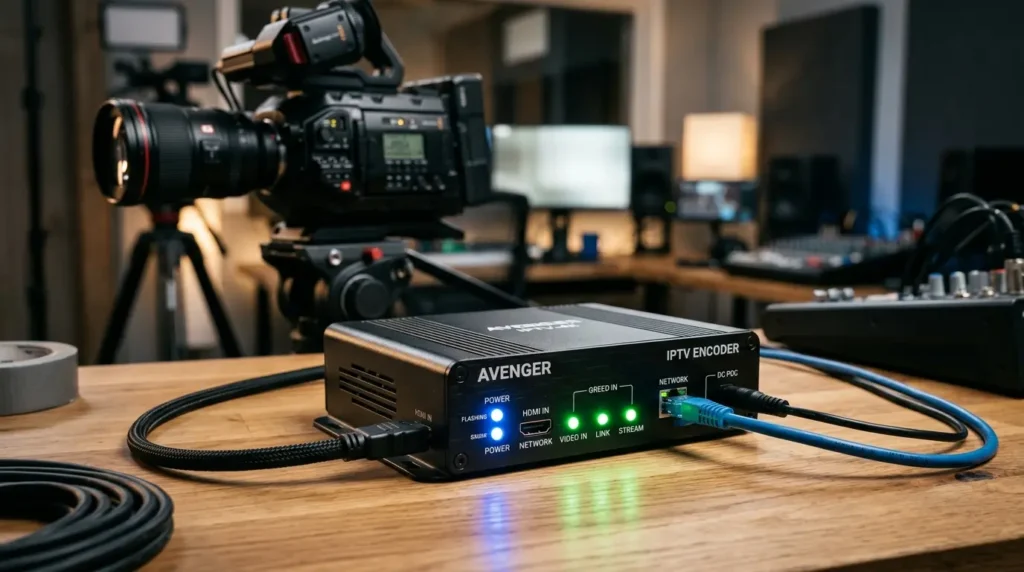
An hdmi to iptv encoder is a dedicated piece of hardware. It takes an uncompressed HDMI signal from a source—like a camera, media player, or PC—and compresses it into a digital network stream.
Years ago, sending video across a building meant running heavy coaxial lines or direct HDMI cables everywhere. But long HDMI runs are notoriously fragile; they suffer from signal loss and HDCP handshake drops over distance. An IPTV encoder skips that problem by turning raw video into standard IP packets.
Once it is packetized, the video travels over normal Ethernet cables and network switches. With the right setup, that single feed can be pushed out to dozens or hundreds of screens across a property without needing a physical cable dedicated to every single TV.
Camera / PC
H.264 / H.265
SRT / UDP / RTMP
Ethernet Network / IGMP Switch
TVs / VLC / Apps
Hardware Encoders vs. Software: Which One Do You Actually Need?
This is where people often get confused. Hardware encoders are usually the go-to choice for 24/7 setups because they don’t rely on a full operating system or general-purpose software.
A lot of people try using a laptop running free software like OBS Studio for live streaming. While software is great for casual recording or desktop production, running it non-stop for days usually invites trouble—think thermal throttling, sudden Windows updates, or driver crashes. If you’ve dealt with hardware heating issues before, our guide on how to fix device overheating and stuttering covers similar thermal management tips.
A real hardware video encoder uses dedicated chips built for one job: squeezing video frames in real time. They are usually easier to operate continuously without relying on a full desktop OS.
Encoder vs. HDMI-over-IP Extender: Know the Difference
Don’t mix up a compressed IP streaming encoder with an uncompressed AV-over-IP extender. They do very different things:
- HDMI to IPTV Encoder: Compresses video into H.264 or H.265 and wraps it in streaming protocols (like RTSP, RTMP, or SRT). You can open these streams in VLC or send them to software decoders across your network.
- HDMI-over-IP Extender: Built for simple point-to-point extension over Ethernet. They often requiring a matching receiver endpoint on the other end and trade standard network protocols for ultra-low latency.
Compresses video into standard network streams (SRT/RTMP/UDP) viewable on software, VLC, and multiple network displays.
Built for direct point-to-point hardware extension, often requiring a matching receiver endpoint on the screen end.
The Codec Debate: H.264 vs. H.265 (HEVC)
Choosing between H.264 and H.265 depends entirely on what your playback devices can handle and how much bandwidth you have to spare.
H.264 remains broadly compatible across smart TVs, phones, and media players.
On the other hand, H.265 (HEVC) is great when you want to save bandwidth on HD and 4K setups. It can reduce required bitrates substantially—sometimes approaching 50% compared with H.264 at similar visual quality—though actual savings depend on content motion complexity and encoder preset configurations. That said, for most 1080p local networks, I would prioritize H.264 compatibility before chasing H.265 efficiency, just to avoid decoding headaches on older screens.
If you are pushing streams out to the web, platforms have their own rules. For instance, the official YouTube live encoder settings and bitrates page outlines specific recommendations based on your resolution and frame rate rather than a one-size-fits-all number.
You need broad compatibility with older TVs, set-top boxes, mobile devices, or mixed playback hardware.
Your devices support HEVC and you want to reduce bandwidth for HD or 4K streaming.
Mixed or older devices? H.264 is usually the safer starting point.
Selecting the Right Transmission Protocols
Your encoder needs to wrap the video in a protocol your network understands:
- UDP / RTP Multicast: Well suited for local LAN distribution. It lets you send one stream out to multiple screens without choking your network switches.
- RTMP / RTMPS: Widely used for pushing live streams to web platforms and CDNs. As noted in the YouTube RTMPS streaming guide, RTMPS adds TLS encryption and is recommended where supported.
- SRT (Secure Reliable Transport): Great for sending feeds over messy public internet connections. SRT helps handle packet loss, but as explained in the Haivision SRT latency guide, you have to tune your latency buffer to match your network’s real-world RTT.
- HLS: Standard HTTP streaming meant for web and mobile apps.
- RTSP: Good for direct media player workflows and local surveillance tools.
How to Calculate Bandwidth and Network Capacity
Don’t guess your bandwidth—calculate it. For regular unicast streaming, every viewer adds direct weight to your network path:
Total downstream traffic $\approx$ stream bitrate $\times$ concurrent viewers
If you push a 6 Mbps stream to 20 different screens using unicast, you are pulling 120 Mbps across your switches. If you only need two or three displays, multicast is usually unnecessary—unicast or direct distribution is often simpler.
However, if you are running a hotel, school, or venue with dozens of TVs, multicast becomes much more efficient at larger scale. The encoder sends out a single stream, and multicast-aware switches forward it only toward ports with interested receivers. Always leave breathing room on your uplinks; never run an internet connection right at 100% capacity.
Encoder sends a separate stream copy to every individual screen. Uses progressively more bandwidth as receiver count increases.
Encoder sends one stream. IGMP-aware switches forward multicast traffic only toward ports with interested receivers.
Common HDMI IPTV Encoder Buying Mistakes
People make a few recurring mistakes when buying these units:
- Assuming input equals output: Just because an encoder has a 4K HDMI port doesn’t mean it encodes and streams in full 4K. Check the chip’s max encoding resolution.
- Ignoring client compatibility: Pushing H.265 to old smart TVs that only understand H.264 will leave you with a blank screen.
- Overlooking HDCP: This is a big one. Many professional encoders do not process HDCP-encrypted signals. As mentioned in Magewell HDCP capture guidance, unencrypted video paths are usually required.
Buyer’s Checklist: Specs to Evaluate
Keep these items on your radar when comparing models for your setup:
Crucial Consideration: Check HDCP Before Buying
Many HDMI sources (such as streaming sticks, Blu-ray players, and cable boxes) enforce HDCP (High-bandwidth Digital Content Protection). Many professional encoders do not process HDCP-encrypted signals. As mentioned in Magewell HDCP capture guidance, unencrypted video paths are usually required.
Network Optimization and IGMP Snooping
When configuring a multicast encoder for local distribution, network management is vital. Unmanaged switches may flood multicast traffic across multiple ports, which can waste bandwidth as deployments scale. As outlined in the official Cisco IGMP Snooping documentation, enabling IGMP snooping tells your switches to forward streams only to ports that actually asked for them.
Frequently Asked Questions (FAQ)
What is the difference between an HDMI encoder and an HDMI over IP extender?
An encoder compresses video into standard streaming protocols (like RTMP or SRT) for software or network players, while an extender is designed for point-to-point hardware extension.
Can an HDMI IPTV encoder stream directly to VLC?
Yes. By entering the encoder’s RTSP or UDP URL into VLC on your computer, you can view the live feed directly.
Does an HDMI encoder work with HDCP-protected content?
Many professional encoders do not process HDCP-encrypted signals. Always check your video source compatibility beforehand.
Do I need a managed switch for IPTV multicast?
For larger or bandwidth-sensitive multicast deployments, a managed switch with IGMP Snooping is strongly recommended.