If you are looking to cut the cord and stream live television directly on your computer, learning how to install IPTV Smarters Pro is the most important step you can take. While there are countless media players available on the market, very few offer the stability, clean interface, and cross-platform compatibility of this specific application.
In this comprehensive 2026 guide brought to you by Ultimate IPTV Hub, we will walk you through exactly how to install IPTV Smarters Pro on your Windows PC and Mac devices. Whether you are using an Xtream Codes API login or a traditional M3U playlist URL, this tutorial will ensure your live channels, movies, and VOD series are up and running in minutes.
When you install IPTV Smarters Pro, you are essentially transforming your desktop or laptop into a powerful, centralized entertainment hub. Let’s dive into everything you need to know to get started securely and easily.
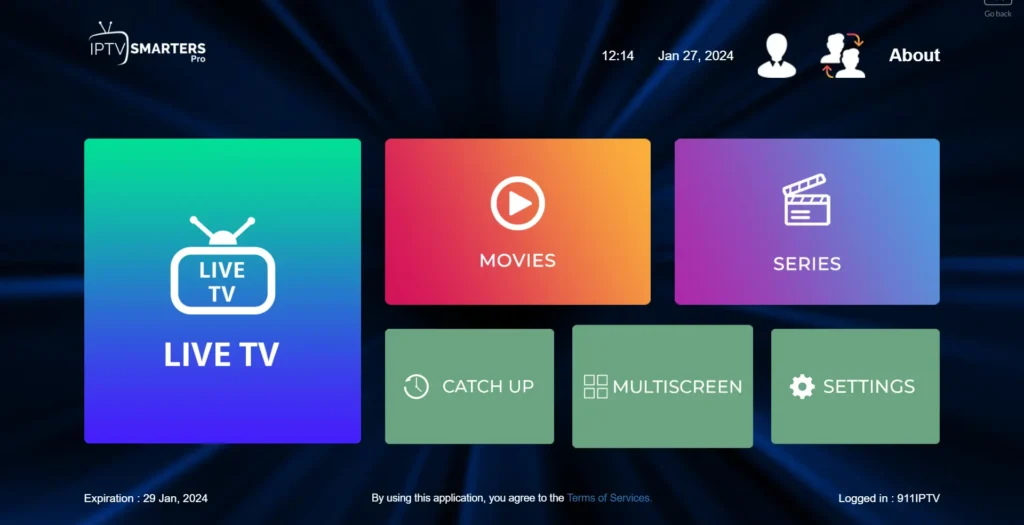
Table of Contents
What is IPTV Smarters Pro?
Before we explain how to install IPTV Smarters Pro, it is helpful to understand exactly what the software does. IPTV Smarters Pro is an incredible video streaming player that allows end-users to stream content like Live TV, VOD, Series, and Catch-up TV supplied by their streaming service provider.
It is crucial to note that this application is merely an empty media player. It does not supply any media content or channels on its own. To use it, you must have an active subscription with a media provider. Once you install IPTV Smarters Pro, you simply input the login credentials provided by your service, and the application organizes that data into a beautiful, easy-to-navigate graphical user interface.
The software supports Electronic Program Guides (EPG), parental controls, multi-screen viewing, and dynamic language switching, making it the industry standard for streaming enthusiasts worldwide.
Prerequisites Before You Install IPTV Smarters Pro
To ensure a smooth setup process, you need to gather a few essential items before you attempt to install IPTV Smarters Pro. Having these details ready will save you from frustration during the configuration phase.
- A Compatible Device: A Windows PC (Windows 10 or 11) or an Apple Mac desktop/laptop.
- Stable Internet Connection: Live television streaming requires bandwidth. We recommend a minimum of 25 Mbps for HD channels and 50 Mbps if you plan to stream 4K VOD content.
- Your Subscription Credentials: When you install IPTV Smarters Pro, you will be prompted for your account details. Your provider should have emailed you either:
- An Xtream Codes API login (Username, Password, and Server URL).
- An M3U Playlist URL link.
- A Premium VPN (Recommended): To avoid ISP throttling during peak live sports events, we highly recommend securing your connection with a premium VPN before you stream.
How to Download and Install IPTV Smarters Pro
Because this application manages third-party server connections, you must be careful about where you source your installation files. To successfully install IPTV Smarters Pro, always use the official developer website or trusted software repositories.
Instructions for Windows PC Users
If you want to install IPTV Smarters Pro on a Windows environment, the process is incredibly straightforward.
- Open your preferred web browser (Chrome, Edge, or Firefox).
- Search for the [suspicious link removed] and navigate to the “Downloads” section.
- Download the specific
.exefile designated for Windows. - Once the download is complete, locate the file in your “Downloads” folder and double-click it to run the installer.
- Follow the standard on-screen prompts. Accept the terms of service, choose your installation directory, and click “Install”.
- Once the process is finished, you will see a new shortcut on your desktop. Double-click it to launch the application.
Instructions for Mac Users
Apple users can also install IPTV Smarters Pro without needing complex emulators.
- Open Safari and navigate to the official developer site.
- Locate the Mac OS download link and download the
.dmgpackage file. - Once downloaded, double-click the
.dmgfile to open it. - A window will pop up. Simply drag and drop the IPTV Smarters Pro icon into your “Applications” folder.
- Open your Applications folder or Launchpad, find the app, and click to open it. (Note: If your Mac gives you an “unidentified developer” warning, go to System Preferences > Security & Privacy, and click “Open Anyway”).
Now that you know how to install IPTV Smarters Pro on your device, we can move on to configuring your channels.
Step-by-Step Configuration: Method A (Xtream Codes API)
The most popular and highly recommended way to configure your media player is by using the Xtream Codes API. This method is faster, loads the Electronic Program Guide (EPG) much more efficiently, and keeps your VOD library perfectly organized.
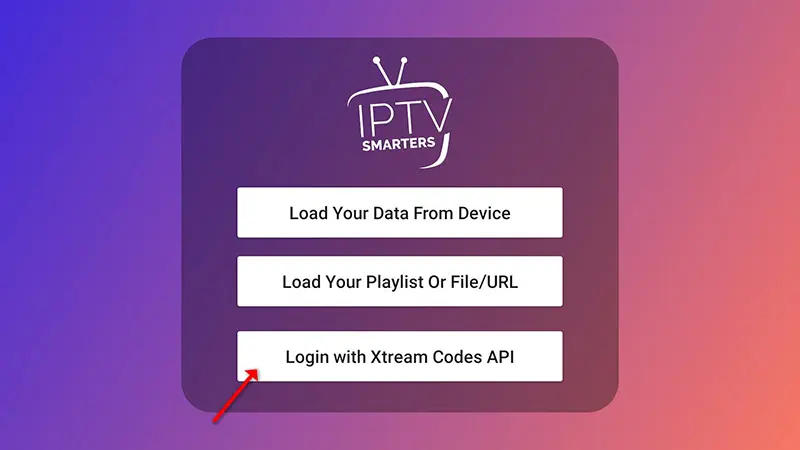
After you install IPTV Smarters Pro and open the application for the first time, you will see a welcome menu offering different login methods.
- On the main welcome screen, click on Login with Xtream Codes API.
- Fill in the required fields with the exact details provided by your service host:
- Any Name: Type any custom name you prefer (e.g.,
Ultimate IPTV Hub). - Username: Enter the specific username provided by your provider. Ensure there are no accidental blank spaces.
- Password: Enter your secure password (it is case-sensitive).
- Server URL / Port: Enter the exact server URL address (e.g.,
http://iptvport.net:25461).
- Any Name: Type any custom name you prefer (e.g.,
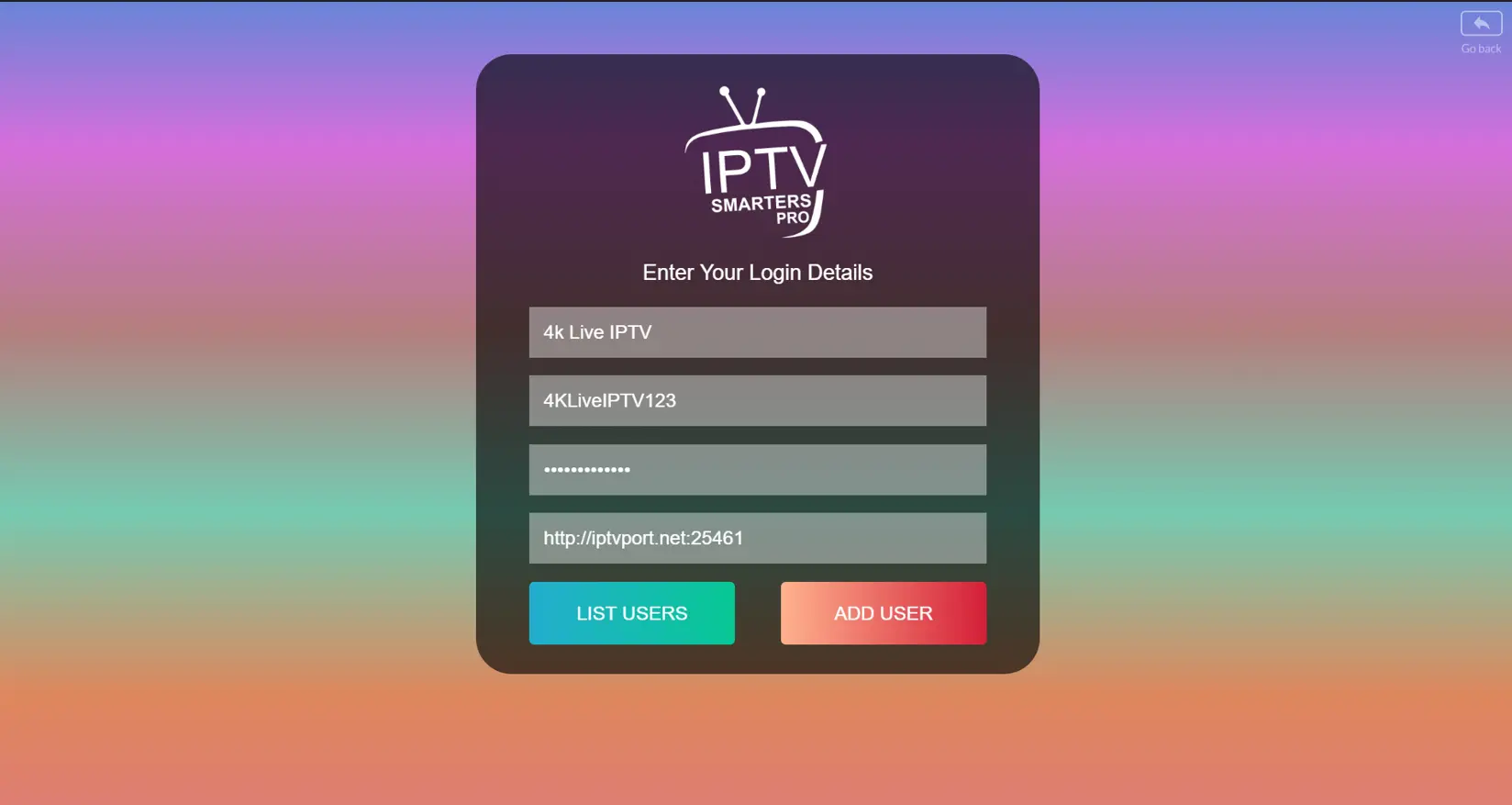
- Once every field is filled out correctly, click the ADD USER button. The application will briefly communicate with the provider’s server, download your channel list, and log you into the main dashboard.
Step-by-Step Configuration: Method B (M3U Link)
If your provider did not give you a username and password, they likely gave you a long web link ending in .m3u or .m3u8. You can easily install IPTV Smarters Pro and configure it using this format as well.
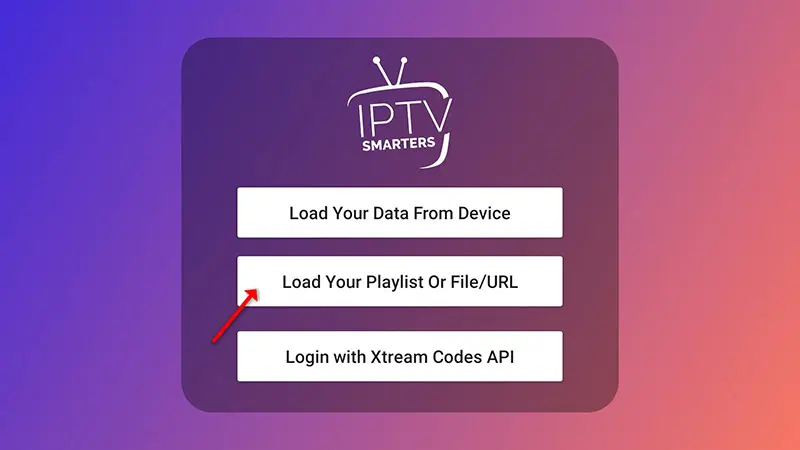
- On the initial setup screen, bypass the API option and select Load Your Playlist Or File/URL.
- On the subsequent configuration screen, input the following information:
- PLAYLIST NAME: Enter a recognizable name for your playlist.
- PLAYLIST TYPE: Select the radio button for M3U URL (If you physically downloaded an
.m3ufile to your hard drive, you would select FILE instead). - FILE/URL: Paste your full, exact M3U URL line into the box. Be careful not to miss any characters.
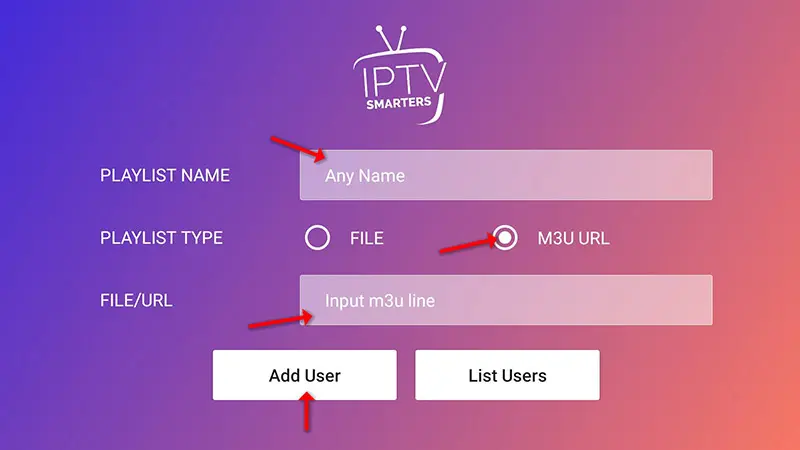
- Click the Add User button. This method can take a few minutes to load depending on how massive the playlist is. Please be patient while the channels download.
Navigating the Dashboard and Streaming Content
Once you successfully install IPTV Smarters Pro and load your account data, you will be directed to the primary user interface. The layout is designed to be highly intuitive for desktop users.
1. Main Dashboard Options
The home screen is divided into several massive tiles. These tiles categorize your media into logical sections.
- LIVE TV: Watch live television channels broadcasted in real-time.
- MOVIES: Browse on-demand films and movies (VOD).
- SERIES: Stream full TV shows with seasons and episodes neatly organized.
- CATCH UP: Access previously recorded broadcasts (this requires provider support).
- MULTISCREEN: Watch multiple live streams side-by-side, perfect for sports Sundays.
- SETTINGS: Adjust player settings, aspect ratio, EPG guide updates, or parental controls.
2. Browsing Categories & Channels
Finding your favorite content is incredibly easy once you install IPTV Smarters Pro.
- Click on the LIVE TV tile to open the primary channel categories list. You will see folders like USA News, USA Movies, USA Entertainment, and specific sports packages.
- Select a specific category to view the complete list of available channels on the left side of the screen. The Electronic Program Guide (EPG) will usually display what is currently playing under the channel name.
- Click any channel from the list. The application will instantly start streaming the live preview on the right player window. If you want a fully immersive experience, simply double-click the preview screen to expand the video to full screen on your monitor.
Troubleshooting Common Setup Issues
Even if you carefully follow every step to install IPTV Smarters Pro, you might encounter minor technical hiccups. Here are the most common solutions.
- Authorization Failed / Invalid Details: If you receive an authorization error immediately after clicking “Add User,” you have likely typed your credentials incorrectly. Check for rogue capital letters or accidental blank spaces copied at the end of your Server URL.
- Blank Screen / Channels Won’t Load: If your screen stays black, navigate to the application settings and change your Media Player Decoder from “Hardware” to “Software” (or vice versa).
- Constant Buffering: If your video constantly stops, you are likely experiencing network congestion or ISP throttling. Ensure your computer is connected via an Ethernet cable rather than Wi-Fi, and activate your VPN. You can also review our dedicated guide to resolving network lag for more deep-dive solutions.
Why You Should Install IPTV Smarters Pro Today
Choosing the right software dictates your entire viewing experience. When you install IPTV Smarters Pro, you are choosing an application that prioritizes user experience above all else. Its ability to handle massive playlists containing tens of thousands of channels without lagging makes it the premier choice for Windows and Mac users.
Furthermore, the multi-screen feature alone sets it apart from basic web-based players, allowing sports fans to monitor up to four events simultaneously on a single desktop monitor. The inclusion of a robust parental control system also ensures that families can safely curate exactly what content is accessible on the main interface.
Frequently Asked Questions (FAQ)
Is IPTV Smarters Pro completely free to use? Yes, the basic version of the application is entirely free to download and use on Windows, Mac, Android, and iOS devices. While there is a premium version available that unlocks extra features—such as picture-in-picture mode and advanced parental controls—the core functionality required for streaming live television and VOD is completely free.
Why is my Electronic Program Guide (EPG) not loading? EPG issues are typically caused by server-side delays from your specific media provider or incorrect URL inputs during setup. To fix this common issue, navigate to the Settings menu on your dashboard, select the EPG tab, and click Refresh EPG. If the guide still fails to load, double-check that your Xtream Codes API details were entered correctly without any hidden spaces.
Can I install IPTV Smarters Pro on a Roku device? Unfortunately, Roku utilizes a highly restricted, closed operating system that does not natively support third-party media players like IPTV Smarters Pro. You cannot easily sideload Android APK files on a Roku device. For the absolute best and most flexible streaming experience, we highly recommend switching to an Amazon Firestick or a dedicated Android TV box.
Does this application host its own live channels or movies? No, IPTV Smarters Pro does not host, provide, or broadcast any media content whatsoever. It is strictly a blank media player interface. You must have an existing, active subscription with an independent telecommunications or IPTV service provider to stream any live channels, movies, or series.
How many devices can I use with a single account? The application itself does not limit the number of devices you can install it on. However, your service provider strictly controls how many simultaneous connections you are allowed to have. If you attempt to watch on two screens while only paying for a single-connection plan, your stream will constantly buffer or your account may be banned.
Final Thoughts on Your Setup
If you have followed this guide, you now know exactly how to install IPTV Smarters Pro on your primary desktop or laptop. The process—from downloading the initial file to streaming your first live channel—should take no more than ten minutes.
Remember to always keep your application updated to the latest version to ensure you benefit from ongoing security patches and decoder improvements. Once you install IPTV Smarters Pro, we highly suggest taking the time to explore the settings menu, set up your master PIN code for parental controls, and customize your favorite channels for quicker access during your daily viewing sessions.
Welcome to the future of desktop television streaming. Enjoy your buffer-free, high-definition cord-cutting experience!