
The Ultimate Guide to Stopping Buffering: How to Clear IPTV Cache (No Tech Skills Needed)
Picture this: It is the 89th minute of a tied championship match, the room is tense, and your team is on a breakaway. Or perhaps you are seconds away from the massive plot twist in a weekend movie thriller, the popcorn is half-empty, and you are completely locked in. And right at the climax… the video freezes. The audio cuts out. The dreaded spinning buffering circle takes over the entire screen.
Your first reaction is probably to yell at your internet service provider, threaten to cancel your subscription, or assume your smart TV has suddenly given up the ghost. But before you pull your hair out, restart your router for the fourth time, or go shopping for a new device, take a breath. The problem is usually much simpler, and it lives entirely inside your device’s background memory.
Over time, your streaming player quietly clogs itself with digital leftover files until it literally runs out of memory. The good news? You can completely fix this stuttering and reclaim your viewing experience in less than a minute once you know how to clear IPTV cache.
In this comprehensive guide, we will break down exactly why your device is freezing, how to safely perform storage maintenance without losing your account details, and what advanced steps you can take if your internet connection is still struggling.
The Hidden Culprit: Why Does Your Stream Keep Freezing?
To understand how to fix the problem, you first need to understand what your television is actually doing behind the scenes. Every time you open your media player, scroll through different channel categories, or download massive TV guide layouts (also known as EPGs), your operating system saves temporary data fragments to your internal storage.
This process is completely normal. In fact, it is designed to help software menus load much faster during your next viewing session. Instead of downloading the movie poster for your favorite film every single time you open the app, your TV saves a tiny thumbnail version locally.
However, over weeks and months of heavy daily streaming, those tiny files accumulate rapidly. A few megabytes quickly turn into gigabytes of digital clutter. When your device’s internal flash storage and RAM drop to critically low levels, the hardware simply cannot decode high-bitrate live video smoothly. The device enters a state of digital panic. The result is sudden frame drops, sluggish remote control response, audio syncing issues, and endless buffering.
If you want a flawless, cinema-quality streaming experience, you must clear IPTV cache regularly to give your hardware the memory headroom it desperately needs. It is also always a smart idea to verify that your baseline internet speed isn’t dropping from the source by running a quick network test on Speedtest by Ookla before changing your television settings. If your baseline internet speed is fine, but the TV is still lagging, the cache is almost certainly the culprit. Once you have cleaned your system, you can explore advanced player setups and reviews at ultimateiptvhub.com to maximize your home entertainment quality.
Recognizing the Symptoms of a Clogged Streaming Device
How do you know if your device needs maintenance, or if your internet is actually just slow? Your television will usually give you warning signs before a complete streaming crash. Look out for these common symptoms:
- Laggy Menu Navigation: When you press down on your remote, and it takes two or three seconds for the cursor to move on the screen.
- App Crashes: You are watching a movie, and suddenly the screen goes black, kicking you completely back to the main television dashboard.
- Missing EPG Data: Your TV guide stops updating, or channel logos appear as blank grey boxes because there is no storage left to download the new images.
- Audio De-sync: The people on screen are speaking, but their lip movements do not match the sound coming out of your soundbar.
If you experience any of these, it is time to perform emergency maintenance.
The Golden Rule: Cache vs. Data
Before touching any settings on your television, you need to learn the golden rule of TV storage maintenance. Modern operating systems give you two options when managing storage, and selecting the wrong button will wipe out your entire configuration, forcing you to start from scratch.
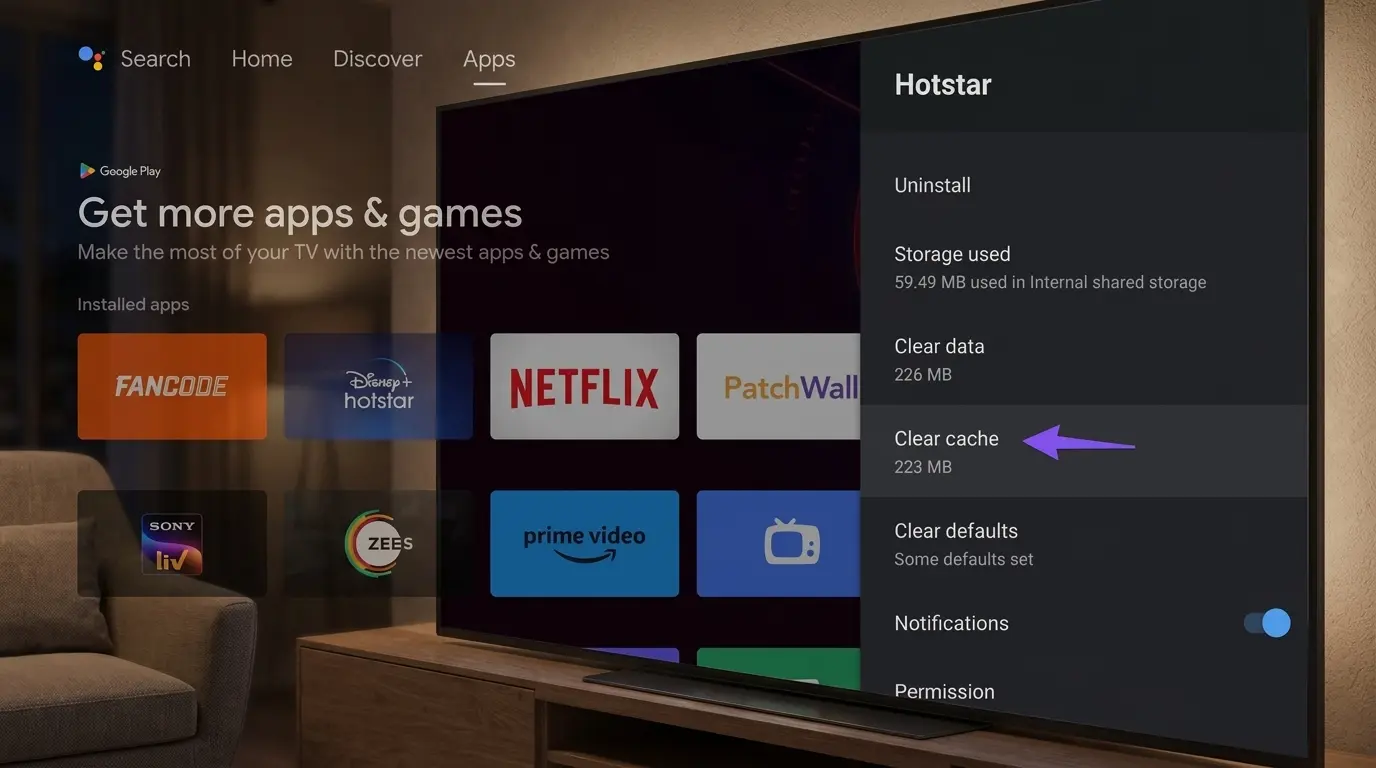
Step-by-Step: How to Clear IPTV Cache on Android TV
Reclaiming your streaming speed on Android TV, Google TV, or modern Sony and Philips smart televisions is a straightforward process. Follow these exact steps in order to clear IPTV cache safely without losing your valuable account details:
Open the Main System Settings
Press the Home button on your remote control to go to the main dashboard. Navigate to the top-right corner of the screen and select the Gear icon to open your master settings menu.
Access Your Installed Applications
Scroll down the menu until you see the Apps category. Click on See all apps to bring up a master list of every application and game currently installed on your local storage drive.
Select Your Streaming Application
Carefully scroll through the alphabetical list until you locate your primary media player. Press the Select button on your remote to enter its dedicated application information screen.
Execute the Cache Clear Command
Scroll down the page to the Clear cache option and press select. You will see the cache data counter immediately drop to 0 B (Zero Bytes), confirming the background clutter is completely gone and your memory is free.
If you are using a different operating system—such as a proprietary setup on an older smart TV—and cannot find these exact menus, you can always check the official Android TV Help Center for specific manufacturer menu layouts and remote control shortcuts.
Beyond the Cache: 4 Advanced Ways to Stop Buffering
Sometimes, your hardware is perfectly clean, but the spinning circle of doom persists. If you have already followed the steps to clear IPTV cache and you are still experiencing stuttering video, the bottleneck has shifted from your local storage to your network connection. Here are the top four advanced methods to bulletproof your streaming environment:
1. Ditch the Wi-Fi for an Ethernet Cable
Wireless internet is incredibly convenient, but it is deeply flawed for live, high-definition video streaming. Wi-Fi signals are subject to interference from thick walls, microwave ovens, Bluetooth devices, and even your neighbor’s router. This interference causes “packet loss”—pieces of the video data getting lost in the air. Whenever possible, connect your streaming device directly to your router using a physical Ethernet cable. This creates a dedicated, un-interruptible highway for your video data, drastically reducing buffering incidents.
2. Change Your DNS Servers
By default, your device uses the Domain Name System (DNS) provided by your internet company. These default servers are often slow and easily congested during peak evening hours. Switching your network settings to a fast, public DNS—like Cloudflare (1.1.1.1) or Google (8.8.8.8)—acts like a VIP fast-lane for your internet traffic, significantly reducing server response times and speeding up menu load times.
3. Combat ISP Throttling with a VPN
Have you ever noticed that your internet speed test shows 500 Mbps, but your live stream still buffers at 8:00 PM? Many Internet Service Providers (ISPs) actively monitor your traffic. If they detect heavy bandwidth usage from a video streaming server, they may intentionally slow down (throttle) that specific connection to save network resources. Using a reputable Virtual Private Network (VPN) encrypts your data, masking what you are doing from your ISP.
4. Prevent Hardware Thermal Throttling
Streaming sticks that plug directly into the back of your television, like the Amazon Firestick, are trapped in a tight space between a hot TV panel and a wall. Processing 4K video generates immense heat. When the microchip inside the device gets too hot, it intentionally slows itself down to prevent melting—a process called thermal throttling. To fix this, use an HDMI extender cable to move the streaming stick away from the hot back panel of the television.
Building a Bulletproof Monthly Maintenance Routine
Just like owning a car, your home entertainment system requires a little bit of scheduled maintenance to run perfectly. You do not need to wait for a stream to crash before taking action.
Make it a habit to check your device on the first of every month. Navigate to your settings, check your available storage space, and clear IPTV cache for your most heavily used applications. Additionally, take this time to delete any trial apps, free games, or old streaming platforms that you no longer use. Every gigabyte of free space gives your operating system more virtual memory to handle massive live sporting events smoothly.
If you frequently experience internet dropouts, use sites like DownDetector to ensure your specific internet provider isn’t having a regional outage before you start changing all your internal settings.
Final Verdict
Maintaining a lightning-fast, buffer-free home entertainment setup does not require expensive hardware upgrades, a degree in computer science, or complicated technical knowledge. Taking just sixty seconds out of your month to clear IPTV cache is the absolute easiest and most effective way to help your hardware process live video effortlessly.
Make this simple routine a permanent part of your monthly tech habits. Keep your local storage clean, ensure your device has room to breathe, and you will enjoy smooth, uninterrupted viewing whenever you sit down on the couch to relax. Stop letting digital clutter ruin your movie nights and sports finals.
For more expert tutorials, device setup walkthroughs, and in-depth streaming guides, make sure to check out the latest resources and independent technical advice on Ultimate IPTV Hub. Keep streaming, stay optimized, and enjoy the show!
Frequently Asked Questions
Will I lose my custom playlists or login credentials if I clear IPTV cache?
Absolutely not. This maintenance process is entirely safe. It only removes temporary background files, thumbnail previews, and discarded media fragments. Your username, password, portal URLs, and saved playlists will remain completely untouched.
How often should I perform this storage maintenance?
For the average everyday viewer, doing a quick storage cleanup once every 3 to 4 weeks is the perfect sweet spot. However, if you are a power user who streams daily live 4K sports broadcasts, doing this bi-weekly helps prevent memory bottlenecks during major viewing events.
Can critically low storage space actually cause video stuttering?
Yes, this is one of the most common causes of device failure. Modern streaming players use your device’s free internal storage as temporary virtual memory to buffer incoming video packets. When your available storage drops below roughly 500 MB, the system has nowhere to put the incoming video data, causing freezes.
What is the difference between clearing cache and uninstalling the app completely?
When you clear IPTV cache, you are simply sweeping the floor and emptying the trash bin while leaving the house fully furnished. Uninstalling the app is like tearing the house down to the foundation. You will have to re-download the software and manually configure all of your credentials from scratch.