Written by: Ultimate IPTV Hub Editorial Team
Last fact-checked: August 8, 2026
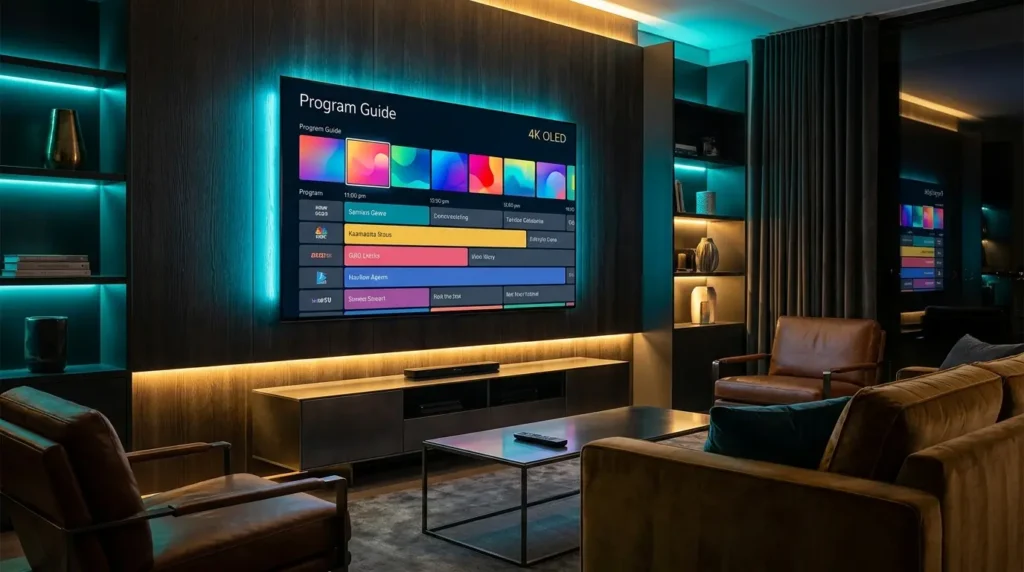
An Electronic Program Guide (EPG) provides an on-screen schedule of current broadcasts, upcoming shows, and channel listings for live streaming applications. For viewers using media player software on devices like the Amazon Fire TV Stick, Nvidia Shield, or Android TV, learning how to set up IPTV EPG correctly turns a raw channel list into an organized television guide.
Configuring this guide can sometimes introduce technical hurdles, such as empty program guides, incorrect kickoff times, or mismatched channel names. Knowing how to set up IPTV EPG parameters correctly inside your preferred application ensures that your schedule updates smoothly.
This guide explains how EPG data works, provides step-by-step setup instructions for major media applications, and shares technical fixes for common synchronization errors.
Quick Answer: How to Set Up IPTV EPG
To how to set up IPTV EPG configurations efficiently on your media player, open your application’s Settings menu and navigate to EPG Sources or TV Guide. Select your playlist connection, enter your provider’s EPG URL (usually ending in .xml or .xml.gz), and save the configuration. Trigger a manual update to download the program data. If channel schedules appear offset by several hours, access the EPG settings and adjust the time offset to match your local timezone.
1. What Is an IPTV EPG and How Does It Work?
An Electronic Program Guide relies on structured data files that run parallel to your video streams.
The XMLTV File Standard
Most digital guide data is delivered in an XMLTV format—an XML-based file structure designed specifically for television schedules. You can explore the technical architecture directly through the official XMLTV Project repository.
An XMLTV file contains structured elements for every channel:
- Channel ID: A unique identifier matching the stream channel.
- Display Name: The human-readable channel name.
- Program Title & Description: Details regarding the broadcast event.
- Start and Stop Times: Timestamps that include an explicit UTC or timezone offset to indicate local broadcast times.
Server-Side vs. External EPG Sources
When adding a playlist via an API or M3U link, the service often includes an automatic EPG link. If the default guide is incomplete, advanced media applications allow you to attach a secondary external XMLTV URL. The application downloads this file, extracts the schedule to local storage, and maps the program data to your channels.
2. Step-by-Step EPG Setup for Popular Streaming Apps
](https://ultimateiptvhub.com/wp-content/uploads/2026/08/Television_displaying_software_s…_202608090005-1024x572.jpeg "How to Set Up IPTV EPG: Complete Channel Guide Tutorial 2")
The exact configuration steps depend on the media player software installed on your streaming stick or Smart TV.
Setup Guide for TiviMate
- Launch TiviMate and open the Settings panel from the left sidebar.
- Select EPG and click on EPG Sources.
- Choose Add Source and select URL.
- Enter the XMLTV EPG URL provided by your service.
- Click Done to parse the file.
- Return to the EPG menu and select Update EPG to verify the download.
Setup Guide for IPTV Smarters Pro
- Open IPTV Smarters Pro and log in to your account.
- Click the Settings gear icon in the top right corner of the dashboard.
- Select EPG Sources or Install EPG.
- If using an M3U playlist, click Add EPG and enter your XMLTV link. (API logins typically fetch guide data automatically).
- Click Download EPG Data and return to the main dashboard to view your schedule.
Setup Guide for Formuler MYTVOnline3
- Open MYTVOnline3 and press the Menu button on your remote.
- Navigate to Content Manager and select Content Sources.
- Select your active portal or playlist and click Edit.
- Locate the EPG offset or EPG URL settings.
- If program times are incorrect, adjust the EPG offset to match your local timezone.
- Press Save to update the internal cache and refresh the grid.
3. Common EPG Issues and Technical Fixes
Problem 1: Guide Shows “No Information” Across All Channels
A blank EPG grid typically indicates that the application’s local cache file has become corrupted or incomplete.
How to resolve it:
- Open your player app’s Settings menu.
- Locate the EPG or TV Guide section.
- Select Clear EPG Data or Clear EPG Cache.
- Force close the application via your device’s system settings, reopen it, and select Update EPG Data.
Problem 2: Showtimes Are Offset by Several Hours
If a broadcast appears at the wrong time on your guide, your application is misinterpreting the timestamp provided in the XMLTV file.
How to resolve it:
- Access the EPG Settings inside your streaming application.
- Locate Time Shift, EPG Offset, or UTC Offset.
- Adjust the offset in one-hour increments until the schedule aligns with your local clock.
Problem 3: EPG Fails to Assign to Specific Channels
This occurs when the channel ID inside your playlist does not match the channel ID inside the XMLTV file.
How to resolve it:
- Open your channel list and select the unmapped channel.
- Choose Assign EPG or Edit Channel.
- Search for and select the matching channel entry from the guide list manually.
4. Hardware and Network Optimization for EPG Performance
Downloading and parsing XMLTV files requires storage processing and network bandwidth. Large guide files can consume significant memory, particularly on low-storage streaming devices. If your device lacks sufficient free space, the media player may fail to process the downloaded data.
To maintain reliable performance:
- Uninstall unused applications from your streaming device.
- Periodically clear application caches for heavy media tools. [Internal link: Read our guide to device optimization → https://ultimateiptvhub.com/iptv-blog/]
- Connect your streaming box directly to your router using an Ethernet cable whenever possible, or use a 5 GHz Wi-Fi band to prevent packet loss during guide updates. You can check network stability using Speedtest by Ookla.
5. How We Evaluated EPG Setup Procedures
The Ultimate IPTV Hub Editorial Team researches streaming applications, XMLTV guide standards, and setup procedures using official developer documentation and manufacturer specifications. When considering how to set up IPTV EPG configurations, we evaluate interface capabilities, data formats, and troubleshooting protocols based on publicly available technical architecture, ensuring our setup guides align with current software versions.
Why Ultimate IPTV Hub is Your Go-To Resource
Configuring your home theater should be straightforward. Ultimate IPTV Hub is your dedicated resource for technical streaming tutorials, device troubleshooting, and media app optimization. Explore our setup and troubleshooting guides if you need further assistance building an organized viewing experience.
6. Frequently Asked Questions (FAQ)
What does EPG stand for? EPG stands for Electronic Program Guide. It is an on-screen digital menu that displays scheduled television programming, episode descriptions, and channel listings for live streams.
Why is my EPG blank after setup? A blank EPG usually indicates an incorrect guide URL, an expired playlist connection, or a corrupted local storage cache. Clear your app’s EPG cache in the settings menu and trigger a manual guide update.
How often does an Electronic Program Guide update? Most modern media players update guide data automatically every 12 to 24 hours. Applications like TiviMate can also be configured to refresh guide listings upon app launch.
Do I need a separate subscription for an EPG? In most cases, no. Your playlist source usually includes an integrated EPG URL. Advanced users occasionally use third-party XMLTV sources to customize their channel schedules.
Why are my TV guide showtimes off by a few hours? This happens when the timezone setting inside your streaming application does not match the timestamp format inside the XMLTV file. Adjust the EPG Time Shift or Offset setting in your app options.
7. Final Verdict
Learning how to set up IPTV EPG correctly helps transform a chaotic channel list into an organized TV guide. By entering the correct XMLTV URL, configuring refresh intervals, and adjusting time shift offsets, you can maintain accurate program listings across your devices.
Explore more device tutorials, app comparisons, and network troubleshooting guides from Ultimate IPTV Hub. If you need help configuring your setup, feel free to contact support or explore our installation guide for step-by-step assistance.
Editorial note: This guide is provided for technical, educational, and troubleshooting purposes only. Ultimate IPTV Hub does not host, distribute, or sell unlicensed video streams or media content. Viewers should use authorized platforms and comply with all applicable copyright laws and service terms.