Install IPTV and Add Xtream Code: Complete Safe Setup Guide for Beginners
Install IPTV and Add Xtream Code: Complete Safe Setup Guide for Beginners
If you want to install IPTV and add Xtream Code, this complete beginner guide will walk you through the process step by step. Many users open an IPTV player app and see options such as “Xtream Code,” “M3U Playlist,” “Add User,” “Username,” “Password,” and “Server URL,” but they do not always know what each option means.
This guide from UltimateIPTVHub.com explains how to install IPTV and add Xtream Code in a safe, legal, and beginner-friendly way. The goal is to help you understand IPTV setup, avoid common mistakes, and use trusted IPTV player apps with legal provider details.
This article is for educational purposes only. It does not promote illegal IPTV, pirated channels, cracked apps, unauthorized playlists, or free premium content. To install IPTV and add Xtream Code correctly, you should always use official apps and legal IPTV access.
Table of Contents
What Does It Mean to Install IPTV and Add Xtream Code?
To install IPTV and add Xtream Code means you are completing two main actions.
First, you install an IPTV player app on your device. This can be a Smart TV, Android TV box, Android phone, tablet, iPhone, iPad, or another compatible streaming device.
Second, you add your IPTV login details using the Xtream Codes API format. This format usually requires a server URL, username, and password.
An IPTV player app is usually only a media player. It does not automatically include channels, movies, sports, or live TV. To use it properly, you need legal IPTV access from an authorized provider, official service, business system, or private media server.
When you install IPTV and add Xtream Code, the app usually asks for these details:
Any Name
This is the profile name inside the app. You can write something simple like “Home IPTV,” “My TV,” “Family TV,” or “Ultimate IPTV Hub Setup.” This name is only for your own organization.
Username
This is the username provided by your legal IPTV provider. You must enter it exactly as given.
Password
This is your private IPTV password. Keep it safe and never share it publicly.
Server URL
This is the portal or server address provided by your legal IPTV provider. You should never copy random server URLs from screenshots, forums, social media posts, or unknown websites.
When all these details are correct, you can install IPTV and add Xtream Code more smoothly and allow the IPTV player to load your playlist, categories, and guide information.
Important Legal and Safety Notice
Before you install IPTV and add Xtream Code, make sure your IPTV source is legal in your country. IPTV technology itself can be used legally, but the legality depends on the content source and whether the provider has the rights to distribute that content.
A safe IPTV setup should follow these rules:
Use official or trusted IPTV player apps.
Use legal and authorized IPTV providers only.
Avoid cracked IPTV apps and modified APK files.
Do not use playlists that advertise illegal free premium channels.
Do not buy from anonymous sellers with no clear company details.
Do not share your username, password, or server URL online.
Do not install apps from suspicious websites.
Illegal streaming apps can create privacy and malware risks. You can read this official safety resource from the FTC: FTC guide about malware and illegal streaming apps
Android users should also understand how Google Play Protect helps check apps for harmful behavior. Read the official Google resource here: Google Play Protect help guide
Streaming quality also depends on your internet speed. The FCC provides a useful guide about broadband speeds for video streaming here: FCC broadband speed guide
These trusted external resources are useful when you want to install IPTV and add Xtream Code safely and avoid unreliable or unsafe sources.
Why Beginners Prefer Xtream Code Login
Many beginners prefer Xtream Codes API because it is easier than copying a long M3U playlist link. When you install IPTV and add Xtream Code, you usually only need three main details: server URL, username, and password.
This makes the setup more organized. Xtream Code login can help an IPTV player load live TV categories, video-on-demand sections, series, TV guide information, channel logos, favorites, and recently watched content.
This is why many users search for how to install IPTV and add Xtream Code instead of using a manual M3U playlist. However, you should always use the login method provided by your legal IPTV provider.
For a full setup tutorial, you can also visit the official guide on Ultimate IPTV Hub: IPTV Installation Guide
What You Need Before You Start
Before you install IPTV and add Xtream Code, prepare everything first. This helps you avoid login errors and setup problems.
You need:
A compatible device
A stable internet connection
A trusted IPTV player app
Your legal IPTV username
Your legal IPTV password
Your legal IPTV server URL
Enough storage space on your device
A remote, keyboard, or phone for easier typing
A stable connection is very important. If your Wi-Fi is weak, IPTV streams may buffer, freeze, or fail to load. If possible, use Ethernet on Smart TVs and Android TV boxes. If you use Wi-Fi, keep your router close to your device.
When you prepare everything before opening the app, it becomes easier to install IPTV and add Xtream Code without mistakes.
Install IPTV and Add Xtream Code: Step-by-Step Setup
This section explains the main process to install IPTV and add Xtream Code on most supported devices. The interface may look different depending on your app, but the basic steps are usually similar.
Step 1: Choose a Trusted IPTV Player App
The first step is choosing a reliable IPTV player app. To install IPTV and add Xtream Code correctly, the app must support Xtream Codes API login.
Look for an IPTV player with:
Xtream Codes API support
M3U playlist support
EPG or TV guide support
Live TV categories
Favorites
Parental control options
Regular app updates
A clean and beginner-friendly interface
Avoid unknown APK websites, cracked apps, and modified versions. The safest option is to install apps from official app stores whenever possible.
UltimateIPTVHub.com recommends learning about IPTV apps and setup options before adding your login details. This helps beginners install IPTV and add Xtream Code with more confidence.
Step 2: Install the IPTV App on Your Device
The installation process depends on your device.
Android Phone or Tablet
Open the Google Play Store.
Search for your IPTV player app.
Check the app name and developer.
Read recent reviews.
Tap Install.
Open the app after installation.
After that, you can install IPTV and add Xtream Code by choosing the Xtream Codes API option inside the app.
Android TV or Google TV
Open the Play Store on your TV.
Search for the IPTV player.
Install the app.
Open it from your apps menu.
Use your remote control to navigate.
Android TV devices are popular because they usually work well with IPTV apps and remote navigation.
Smart TV
Some Smart TVs support IPTV apps through their own app stores. Search inside your TV app store and install a trusted IPTV player. If your TV does not support the app you want, you may need an external device such as Android TV, Google TV, or another compatible streaming device.
iPhone or iPad
Open the App Store.
Search for an IPTV player.
Check app details and reviews.
Install the app.
Open the app and choose the correct login method.
No matter which device you use, the goal is the same: install IPTV and add Xtream Code using trusted software and legal login details.
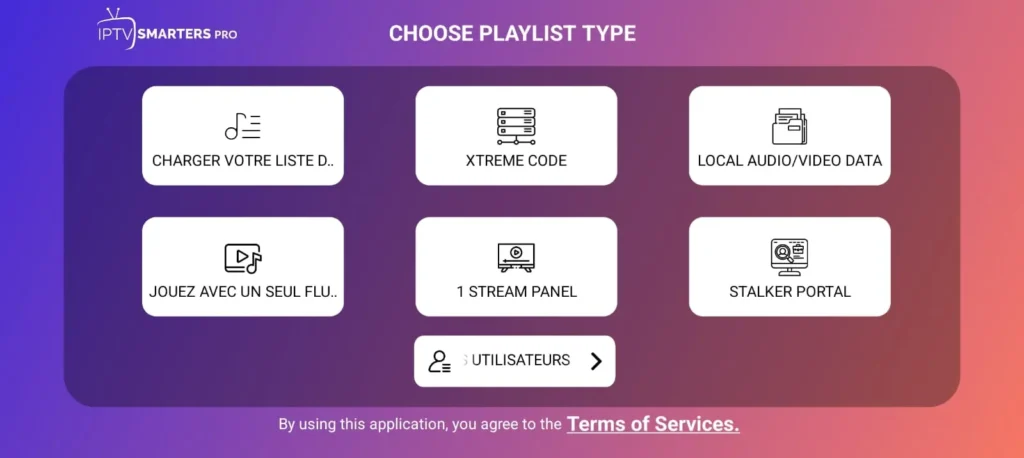
Step 3: Open the App and Choose Playlist Type
After installation, open the IPTV player app. Many apps show a screen asking you to choose a playlist type.
Common options include:
Load playlist or file URL
Xtream Code
Xtream Codes API
M3U URL
Local audio/video data
Stalker portal
List of users
To install IPTV and add Xtream Code, choose “Xtream Code,” “Xtream Codes API,” or a similar option.
If your provider gave you an M3U link instead of Xtream details, choose the M3U option. Do not guess. Use the method provided by your legal IPTV provider.
If you want to understand how IPTV channels are organized, visit this guide: IPTV Channel Categories
Step 4: Enter Your Xtream Code Details
This is the most important part of the process. When you install IPTV and add Xtream Code, the app usually asks for:
Profile name
Username
Password
Server URL
Enter each field carefully. For the profile name, write something easy to recognize. For the username and password, copy them exactly from your legal provider. For the server URL, make sure there are no missing letters, wrong symbols, or extra spaces.
A small typing mistake can stop the app from connecting. Many beginners think the IPTV app is broken, but the real issue is often one incorrect character in the server URL, username, or password.
After entering the details, click Add User, Login, Connect, or Save depending on the app.
This is the main step where users install IPTV and add Xtream Code successfully.
Step 5: Wait for the Playlist to Load
After clicking Add User or Login, the IPTV player may need time to load your account. This can take a few seconds or a few minutes depending on your device, internet connection, and provider server.
The app may load:
Live TV channels
Movies
Series
TV guide
Channel logos
Categories
Favorites
Recently watched sections
If you install IPTV and add Xtream Code for the first time, the first loading process may take longer than usual. Do not close the app too quickly.
If nothing loads after several minutes, check your internet connection and confirm your login details.
Step 6: Organize Your IPTV Categories
After you install IPTV and add Xtream Code, your app may show many categories. Some users feel confused when they see too many sections, channels, or folders.
To make the experience easier, organize your app:
Add favorite channels.
Hide categories you do not use.
Refresh the TV guide.
Check audio settings.
Check subtitle settings.
Set parental controls if needed.
Change the player engine if playback is not smooth.
Clear cache if the app becomes slow.
Good organization makes IPTV easier to use, especially on Smart TVs and Android TV boxes.
UltimateIPTVHub.com recommends checking channel categories carefully so you can find sports, news, movies, family content, education, documentaries, and local channels more easily.
Xtream Code vs M3U Playlist
When people learn how to install IPTV and add Xtream Code, they often ask whether Xtream Code is better than M3U.
Both options can work, but they are different.
Xtream Code
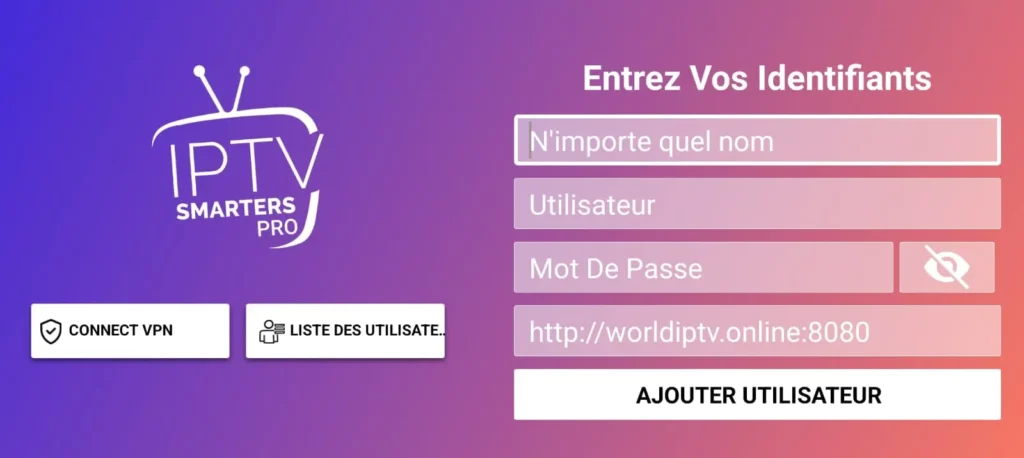
Xtream Code is usually easier for beginners. It uses a username, password, and server URL. It can also organize categories more clearly inside many IPTV apps.
Xtream Code is best for:
Beginners
Smart TV users
Android TV users
People who want organized categories
Users who prefer simple login fields
M3U Playlist
An M3U playlist is usually a long URL or file. It can work well, but it may be harder to manage manually.
M3U is best for:
Advanced users
Custom media servers
Manual playlist control
Apps that do not support Xtream Codes API
For most beginners, it is easier to install IPTV and add Xtream Code because the login format is cleaner and more organized.
Common Problems After Adding Xtream Code
Even if you install IPTV and add Xtream Code correctly, you may still face some common problems.
Login Failed
Check your username, password, and server URL. Make sure there are no extra spaces. Confirm whether the URL starts with http or https.
Playlist Not Loading
Restart the app and check your internet connection. If the details are correct, the provider server may be temporarily unavailable.
Channels Not Playing
This may happen because of weak internet, unsupported video format, server issues, expired access, or device limitations. Try changing the player settings inside the app.
Buffering
Buffering is common when Wi-Fi is weak or internet speed is low. Use Ethernet if possible. Restart your router and close other apps that use bandwidth.
No TV Guide
Some providers include EPG automatically. Others require a separate EPG URL. Check your provider instructions.
App Crashing
Update the app, clear cache, restart your device, or reinstall the app from a trusted source.
If you install IPTV and add Xtream Code and still have issues, the problem is often related to login details, provider server quality, app settings, or internet speed.
Safety Tips Before Using IPTV
To use IPTV safely, you need more than just a working app. Before and after you install IPTV and add Xtream Code, follow these safety tips:
Use only legal IPTV access.
Avoid cracked IPTV apps.
Avoid suspicious APK files.
Do not buy from anonymous sellers.
Do not trust offers that promise every premium channel for a very low price.
Use strong passwords.
Keep your IPTV app updated.
Do not share your account details.
Do not post screenshots showing your server URL.
Use official app stores whenever possible.
Safety is one of the main topics at UltimateIPTVHub.com because many beginners do not know the difference between legal IPTV setup and risky unauthorized services.
How Ultimate IPTV Hub Helps Beginners
UltimateIPTVHub.com is built to help users understand IPTV in a clear, legal, and beginner-friendly way. Instead of promoting unsafe playlists or suspicious services, Ultimate IPTV Hub focuses on education, setup guides, safety tips, and practical IPTV information.
On Ultimate IPTV Hub, you can learn:
How IPTV works
How to install IPTV apps
How to install IPTV and add Xtream Code
How to understand channel categories
How to compare IPTV setup options
How to avoid unsafe IPTV sources
How to improve streaming performance
If you need a full beginner guide, visit: IPTV Installation Guide
If you want to understand how channels are grouped, visit: IPTV Channel Categories
If you are ready to explore available options, you can visit the plans section here: Ultimate IPTV Hub Plans
Best Practices for a Smooth IPTV Setup
To install IPTV and add Xtream Code smoothly, follow these best practices:
Prepare your login details before opening the app.
Use a stable internet connection.
Type the server URL carefully.
Choose the correct playlist type.
Avoid unofficial or modified apps.
Restart the app after first login.
Refresh the playlist if categories do not appear.
Check app updates regularly.
A smooth setup starts with preparation. Many errors happen because users rush through the login screen and enter wrong details.
When you install IPTV and add Xtream Code with the correct details, the app can load your playlist more smoothly and reduce setup problems.
Can You Install IPTV and Add Xtream Code on Multiple Devices?
In many cases, you can install IPTV and add Xtream Code on more than one device, but this depends on your legal provider’s rules. Some providers allow one device only. Others allow multiple connections.
Before using the same login on several devices, check the terms of your provider. If you use more connections than allowed, your account may stop working or become unstable.
For best results, use your IPTV account only according to the provider’s rules.
How to Protect Your IPTV Login Details
When you install IPTV and add Xtream Code, your login details are private. Treat them like important account information.
Do not share your username and password.
Do not publish your server URL online.
Do not send your details to unknown support accounts.
Do not save passwords in public notes.
Do not use screenshots that reveal your account information.
If you think your IPTV login was shared or stolen, contact your legal provider and ask them to reset your password.
When Should You Contact Support?
If you install IPTV and add Xtream Code and the app still does not work after checking everything, contact your provider’s support team.
Contact support when:
Your login says expired.
Your username or password is rejected.
The server URL does not respond.
Your playlist is empty.
Your allowed connections are blocked.
Your account worked before but stopped suddenly.
Before contacting support, send clear information about your device, app name, internet connection, and the error message. Do not share private details publicly.
Final Thoughts
Learning how to install IPTV and add Xtream Code is simple when you understand the correct steps. First, choose a trusted IPTV player. Then install it on your device. After that, select Xtream Codes API, enter your legal username, password, and server URL, and wait for the playlist to load.
The most important part is safety. Always use legal IPTV sources, official apps, and trusted setup information. Avoid cracked apps, suspicious playlists, and unrealistic offers promising free premium channels.
At UltimateIPTVHub.com, our mission is to make IPTV easier to understand for beginners. Whether you want to install IPTV and add Xtream Code, organize IPTV channels, or learn safe setup practices, Ultimate IPTV Hub gives you clear educational guides to help you make better decisions.
For your next step, read the full IPTV Installation Guide or explore Ultimate IPTV Hub Plans to learn more.
FAQ: Install IPTV and Add Xtream Code
What does Xtream Code mean in IPTV?
Xtream Code, also called Xtream Codes API, is a login format used by many IPTV player apps. It usually requires a server URL, username, and password from a legal IPTV provider.
Is it legal to install IPTV and add Xtream Code?
It can be legal to install IPTV and add Xtream Code if you use authorized content sources. The legality depends on whether the provider has rights to distribute the content.
Do IPTV apps include channels automatically?
Most IPTV player apps do not include channels automatically. You need legal playlist details, M3U information, or Xtream Codes API login details from an authorized provider.
Why is my Xtream Code login not working?
Your login may fail because of a wrong username, wrong password, incorrect server URL, expired access, weak internet, or provider server issues.
Is Xtream Code better than M3U?
For beginners, Xtream Code is often easier because it uses separate login fields and can organize categories automatically. M3U is also useful for manual playlist control.
Can I install IPTV and add Xtream Code on Smart TV?
Yes, you can install IPTV and add Xtream Code on many Smart TVs if the TV supports a compatible IPTV player app.
Can I use the same Xtream Code login on multiple devices?
This depends on your provider’s rules. Some accounts allow only one connection, while others allow multiple devices.
How can I use IPTV safely?
Use official apps, legal providers, strong passwords, secure payment methods, and avoid cracked apps or illegal playlists.