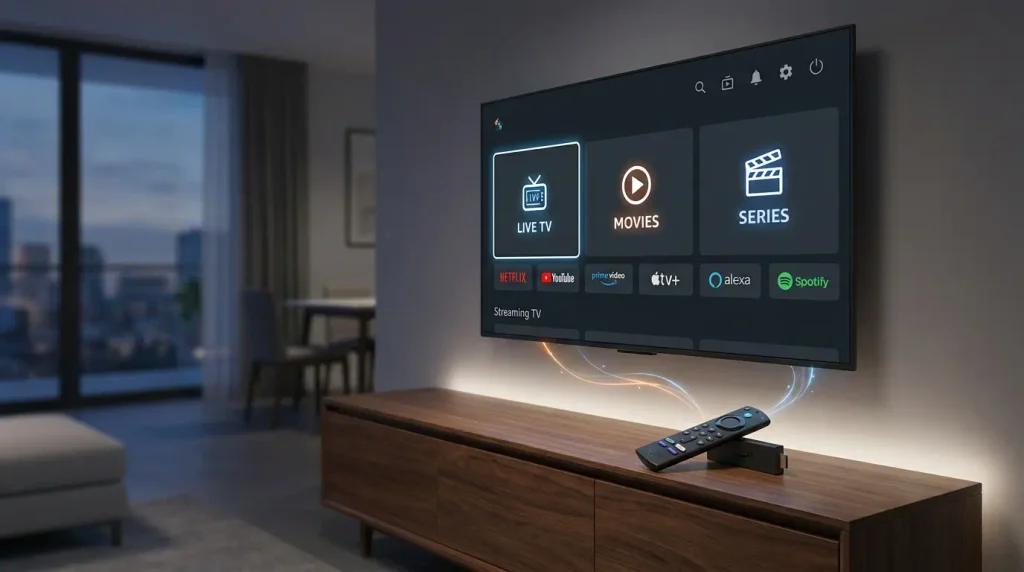
How to Download IPTV Smarters Pro on Firestick (Best 2026 Guide)
Editorial Note: IPTV Smarters Pro is a neutral media player that does not host or provide television channels. Always ensure you pair the software with lawful, authorized streaming subscriptions. For global copyright standards, consult the World Intellectual Property Organization (WIPO).
Quick Answer
Because IPTV Smarters Pro is not hosted directly on the Amazon Appstore, you must sideload its APK file using the free Downloader utility. First, enable Install Unknown Apps inside your Firestick’s Developer Options. Next, open Downloader, enter the verified APK URL, install the package, and log in using your provider’s Xtream Codes API credentials or M3U playlist link.
Streaming television on an Amazon Fire TV Stick has become one of the most convenient ways to organize live broadcasts, on-demand movies, and series in one unified interface. Among the top media players engineered for this purpose is IPTV Smarters Pro, prized for its remote-friendly layout and native support for modern playlist protocols.
In this step-by-step technical guide, we will walk you through preparing your Fire OS system settings, sideloading the application safely, and optimizing your playback buffers. When paired with verified, high-uptime IPTV plans, this media player transforms your compact streaming stick into a complete home theater hub. For broader device tutorials, visit Ultimate IPTV Hub.
What Is IPTV Smarters Pro & How Does It Work?
IPTV Smarters Pro is a dedicated front-end video player designed for Android-based operating systems, including Fire OS, Android TV, and Google TV. Crucially, the application does not include any built-in channels or media files. Instead, it acts as a graphical organizer that connects to your subscription provider via the Xtream Codes API, M3U playlist URLs, or local storage files.
Get “Downloader” App
Fetches Official APK
Streams Live TV & VOD
Why is it missing from the official Amazon Appstore? Amazon enforces strict store curation policies regarding third-party media players that ingest external server URLs. As a result, users must manually install the package—a standard Android procedure known as sideloading, which is documented in Amazon’s official Fire TV developer documentation.
Requirements Before Installing on Firestick
Before you begin the installation, verify that you have these four essentials ready to prevent setup interruptions:
- Compatible Fire TV Hardware: Works across Fire TV Stick Lite, 3rd Gen, Fire TV Stick 4K, 4K Max, and Fire TV Cube running updated Fire OS firmware.
- Stable Broadband Connection: At least 15 Mbps for standard HD channels, and 25+ Mbps for Ultra-HD 4K broadcasts.
- Active Login Credentials: Your Server URL, Username, and Password (for Xtream Codes API) or a valid M3U playlist link.
- Amazon Account Access: Needed to download the free Downloader utility from the main store.
Step 1: Prepare Firestick Settings for Sideloading
By default, Fire OS blocks external APK installations to protect users from unverified software. You must grant explicit permission to the Downloader utility before fetching IPTV Smarters Pro.
1. Download the “Downloader” App
- From your Firestick Home screen, navigate to the Find (Magnifying Glass) icon and select Search.
- Type Downloader using the on-screen keyboard and select the orange application icon.
- Click Download (or Get) and wait for the utility to install.
2. Enable Developer Options & Unknown Apps
- Click the Gear icon (Settings) on the right side of the Firestick Home bar.
- Select My Fire TV (or Device & Software).
- If you do not see Developer Options listed, click on About, highlight your Fire TV Stick name, and press the center select button on your remote 7 times rapidly until a message confirms “You are now a developer.”
- Press the Back button once, open Developer Options, and select Install unknown apps.
- Click on Downloader to switch the status to ON.
Step 2: How to Download IPTV Smarters Pro on Firestick
Once your system permissions are active, follow these exact steps to install IPTV Smarters Pro cleanly:
- Open the Downloader app from your apps list and click Allow when prompted to access device storage.
- Select the central URL input box on the Downloader home screen.
- Carefully type the official APK repository URL (or verified short-code provided by the developer) and click Go.
- Wait for the APK package to finish downloading. Downloader will automatically launch the Fire OS installation prompt.
- Click Install in the bottom-right corner.
- Once you see the “App Installed” notification, click Done (rather than Open).
- Select Delete when Downloader asks to remove the temporary APK installer file, then click Delete again to confirm. This preserves valuable storage space on your Firestick.
IPTV Smarters Pro Not Working? Common Issues & Fixes
If you encounter errors during installation or video playback, use this diagnostic matrix to resolve the bottleneck quickly:
| Issue / Symptom | Root Cause | Actionable Fix |
|---|---|---|
| “App Not Installed” Error | Insufficient storage space or corrupted APK file | Delete unused Firestick apps, clear Downloader cache, and re-download the APK. |
| “Authorization Failed / Invalid Details” | Typo in Server URL or expired subscription | Check for accidental spaces after the URL (`http://` vs `https://`) and verify account status. |
| Constant Buffering on Live TV | Wi-Fi congestion or CPU decoding overload | Go to App Settings > Player Selection and enable Hardware Decoder (HW); increase Buffer Size. |
| App Crashes or Black Screen | Corrupted local cache database | Go to Firestick Settings > Applications > Manage Installed Apps > Clear Cache. |
| EPG Guide Shows “No Information” | Outdated XMLTV sync session | Click Install EPG or Refresh EPG on the main app dashboard and wait 60 seconds. |
If you continue experiencing playback stuttering after enabling hardware decoding, consult our no-buffering USA IPTV guide to optimize your router settings, or review our dedicated IPTV troubleshooting guide. Additionally, if your older Firestick model struggles with heavy graphics, you can learn how to setup Perfect Player as an ultra-lightweight alternative.
Frequently Asked Questions (FAQ)
Is IPTV Smarters Pro free to use on Firestick?
Yes, the standard version of IPTV Smarters Pro is completely free to download and install. However, remember that it is purely a video player—you must supply your own active subscription credentials to watch channels.
Is it legal to sideload IPTV Smarters Pro on Fire TV?
Yes. Sideloading a media player application is 100% legal, just like installing VLC or Kodi. The legality of your setup depends entirely on whether the streaming service you log into holds proper broadcasting rights in your jurisdiction.
Can I use multiple subscriptions on IPTV Smarters Pro?
Yes. The application features a built-in Multi-User switch on the top dashboard, allowing you to save and toggle between multiple Xtream Codes or M3U profiles without logging out.
Final Verdict
Learning how to download IPTV Smarters Pro on Firestick takes less than five minutes once you unlock Developer Options and install the Downloader utility. Its intuitive categorization of live television, movies, and series—combined with multi-screen capabilities and automatic EPG syncing—makes it one of the most reliable media players available in 2026.
By deleting the leftover APK file after installation, enabling hardware decoding inside the player settings, and maintaining a clean cache, your Firestick will deliver responsive, stutter-free streaming for years to come.
When sideloading APK files onto your home devices, only download from verified sources and keep your network protected. For practical home cybersecurity guidance, consult CISA Secure Our World.