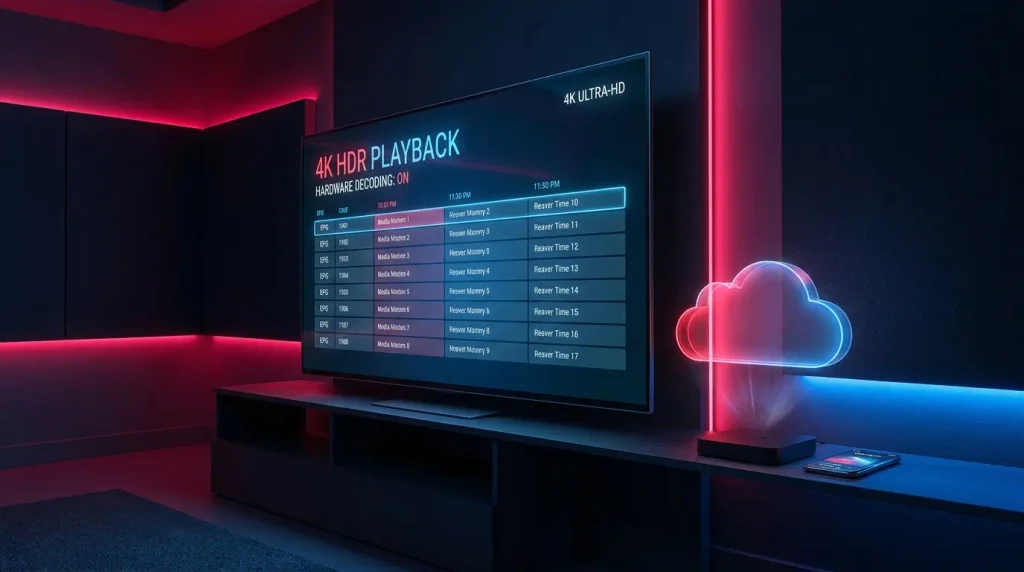
4K IPTV Extreme Setup Guide: Best Settings for Zero Buffering (2026)
Editorial Note: Media player applications such as IPTV Extreme do not host, provide, or distribute television channels. Always ensure you configure your player with authorized, lawful streaming subscriptions. For copyright guidelines, consult the World Intellectual Property Organization (WIPO).
Quick Answer
Achieving a smooth 4k iptv extreme streaming experience requires two core components: configuring the IPTV Extreme media player to use Hardware (HW+) Decoding with a generous RAM buffer size, and pairing it with a minimum 25 Mbps internet connection capable of handling HEVC (H.265) streams. Unlike basic media apps, IPTV Extreme enables users to remotely inject M3U playlists, Xtream Codes API credentials, and MAC portals directly via a cloud web interface without typing long URLs on a TV remote.
Streaming Ultra-HD 3840×2160 broadcasts demands significantly more from your media player and local network than standard 1080p television. When users search for a 4k iptv extreme configuration, they are typically looking to optimize the popular Android application—IPTV Extreme—to handle heavy 4K video bitrates without frame drops or stuttering.
While the application is packed with advanced features like built-in recording, parental PIN controls, and automatic Electronic Program Guide (EPG) syncing, its default settings are often calibrated for standard definition streams. In this technical guide, we will walk through the exact configuration tweaks required to unlock flawless 4K playback on your Android TV or Amazon Firestick. For foundational device prep, visit Ultimate IPTV Hub.
What Makes a 4K IPTV Extreme Setup Unique?
Most media players force you to type tedious 80-character playlist URLs using a directional television remote. A standout advantage of a 4k iptv extreme workflow is its cloud-based MAC bridge. The application assigns a virtual MAC identifier to your device, allowing you to open a browser on your smartphone or PC, visit the app’s configuration portal, and push your credentials remotely.
Enters M3U or Xtream API
Receives Playlist Instantly
Smooth Ultra-HD Output
Furthermore, its internal video player natively supports modern compression standards, including HLS (HTTP Live Streaming) as defined by the IETF RFC 8216 standard, alongside MPEG-TS and HEVC (H.265) streams required for 4K delivery.
Technical Requirements for 4K IPTV Extreme Playback
Before adjusting software toggles, ensure your hardware and broadband meet the baseline metrics required to sustain a 4k iptv extreme broadcast:
| Component / Metric | Minimum for 1080p FHD | Recommended for 4K Ultra-HD (60fps) |
|---|---|---|
| Internet Speed | 10 – 15 Mbps | 25 – 50 Mbps (Stable, low jitter) |
| Video Codec Support | H.264 (AVC) | HEVC (H.265) or AV1 Hardware Decoding |
| Device RAM | 1.5 GB RAM | 2 GB to 4 GB RAM (Firestick 4K Max / Shield) |
| App Buffer Size | Default (2–3 Seconds) | Large / Extra Large (5–10 Seconds) |
How to Configure Your 4K IPTV Extreme Setup
Once you have installed the application on your Android TV box or Firestick (see our complete installation guide if you need help sideloading), follow these steps to link your authorized subscription:
- Launch the app and locate your device’s MAC Address displayed on the main menu or under the Info tab.
- On your smartphone or computer browser, navigate to the official IPTV Extreme web portal page.
- Enter your displayed MAC address into the designated field.
- Choose your preferred connection method: paste your M3U Playlist link or select the Xtream Codes tab to input your Server URL, Username, and Password.
- Click Save, then restart the application on your television. Your channels and VOD categories will populate automatically.
If you prefer a different interface style that relies purely on local playlist configuration without a cloud bridge, you can also learn how to setup Perfect Player as a lightweight alternative.
Best Player Settings to Stop 4K Buffering
Out of the box, 4K streams may stutter or display audio desynchronization if the software tries to decode the video using your device’s main CPU rather than its dedicated graphics chip. To optimize your 4k iptv extreme performance, open the top-right settings menu inside the app and adjust these three parameters:
- Switch to Hardware Acceleration (HW+): Navigate to Settings > Player Settings and ensure Hardware Decoding is enabled. 4K HEVC streams require dedicated silicon decoding; software decoding will immediately overheat and lag a compact streaming stick.
- Increase the Buffer Size: Set the buffer size to Large. This instructs the player to cache a few extra seconds of Ultra-HD video into local RAM before playback begins, smoothing out micro-drops in your home Wi-Fi.
- External Player Integration: If a specific 4K VOD movie uses an obscure audio codec, you can toggle the app to use an external player like VLC Media Player for enhanced codec fallback.
If you still experience freezing during peak evening hours, the issue may lie with your provider’s server capacity or local Wi-Fi congestion. Consult our no-buffering USA IPTV guide to learn how network routing impacts Ultra-HD feeds, or review our Firestick streaming optimization guide for hardware-specific tips.
4K IPTV Extreme Free vs. Pro: Is the Upgrade Worth It?
The application is available in both a standard ad-supported version and a Pro version. From a purely technical standpoint, both versions share the exact same video rendering engine. Upgrading to Pro will not magically increase your internet speed or turn a 720p stream into 4K.
However, the Pro version removes banner advertisements from the user interface, unlocks full backup/restore functionality for your custom channel groups, and stabilizes background EPG downloading. For heavy cord-cutters watching live 60fps sports—such as those following our NFL Sunday Ticket streaming guide—having an ad-free, responsive interface makes the minor one-time upgrade worthwhile. Of course, a great player is only as good as the feed you put into it, so always pair your app with verified, high-uptime IPTV plans.
Frequently Asked Questions
Does a 4k iptv extreme setup include television channels?
No. A 4k iptv extreme installation is strictly a media player shell. It does not contain any built-in channels, movies, or playlists. You must provide your own authorized M3U link or Xtream Codes API login credentials for the software to display content.
Why is my 4K stream playing audio with a black screen?
A black screen with working audio almost always indicates a codec mismatch. Your streaming device is struggling to decode the HEVC (H.265) 4K video track. Switch the decoder from Software (SW) to Hardware (HW) inside the player settings, or check our IPTV troubleshooting guide for deeper fixes.
Why does the web portal say my MAC address is not found?
Ensure that the IPTV Extreme app is actively open and connected to the internet on your television at least once before visiting the web portal. This initial handshake registers your virtual MAC identifier with the developer’s cloud server.
Final Verdict
Building a reliable 4k iptv extreme setup on Android TV or Fire OS gives you one of the most versatile media playback environments available in 2026. Its cloud-based playlist loader eliminates the headache of manual remote typing, while its robust internal player handles high-bitrate Ultra-HD streams with ease once hardware acceleration is enabled.
By pairing the application with a wired Ethernet connection, expanding the local buffer cache, and utilizing a stable content provider, you can enjoy crisp, stutter-free 4K entertainment across your entire home theater system.
When sideloading applications or managing network devices, always download software from official repositories and protect your home Wi-Fi. For practical cybersecurity habits, consult CISA Secure Our World.