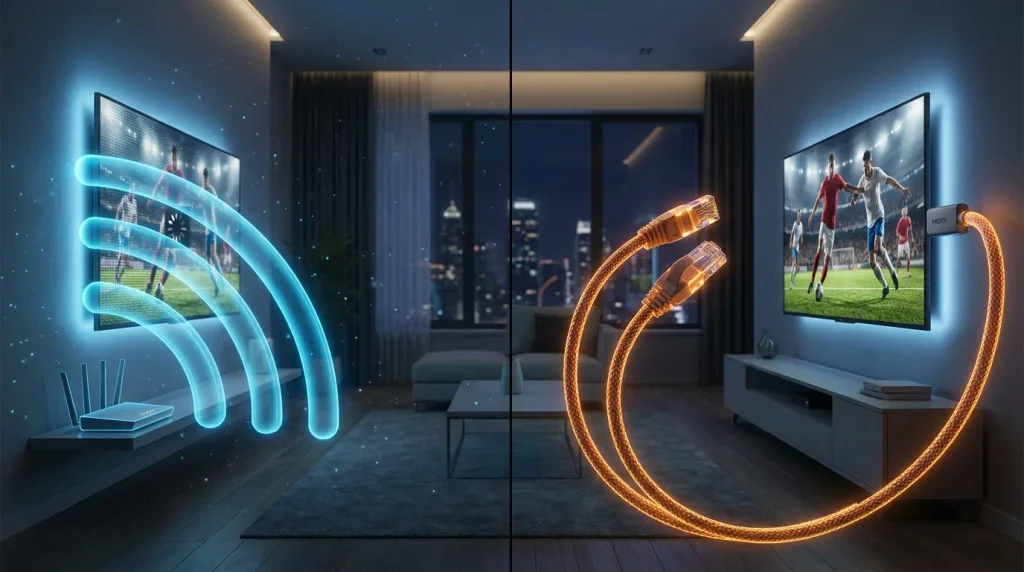
Ethernet vs Wi-Fi for Fire TV: Which Stops Buffering? (2026)
Editorial Note: Network optimization is a neutral technical practice. Ensure you only stream authorized digital content. For guidelines on copyright laws, consult the World Intellectual Property Organization (WIPO).
Quick Answer
Ethernet is generally the more reliable choice when Wi-Fi interference, weak signal strength, or local wireless congestion causes buffering on Fire TV. However, switching to a cable will not fix slow broadband, overloaded streaming servers, or application-related problems. A strong Wi-Fi 6 or Wi-Fi 6E connection can also deliver smooth 4K playback. Check your exact Fire TV model and Ethernet adapter compatibility before switching.
Ethernet vs Wi-Fi remains a critical debate for anyone trying to enjoy uninterrupted live broadcasts on an Amazon Fire TV device. Many viewers experience sudden video freezing right during crucial moments of their favorite sports events or action movies.
This frustrating behavior often stems from unexpected network congestion or signal dropouts within the home environment. Figuring out whether an invisible wireless signal or a physical cable holds back your setup is essential. Reliable network architecture forms the foundation of any high-quality streaming setup, helping to diagnose and reduce playback stuttering. For more foundational streaming advice, explore the rest of Ultimate IPTV Hub.
Ethernet vs Wi-Fi: Quick Technical Comparison
When comparing Ethernet vs Wi-Fi for streaming hardware, it is not just about raw speed. It is about consistency. Here is a technical breakdown:
| Feature / Metric | Wired Ethernet Connection | Wireless (Wi-Fi) Connection |
|---|---|---|
| Data Stability | Typically more consistent, with less wireless interference | Prone to micro-drops from physical obstacles |
| Latency / Ping | Consistently low (Faster catalog loading) | Variable (Depends on distance & router traffic) |
| Setup Hardware | Requires cables and often an OTG adapter | Built-in, connects instantly anywhere |
| Interference Risk | Less susceptible to household electronics | Affected by microwaves, thick walls, and neighbors |
2026 Fire TV Models & Network Capabilities
Before buying cables, you must understand your device’s limits. The official Amazon Ethernet adapter is capped at 10/100 Mbps. Ironically, the Wi-Fi 6 and Wi-Fi 6E chips inside modern Fire TV sticks are theoretically much faster than the official wired adapter. However, 100 Mbps is more than enough for 4K streaming (Netflix recommends 15+ Mbps), meaning the stability of Ethernet often outperforms the raw speed of Wi-Fi.
| Fire TV Model | Wi-Fi Support | Ethernet Support |
|---|---|---|
| Fire TV Stick 4K (3rd Gen – 2026) | Wi-Fi 6 | Via compatible USB-C OTG adapter |
| Fire TV Stick HD (2026) | Wi-Fi 6 | Via compatible USB-C OTG adapter |
| Fire TV Stick 4K Max (2nd Gen – 2023) | Wi-Fi 6E | Via Micro-USB Ethernet adapter |
| Fire TV Cube (3rd Gen – 2022) | Wi-Fi 6E | Built-in 10/100 Mbps Ethernet port |
Ethernet vs Wi-Fi: Understanding Fire TV Connections
Evaluating Ethernet vs Wi-Fi helps users understand how data travels from the internet service provider to the television screen. Wireless connectivity relies on radio frequency waves (2.4GHz, 5GHz, or 6GHz) broadcast by a router. Physical connections bypass these waves by utilizing dedicated copper cables.
Why Network Stability Matters for Streaming
Network stability differs significantly from raw speed measurements. A connection may register high download speeds while still suffering from micro-interruptions (Jitter) that disrupt live broadcasts.
Modern streaming protocols handle data buffering and packet reordering dynamically. However, if packet loss is severe enough that the application’s buffer runs empty, the video pauses. Minimizing network jitter helps keep the application’s buffer full, providing a smoother experience, though issues like audio/video sync desynchronization can still occur due to encoding or hardware decoding limits.
The Pros and Cons of Using Wi-Fi
In any Ethernet vs Wi-Fi discussion, wireless networks offer unmatched convenience. You do not need to drill holes or route cables around baseboards.
However, wireless signals face obstacles. The 2.4GHz band reaches far through concrete walls but is prone to interference from neighboring networks and Bluetooth devices. The 5GHz and newer 6GHz (Wi-Fi 6E) bands offer massive speeds and less congestion, but they struggle to penetrate thick walls over long distances. Shared household bandwidth from phones and computers further strains available capacity.
The Advantages of a Wired Ethernet Setup
The decisive factor in the Ethernet vs Wi-Fi matchup is that a physical cable creates a dedicated communication highway. This direct link bypasses ambient radio frequency interference.
Wired configurations generally exhibit more consistent latency. Reduced latency translates to often faster channel loading (though server and app processing speeds still apply). Physical cables are not blocked by furniture or walls, isolating your TV’s connection from other active wireless gadgets in the house.
How to Connect Ethernet to Fire TV
Depending on your hardware generation, the setup differs. Before doing this, ensure you follow our complete installation guide for basic device setup.
- For Fire TV Cube: Simply plug an Ethernet cable directly into the built-in port on the back.
- For Firesticks (Micro-USB / pre-2026): Plug the official Amazon Ethernet adapter (or a compatible third-party OTG adapter) into the stick’s power port. Connect the power cord to the adapter, then connect the LAN cable.
- For 2026 Firesticks (USB-C): Ensure you purchase a USB-C compatible OTG Ethernet adapter, as older Micro-USB adapters will not fit.
Once connected, go to Settings > Network. It should say “Wired” or “Ethernet”. If it still shows Wi-Fi, you may need to “Forget” the Wi-Fi network.
How to Test Fire TV Network Speed
To confirm whether your Ethernet vs Wi-Fi swap actually improved your connection:
- Go to Settings on your Fire TV home screen.
- Select Network.
- Press the Play/Pause button on your remote to run the built-in Network Status diagnostic.
This tool will check both your connection to the router and your connection to the internet, helping you isolate where a bottleneck might be occurring.
When Ethernet Won’t Fix Buffering
It is vital to understand that an Ethernet cable only secures the connection between your TV and your router. It will not fix buffering if:
- Your Internet Service Provider (ISP) is throttling your bandwidth.
- The remote streaming server is overloaded (common during major sports events). You can avoid this by exploring reliable IPTV plans.
- The media player application is poorly optimized. If you need a more lightweight option, read our guide on how to setup Perfect Player.
Frequently Asked Questions
Is Ethernet faster than Wi-Fi on Firestick?
Not necessarily. The official Ethernet adapter is limited to 100 Mbps. If you have a strong Wi-Fi 6 router close to a Wi-Fi 6 Firestick, wireless can easily exceed 300 Mbps. However, Ethernet is more stable, which is often more important for preventing buffering.
Does a 100 Mbps Ethernet adapter support 4K streaming?
Yes. Major platforms like Netflix and Prime Video recommend 15 to 25 Mbps for 4K streaming. A stable 100 Mbps wired connection is more than enough to handle 4K without stuttering.
Final Verdict
Choosing between Ethernet vs Wi-Fi ultimately depends on your home layout and the source of your buffering. Wired Ethernet connections offer superior stability and robust protection against interference, making them an excellent choice for diagnosing and reducing stuttering.
However, if your router is far away and you have a modern Wi-Fi 6 setup, a wireless connection is perfectly capable of delivering smooth 4K video. Marcus Vance encourages users to test their network speeds in both configurations to find what works best for their specific environment.
For practical online safety guidance while configuring your home network, consult CISA Secure Our World.