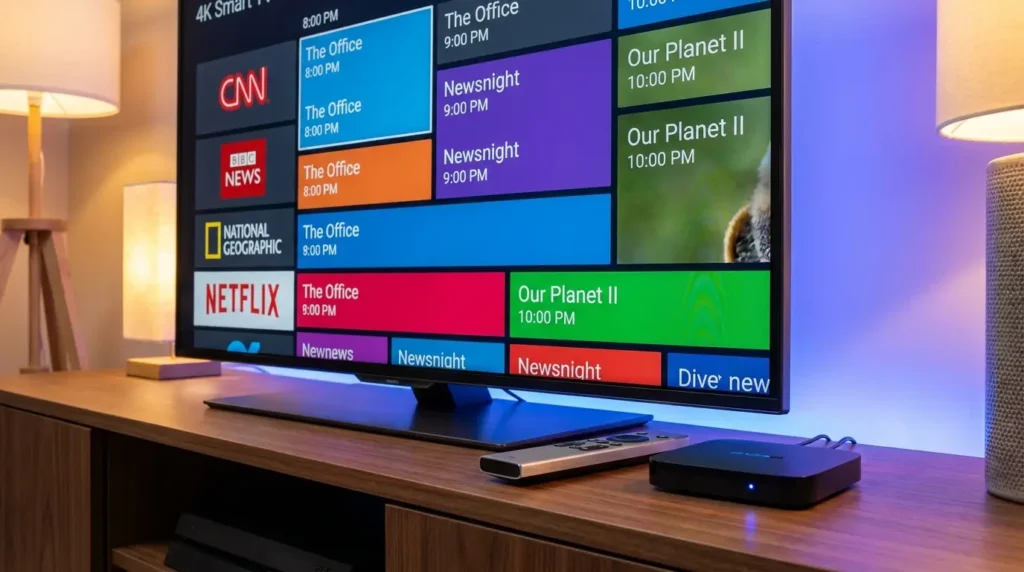
Setting up a modern home entertainment center gives you access to a vast world of entertainment, live news, and global sports. However, launching a media player only to discover blank channel bars labeled “No Information” or “Unknown Program” quickly ruins the entire experience. If you are wondering how to add an epg source to iptv, you have come to the right place.
An Electronic Program Guide (EPG) transforms raw channel playlists into an intuitive, interactive TV guide. It displays show titles, start and end times, episode descriptions, channel logos, and upcoming broadcast schedules. Whether you are migrating away from traditional broadcast setups or fine-tuning an advanced media center, configuring your TV guide source correctly is vital for seamless navigation.
In this comprehensive, beginner-friendly guide, we explore everything you need to know about EPG integration. You will learn the mechanics behind XMLTV data, discover step-by-step setup walkthroughs for the most popular legal IPTV players, master timezone offset adjustments, and troubleshoot missing guide data.
Table of Contents
What Is an EPG and Why Is It Essential for Modern Streaming?
An Electronic Program Guide (EPG) is the digital equivalent of a printed television listings magazine. When you transition from conventional broadcast methods—a comparison explored deeply in our analysis of IPTV vs. Cable TV—you quickly realize that internet-delivered television relies on two distinct streams of data:
- The Media Stream (M3U / API): The actual audio and video data transferred across the internet.
- The Metadata Stream (XMLTV / EPG): The structured text file containing schedules, program summaries, genre tags, and channel identifiers.
+-------------------------------------------------------------+
|                      Your IPTV Player                       |
+-------------------------------------------------------------+
         |                                           |
         v                                           v
+-----------------------+                 +--------------------+
|   M3U Stream Source   |                 |  XMLTV / EPG Feed  |
|  (Live Audio/Video)   |                 | (Metadata & Guide) |
+-----------------------+                 +--------------------+
Without an active, properly assigned EPG feed, your IPTV player has no way of knowing what program is currently airing on any given channel. Adding an EPG brings several practical advantages:
- Real-Time Visual Schedule: View ongoing broadcasts alongside full upcoming schedules across a multi-day timeline.
- Catch-Up & Program Recording: Applications with DVR features use EPG timecodes to schedule automated recordings accurately.
- Quick Channel Hopping: Search for live sporting events, breaking news, or movies by name instead of scrolling blindly through hundreds of channel numbers.
- Organized Channel Layouts: EPG metadata pairs with your playlist to group broadcasts cleanly into categorized sections, a structure detailed in our breakdown of IPTV channel categories.
Understanding EPG File Formats: XMLTV, GZIP, and JTV
When learning how to add an epg source to iptv, you will encounter several common file formats used to distribute schedule metadata.
1. Plain XMLTV (.xml)
The gold standard for digital television metadata is XMLTV, an open standard built on Extensible Markup Language (XML). The file contains standardized tags such as <channel>, <display-name>, <programme>, <title>, and <desc>. To inspect the technical specifications and open-source origins of this format, check the official XMLTV Project documentation on GitHub.
2. Compressed XMLTV (.xml.gz or .gz)
Because XML files containing multi-day schedules for hundreds of channels can grow to tens of megabytes, providers often compress them using GZIP. Modern IPTV players download and decompress .xml.gz files in memory automatically, saving bandwidth and speeding up refresh cycles.
3. Xtream Codes API EPG
If your media player connects via an Xtream Codes login (Server URL, Username, and Password), the player queries the server’s database directly. In most modern players, the API automatically links the corresponding EPG URL without requiring manual copy-pasting.
How EPG Matching Works: The Crucial Role of tvg-id
A frequent reason TV guides remain blank despite adding an EPG source is a mismatch between the channel identifier in the playlist and the channel identifier in the EPG file.
Inside your M3U playlist file, each channel line contains specific attributes:
Code snippet
#EXTINF:-1 tvg-id="SportsNetEast.ca" tvg-name="SportsNet East" tvg-logo="https://example.com/logo.png" group-title="Sports",SportsNet East HD
http://streaming-server.example.com/live/stream123.m3u8
Simultaneously, the XMLTV file contains a corresponding block:
XML
<channel id="SportsNetEast.ca">
    <display-name>SportsNet East</display-name>
</channel>
<programme start="20260611180000 +0000" stop="20260611200000 +0000" channel="SportsNetEast.ca">
    <title lang="en">Live Football Championship</title>
    <desc lang="en">Live coverage of international tournament matches.</desc>
</programme>
When the tvg-id attribute in your playlist matches the channel id in the XMLTV file, the player links the schedule data instantly. If they differ, you must manually assign the EPG channel inside your player’s settings.
7 Best Easy Steps: How to Add an EPG Source to IPTV (Universal Workflow)
Regardless of the device or software you use, configuring an external EPG follows a standard seven-step sequence.
[Step 1: Obtain XMLTV URL]
           │
           ▼
[Step 2: Launch Player Settings]
           │
           ▼
[Step 3: Access EPG Management]
           │
           ▼
[Step 4: Enter Source URL]
           │
           ▼
[Step 5: Link EPG to Playlist]
           │
           ▼
[Step 6: Sync & Update Data]
           │
           ▼
[Step 7: Calibrate Time Offset]
Step 1: Obtain Your Valid EPG / XMLTV URL
Collect the precise HTTP or HTTPS link for your XMLTV guide. Ensure there are no trailing spaces or typographical errors. If you use a custom or open-source EPG service, verify the URL in a web browser to confirm it downloads or renders XML data correctly.
Step 2: Open Your IPTV Player’s Settings
Launch your preferred media player on your Android Box, Smart TV, Firestick, Apple TV, or PC. Access the main configuration panel, usually represented by a gear icon.
Step 3: Navigate to the “EPG” or “TV Guide” Section
Locate the menu item labeled EPG, TV Guide, EPG Sources, or Guide Management.
Step 4: Add a New EPG Source
Select Add Source, Add EPG, or New XMLTV Source. Enter the complete EPG URL into the input field. Give the source a recognizable nickname (e.g., “Primary XMLTV Guide”).
Step 5: Assign the EPG Source to Your Playlist
If your player supports multiple playlists, explicitly assign the newly created EPG source to the target channel list.
Step 6: Trigger a Manual EPG Update
Force the application to fetch fresh data immediately by selecting Update EPG, Reload Guide, or Sync Data. Allow the progress bar to reach 100%.
Step 7: Calibrate Your Timezone and EPG Time Shift
Navigate back to the live guide. If program listings appear shifted forward or backward by several hours, access the Time Shift or EPG Offset setting and adjust the hour value (+/- hours) until broadcast schedules match local time.
Step-by-Step EPG Setup for Popular IPTV Players
Different IPTV applications have unique user interfaces. Below are direct, step-by-step instructions for configuring an EPG across the industry’s most widely used media players.
+---------------------+-------------------------------+-------------------------+
| IPTV Player         | Primary EPG Input Format      | Manual Channel Mapping? |
+---------------------+-------------------------------+-------------------------+
| TiviMate            | XMLTV URL (.xml / .xml.gz)    | Yes (Full Customization)|
| IPTV Smarters Pro   | Xtream API / XMLTV URL        | Limited                 |
| OTT Navigator       | XMLTV / GZIP / Multiple URLs  | Yes (Advanced Regex)    |
| Kodi (PVR Simple)   | XMLTV URL or Local File       | Yes                     |
| XCIPTV              | Xtream API / Direct URL       | Automatic               |
+---------------------+-------------------------------+-------------------------+
1. Setting Up an EPG in TiviMate (Android TV / Fire TV)
TiviMate is widely considered one of the most powerful and customizable players for television screens.
[Settings] -> [EPG] -> [EPG Sources] -> [Add Source] -> [Enter URL] -> [Done]
- Launch TiviMate and open Settings (gear icon on the left sidebar).
- Select EPG, then navigate to EPG Sources.
- Click Add Source.
- Select Enter URL and type your XMLTV address. Click Next.
- Choose whether the guide should update on application startup or at a set interval (e.g., every 24 hours).
- Click Done.
- Return to Settings > Playlists, select your active playlist, scroll down to Main EPG source, and select your new EPG feed.
- Return to the main screen, long-press the Left navigation button on your remote, and select Update EPG.
2. Setting Up an EPG in IPTV Smarters Pro (Multi-Platform)
IPTV Smarters Pro is popular across Android, iOS, Windows, and Smart TV operating systems.
[Home Screen] -> [Install EPG] -> [Enter XMLTV URL] -> [Fetch EPG]
- Launch IPTV Smarters Pro and log in to your dashboard.
- On the main home screen, click the Install EPG button located below the primary menu tiles.
- If using an M3U playlist, click Add EPG Source.
- Type or paste your XMLTV URL into the EPG URL box.
- Click Add EPG.
- The app will state EPG installed successfully. Select Update EPG to populate the electronic guide.
3. Setting Up an EPG in OTT Navigator (Advanced Android)
OTT Navigator offers in-depth technical customization, making it an excellent choice for power users.
[Settings] -> [Provider] -> [Configure EPG] -> [Add External Source]
- Open OTT Navigator, press Menu on your remote, and select Settings (gear icon).
- Navigate to Provider and select your configured playlist.
- Scroll down to EPG sources and select Add EPG.
- Input your XMLTV link. OTT Navigator supports
.xml,.xml.gz, and.xzformats. - Select the cache duration (recommended: 1 to 2 days to save internal device storage).
- Save and select Reload data now.
4. Setting Up an EPG in Kodi (PVR IPTV Simple Client)
Kodi is an open-source media center platform with cross-device support. For complete setup foundations, review our IPTV installation guide.
[Add-ons] -> [My Add-ons] -> [PVR Clients] -> [PVR IPTV Simple Client] -> [Configure] -> [EPG Settings]
- Open Kodi and navigate to Settings > Add-ons > My Add-ons > PVR Clients.
- Select PVR IPTV Simple Client and click Configure.
- On the left menu, select the EPG Settings tab.
- Set the Location to Remote Path (Internet address).
- Click on XMLTV URL and input your EPG link.
- (Optional) Set the EPG Time Shift to adjust for timezone discrepancies.
- Click OK, then restart Kodi to apply changes and initiate guide parsing.
How to Fix Timezone Offsets (EPG Time-Shift Configuration)
One of the most frustrating EPG issues occurs when the guide data is accurate, but the schedule appears several hours ahead of or behind your actual local time. For example, a live sports match starting at 8:00 PM local time might be listed in your guide at 2:00 PM or 1:00 AM.
This discrepancy happens because XMLTV data is typically generated in UTC (Coordinated Universal Time) or based on the broadcaster’s local timezone.
+-------------------------------------------------------------------------------+
|                             Timezone Shift Matrix                             |
+---------------------+-------------------------+-------------------------------+
| User Local Location | XMLTV Timestamp Base   | Required Player Offset        |
+---------------------+-------------------------+-------------------------------+
| New York (EST/EDT)  | UTC (+00:00)            | -5 Hours (or -4 during DST)   |
| Los Angeles (PST)   | UTC (+00:00)            | -8 Hours (or -7 during DST)   |
| London (GMT/BST)    | UTC (+00:00)            | 0 Hours (or +1 during BST)    |
| Paris / Berlin      | UTC (+00:00)            | +1 Hour (or +2 during CEST)   |
+---------------------+-------------------------+-------------------------------+
How to Adjust the EPG Time Shift:
- Open your player’s EPG Settings.
- Locate the setting named Time Shift, EPG Offset, or Timezone Correction.
- Adjust the slider or number value in 0.5 or 1.0-hour increments.
- Save settings and check your live TV guide to verify that the ongoing program matches current real-world broadcasting.
Accurate time alignment is crucial when tuning into time-sensitive live global events, such as following the upcoming tournament broadcasts covered in our guides for the World Cup live stream on IPTV and tournament details for the World Cup IPTV 2026.
Troubleshooting Missing, Blank, or Corrupted EPG Data
If you followed the setup steps but your guide remains empty, work through these troubleshooting solutions:
[Blank EPG Screen]
        │
        ├─► Check 1: Internet & Storage Check (Is memory full?)
        ├─► Check 2: Manual Channel EPG ID Mapping (Do IDs match?)
        ├─► Check 3: Clear EPG Cache & Force Fresh Sync
        └─► Check 4: URL Validation (Is XML syntax valid?)
1. Clear EPG Cache and Re-Download
Over time, cached guide data can become corrupted, preventing the application from parsing new XML entries.
- In TiviMate: Go to Settings > EPG > Clear EPG, then select Update EPG.
- In IPTV Smarters: Go to Settings > General Settings, clear cache, and click Refresh EPG.
- In Android OS: Go to Android Settings > Apps > [Your App] > Clear Cache.
2. Manually Map Missing Channels
If only a few specific channels lack guide data while others work fine, the channel’s tvg-id is likely mismatched.
- In TiviMate: Open the TV guide, navigate to the blank channel, long-press the Select button, choose Assign EPG, search for the matching channel name from your EPG database, and confirm.
3. Verify XMLTV Link Health in a Browser
Copy your XMLTV URL and paste it into a web browser on your PC or smartphone.
- If the browser displays a 404, 403 Forbidden, or timeout error, the EPG server is offline or the link has expired.
- If the browser downloads an
.xmlor.gzfile, the link is healthy, and the issue lies within your player’s input settings.
4. Check Device Storage Space
Low storage space on streaming sticks (such as 8GB Firesticks or basic Android boxes) can prevent the system from decompressing large XMLTV files. Free up storage by uninstalling unused applications.
Why Rely on Ultimate IPTV Hub for Your Setup Education?
Navigating the landscape of home streaming technology can be confusing, especially with shifting hardware standards, changing software interfaces, and evolving network configurations.
At Ultimate IPTV Hub, our mission is to provide clear, technically accurate, and 100% educational resources for cord-cutters and streaming enthusiasts worldwide. We break down complex technical topics—from EPG XMLTV mapping and network buffer optimization to hardware comparisons—into accessible, practical tutorials.
Our guides focus entirely on official applications, secure setup practices, and optimized home theater configurations, helping you make informed decisions and build a reliable, high-performance entertainment hub in your living room.
Conclusion: Enjoying a Flawless, Interactive TV Guide
Mastering how to add an epg source to iptv elevates your viewing experience from a basic, unstructured list of streams to a polished, modern digital entertainment guide. By sourcing a valid XMLTV feed, linking it accurately within a dependable media player, and calibrating your timezone offsets, you unlock quick channel navigation, rich program details, and seamless schedule management.
Keep your player software updated, periodically clear old guide cache data to maintain optimal system performance, and enjoy an organized, buffer-free viewing experience tailored to your home theater.
FAQ Section
Frequently Asked Questions
1. What does EPG stand for in IPTV?
EPG stands for Electronic Program Guide. It is an interactive digital schedule that displays upcoming and currently airing programs, complete with show summaries, start and finish times, episode details, and channel logos.
2. Why is my EPG guide completely blank after adding the URL?
A blank EPG usually occurs due to one of four reasons: a typographical error in the XMLTV URL, an offline EPG server, insufficient local storage on your streaming device, or an unassigned EPG source within your player’s playlist settings.
3. What is the difference between an M3U playlist and an EPG URL?
An M3U playlist contains the actual live streaming links and media server addresses, whereas an EPG URL (usually formatted as an XML or XML.GZ file) contains only the text metadata, program descriptions, and schedule timestamps.
4. How do I fix the wrong program times on my EPG?
If your TV guide shows programs running several hours early or late, access your IPTV player’s EPG settings and adjust the Time Shift or EPG Offset setting (e.g., +2 hours or -5 hours) until the schedule matches your local timezone.
5. Can I use multiple EPG sources in one IPTV player?
Yes. Advanced players such as TiviMate, OTT Navigator, and Kodi allow you to add multiple XMLTV sources simultaneously and assign specific EPG feeds to individual channels or channel groups.
6. Do EPG URLs update automatically?
Most modern IPTV applications can be configured to update EPG data automatically at set intervals (such as every 24 hours or upon app launch). You can also trigger manual updates anytime within your player’s settings menu.
7. Is an XML.GZ EPG file better than a standard .XML file?
Yes. An .xml.gz file is a compressed version of the XMLTV guide. It uses significantly less internet bandwidth to download and processes faster on devices with limited network speed.
8. Can I create my own custom EPG file?
Yes. Advanced users can generate custom XMLTV files using open-source tools like WebGrab+Plus or EPG-Grabber to scrape official broadcaster schedules and match custom channel lists.